
Microsoft Easy Fix 51044 was primarily developed to make Windows security protocol settings simpler. It is more closely related to enabling TLS 1.1 and TLS 1.2 defaults for some legacy Windows applications.
If the utility fails to run, the download is unavailable, or your application can’t establish a protected connection, the issue may be caused by the application itself, registry settings, or Windows updates. This article sheds light on what to examine before trying more advanced and complex solutions.
Reason for the failure of Easy Fix 51044
Several factors can cause the tool to fail to fix a connection issue.
- Missing required Windows update: The registry configuration relies on the compatible WinHTTP support being accessible.
- Unavailability of the utility: Easy Fix 51044 is an older utility tool, and its official Microsoft installation might no longer be available.
- Custom settings of the application: Some apps mention their own secure protocols despite depending on Windows defaults.
- Disabled TLS settings: Legacy Windows versions may need extra Schannel configuration.
- More complex Case: Network restrictions, server configuration, proxy settings, and Certificates can also prevent secure connections.
Finding out which circumstance aligns with your computer is better than continuously running the same utility.
How is Easy Fix 51044 connected to KB3140245?
Microsoft’s KB3140245 update now runs the DefaultSecureProtocols registry entry in WinHTTP. The setting enables a user to specify the security protocols several applications use when they depend on the default protocol Selection of Windows.
Easy Fix 51044 starts compatible registry changes. It is not the update itself, and changing its settings does not ensure that all apps will support TLS 1.2.
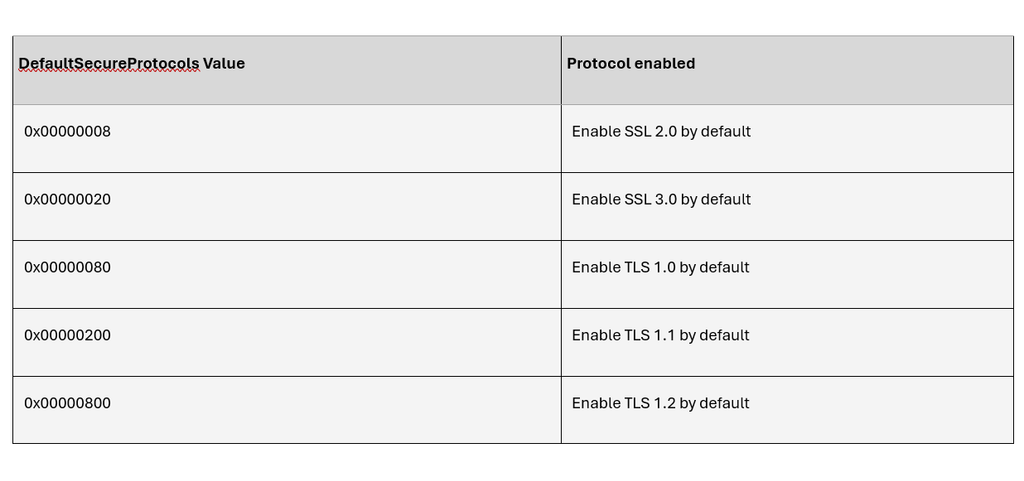
Microsoft records the update, requirements, and the compatible configuration in its official support article.
Related: Easy fix 51044 Download for Windows to Enable TLS 1.1, 1.2
Troubleshooting the Problem
- Find out Your Windows Version
Hold Windows + R, type winver, and hit Enter. Memorise or write down your build and Windows version.
The official update applies to particular legacy Windows releases, including Windows Server versions mentioned in Microsoft’s original documentation and Windows 7 SP1.
- Check if the Official Installer is Available
Review Microsoft’s support article and find the segment about the Easy Fix utility.
In case the download link is not working, stay away from third-party download websites providing a legacy MSI file. An installer from an unknown source may not be authentic or may be modified.
If your system already has the file, right-click it, choose Properties, Go to its Digital Signatures tab. Ensure that the signature is authentic before running the utility.
- Verify the Required Update
Check KB3140245 to ensure that the compatible update is installed or that your PC meets its requirements.
However, for Windows 7 SP1, the recorded configuration also needs supported TLS settings at the Schannel level. The update itself does not automatically turn on all supported protocol settings.
- Review the Application
Try to determine whether the error happens across various programs or just one particular application.
If the error is occurring in only one application, it may use an outdated networking component or customised TLS settings.
Find out any application updates and review its documentation before changing the complicated system security settings.
- Restart and Check Again
After a configuration change or integrating a supported update, restart Windows if needed. Reopen the particular application that is affected and check the connection again.
If you are still facing the problem, note down the exact error notification or message. It can help differentiate a protocol negotiation error from a proxy, certificate, or server-side problem.
Manually Configuring the TLS Settings
Microsoft mentioned a manual approach for developing the DefaultSecureProtocols registry value till the Easy Fix tool is available.
The recorded WinHTTP location is:
HKEY_LOCAL_MACHINE\SOFTWARE\Microsoft\Windows\CurrentVersion\Internet Settings\WinHttp
On systems with 64-bit Windows, the matching Wow6432Node location may also need 32-bit applications. The right value relies on the application’s configuration and protocols you want to turn on.
Avoid creating registry values blindly. Wrong changes can wrongly influence applications or lessen security. First, back up the registry, follow Microsoft’s commands for your particular Windows version, and ignore turning on outdated protocols without a particular compatibility requirement.
Easy Fix Still Worth Using?
The tool may be essential when managing legacy systems that rely on outdated and older Windows networking behaviour. However, it cannot be considered a universal connection repair utility, and its official installer may be difficult to find.
For a compatible Windows installation, prefer application fixes and Windows updates. For legacy computers, check utility support and security implications before making any changes in TLS settings.
Conclusion
When Easy Fix 51044 fails to run, on priority verify the Windows version, the requirements mentioned for KB3140245, and the availability of the original utility. The underlying issue may include TLS configuration; however, it could also develop in remote server or in the application
Use Microsoft’s original documentation as the reference for any registry changes, and step aside from any third-party unverified download. A tailored inspection is safer and more effective than getting frustrated by the same method repeatedly.