
Best Free Offline AI Tools for Windows 11 in 2026
Running artificial intelligence entirely offline on your own Windows system has shifted from a niche experiment to something practical for everyday users. Nowadays, Offline AI tools allow you to analyse documents, chat with different language models, and get support in coding or writing without sending a single prompt to the cloud. Your information stays on your system. There is no risk of sudden policy changes or service outages, no fees for core tools, and no usage limits.
The term “offline AI tools” includes software that downloads and runs open-weight models locally using your GPU, CPU, or both. You can disconnect from the internet connection and continue working once the model is on the hard drive. This article’s goal is to navigate multiple free options that actually work and are compatible with Windows 11 right now.
Reason offline AI Tools Matter more in Currently in 2026
Cloud AI services stay convenient, but they come with cons too. Each conversation is transmitted to remote servers. Free options often impose daily message caps. Essential work includes proprietary code, client documents, and personal notes. Offline AI tools eliminate those worries. Your conversation and data never leave your system. You can use the data during a flight or in places with an unstable network.
Hardware has also climbed up to the benchmark where various general Windows 11 desktops and laptops can now run 7B to 13B models at excellent speed. The tools themselves have many improvements: better performance, easier downloads, and a cleaner interface
At the start, local AI was a bit complicated and slow. Now the gap between offline tools and cloud is shrinking for daily work like brainstorming ideas, fixing code, summarizing articles, and writing emails. Users prefer to use both: offline tools for everyday and private work and cloud tools for in-depth research.
What to Find in Offline AI Tools
A decent offline AI tool should have a user-friendly interface. It requires a simple path to seek and download various models. People often prefer a clean and simple chat window despite a complicated command line. It should be compatible with your system’s graphics card if you have one. Local API support is very useful in case you connect with various apps later on. Additionally, it should cost no money and stay completely free for personal and commercial use.
Here is a rough overview of hardware requirements:
- 8-16 GB RAM – great for smaller 3B-9B models
- 16-32 GB RAM + a GPU with 6-12 GB VRAM – compatible with larger models
- A general modern CPU is sufficient when the GPU is busy
The requirement is not a high-end gaming PC. Multiple users run and operate these tools on generic office systems.
LM Studio – Convenient for Most Users
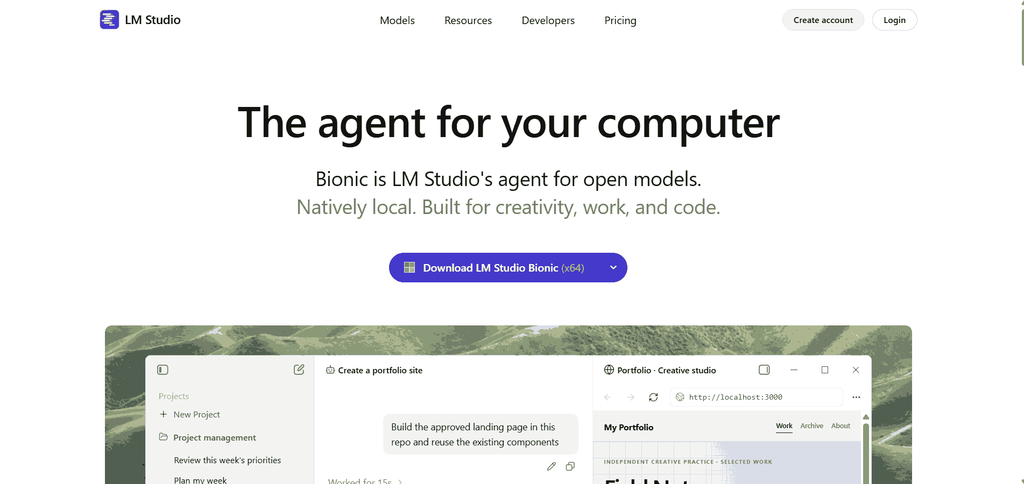
LM Studio is the simplest and easiest option for users who are just beginning their journey. It has a clean app interface with a built-in model browser. You find a model, click download, load the model, and begin chatting. No requirement for complex commands
You can speed up your statistics, chat with files, change settings, and even operate a local server so other programs can use the exact model. It’s completely free for both commercial and personal operations, and it is compatible with Windows 11. A high-speed GPU is not at all required.
LM Studio works best when you need various models quickly. You can download multiple models and switch between them easily. The only downside is that the app itself is not available on open-source platforms. Most users don’t care about it much, because their chats still stay private on their system.
In everyday use, LM Studio operates closest to general cloud chat software. The interface is user-friendly, multiple models can be ready at one time, and the download process is pretty straightforward. Many people prefer small models for quick replies and larger ones for more in-depth and quality content. You can also ask questions and load documents, which is so useful for research files, PDFs. and notes.
If you have just started your offline AI tools journey, begin here. The learning curve is lower than the other options mentioned in the list.
Download link: https://lmstudio.ai/
Related: Fix Copilot Not Working in Windows 11 (Solved!)
Ollama – Best for Adaptability
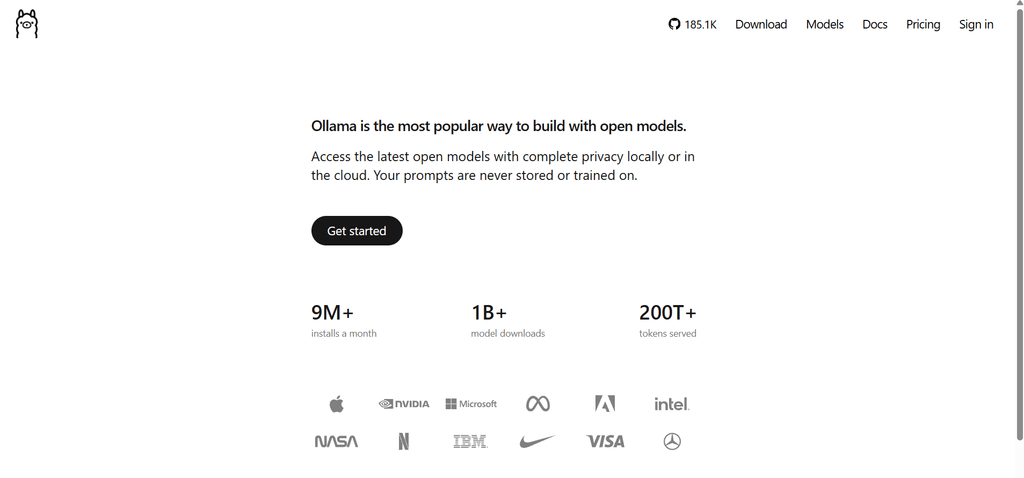
Ollama is a leading offline AI tool that is popular amongst users who prefer updates and a huge number of models. It began as a command-line tool, but gradually it developed into a proper desktop app with a chat interface for Windows. Along with all this, you get simple model management and a solid local API.
Once the app is installed, you can operate models using chat windows or with just generic commands. Multiple other tools stream to Ollama for their service, so it’s very adaptable if you need to expand to other software later.
It is compatible with about 16 GB of RAM. If you have additional graphics memory, it will support bigger models. Ollama is completely free and open-source. Select it if you need maximum model choice and the option to connect AI to different software later. It’s a bit more complex than LM Studio but simple enough for most users.
Ollama ecosystem is one of its biggest advantages. Various other free plugins and tools can connect to it. If in the future you need to integrate local AI inside custom scripts, note-taking apps, or coding editors, Ollama makes this smooth. The desktop app has been enhanced a lot, so starters can also use its functions without implementing any command line.
Various users install Ollama primarily and then add a more user-friendly front-end if they need. This combines both convenience and power.
Download link: https://ollama.com/
Jan – Open Source and Offline Option
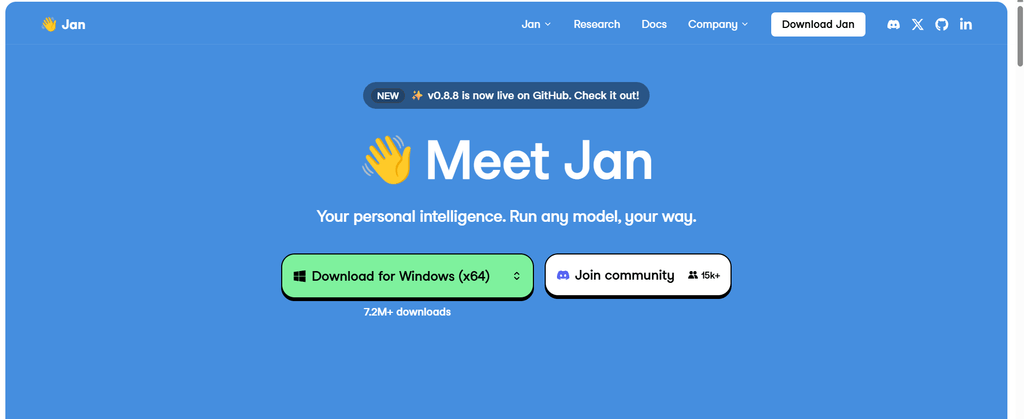
Jan is developed completely considering offline systems. It is open source with a sleek interface. It also records everything on your system. No account is required.
It is compatible with both Windows 11 and 10 and seems modern without using any complex commands. It is compatible with generic open models and includes features like a local API and custom assistants. As its main goal is true offline use, it’s an excellent option if you prefer open-source tools and privacy matters to you.
Development is still ongoing. It may not update to the newest model on the release date, but the choice is good enough for coding help, research, writing, and daily questions.
It is designed in a way that allows the developers to use a local-first design and care about privacy. You can develop various assistants with their own commands, which is essential if you need one version for technical questions and another for writing. The user interface stays simple and doesn’t clutter you with too many options and settings.
If you prefer transparency and open-source availability, then Jan is currently one of your best go-to options.
Download link: https://www.jan.ai/
More Options Worth Mentioning
GPT4all is still working on weaker systems without a dedicated GPU. It has a clean chat interface and features for querying about your own files. The tool’s development has gradually slowed down, and the updated models take time to appear. But on the contrary, it’s still a useful tool for legacy laptops where the primary tools feel clustered and heavy.
Download link: https://www.nomic.ai/gpt4all
AnythingLLM is practical and handy if your focus mainly revolves around chat with your own documents. It can run completely offline and targets mostly private document search. Setup is a bit more complex than other tools, but once it’s running, it becomes a great personal knowledge tool. You can ask questions, load PDF notes, folders, or text files.
Tools integrated with llama.cpp give better efficiency and control, particularly for long-form generation or creative writing. The tool is preferred for long-form generation and creative writing.
Download link: https://anythingllm.com/
Related: 3D Chess Windows 8 / 10 App – Play Against Computer, Human, AI
Tips to Get Started
Choose one tool based on its difficulty level. Most beginners should commence with Jan or LM Studio.
- Download the tool installer from the official website.
- Install and run the application.
- Check model availability.
- Find popular models like Qwen, Llama 3.2, or Mistral in GGUF format.
- Choose the version compatible with your system’s RAM (Q4 or Q5).
- Download it, load it, and begin chatting.
That’s all!!