
Various Windows 11 users have reported File Explorer-related problems and unresponsive taskbar controls after moving to Windows 11 version 26H2 or installing the October 2026 preview update KB5127936. The report included failures like navigation controls no longer working, File and Edit menus becoming unresponsive, and the taskbar File Explorer freezing.
The report emerged on the BleepingComputer forum on November 1, 2026. But Microsoft has not officially addressed this as a common problem caused by KB5127936. Users should consider the update connection as a reported possibility instead of a confirmed Windows 11 issue.
If Explorer and Taskbar Freezing on your system after the latest update, try the mentioned troubleshooting methods before rolling back to a previous update.
KB5127936 File Explorer Problem Explained
KB5127936 is an optional preview update rolled out on October 28, 2026, for Windows 11 versions 26H2 and 25H2. It consists of enhancements in the taskbar, File Explorer, and various other Windows components.
An online user reported in a forum that their File and Edit and taskbar froze after shifting to version 26H2 or installing the preview update. The user also reported issues with Back buttons in Windows Settings.
Based on the discussion, returning to an earlier system image or deleting the update temporarily restored normal functioning. Though, after further troubleshooting with Microsoft support, the user mentioned that an in-place repair brought back the stability.
This is an individual report, and other driver, hardware, or Windows installation bugs can show similar symptoms.
Restarting the File Explorer from Task Manager
Restarting File Explorer is one of the most convenient method to bring back an unresponsive Windows desktop. The Explorer process handle the File Explorer, Start menu, taskbar and the whole desktop.
Follow these steps:
- Hold Ctrl + Shift +Esc to go to Task Manager.
- Click on Processes Tab.
- Search for Windows Explorer in the process list.
- Right-click it and select Restart.
- Wait until the taskbar and desktop reload.
In case, Windows Explorer is not present in the process list:
- Go to Task Manager.
- Choose Run new task.
- Enter explorer.exe/
- Hit Enter.
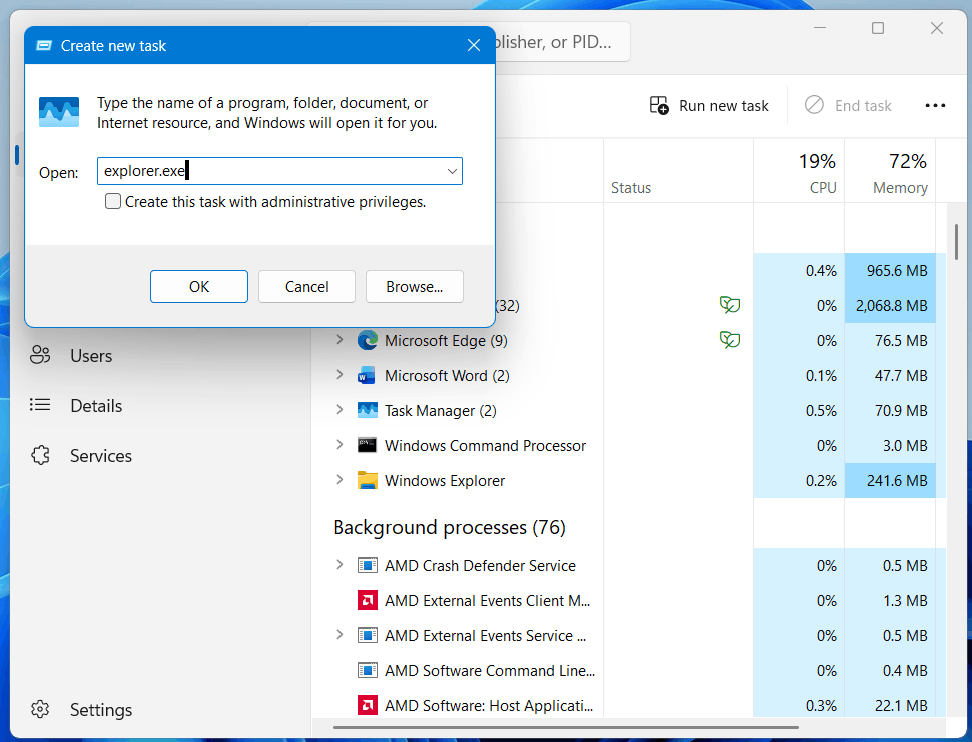
Verify whether File Explorer and the taskbar respond normally after restarting the process.
Log out and Log in Again
Restarting Explorer does not restore all the affected Windows interface processes every time. Signing out and signing back in can restart the desktop session.
- Hold Ctrl + Alt + Delete.
- Select Sign out.
- Wait until the Windows sign-in screen appears.
- Sign in again and check File Explorer.
Save your ongoing work before signing out, as this closes all your current applications.
If your taskbar is still frozen, restart the computer using the power options present on the security screen.
Verify Whether the Update KB5127936 is Installed
Before deleting any update or rolling back to a previous version, check if KB5127936 is really present on your system.
You can also hold Windows + R, type winver, and hit Enter to display your Windows version.
KB5127936 is developed for Windows 11 versions 26H2 and 25H2. In case, the update is not installed, the problem may have another cause.
Uninstall the Update if the Issue Began after Installing KB5127936
In case File Explorer and the taskbar are not responding immediately after installing KB5127936, temporarily deleting the optional preview update can help identify whether it is related or not.
Before putting in the work, remember that uninstalling an update can eliminate multiple other improvements included in the package. Create a backup to store your important files first.
- Go to Settings using Windows + I.
- Open Windows Update.
- Choose Update history.
- Navigate down and select Uninstall updates.
- Search for KB5127936 int the list.
- Choose Uninstall if the option is present.
- Restart Windows.
After restarting, try to use taskbar and the file explorer for certain time to verify whether the unresponsiveness returns.
If the update cannot be deleted through Settings, do not force its removal using wrong commands. Some updates have servicing dependencies or restrictions.
Run System File Check and DISM
Corrupted Windows local files can sometimes cause Explorer to crash, unresponsive interface components, and desktop problems. System File Checker and DISM can verify and rectify the protected system files and Windows image.
First, Open Command Prompt as administrator.
Enter the following command:
DISM.exe /Online /Cleanup-Image /RestoreHealthWait until the process is completed. It may take several minutes.
Next, execute:
sfc /scannow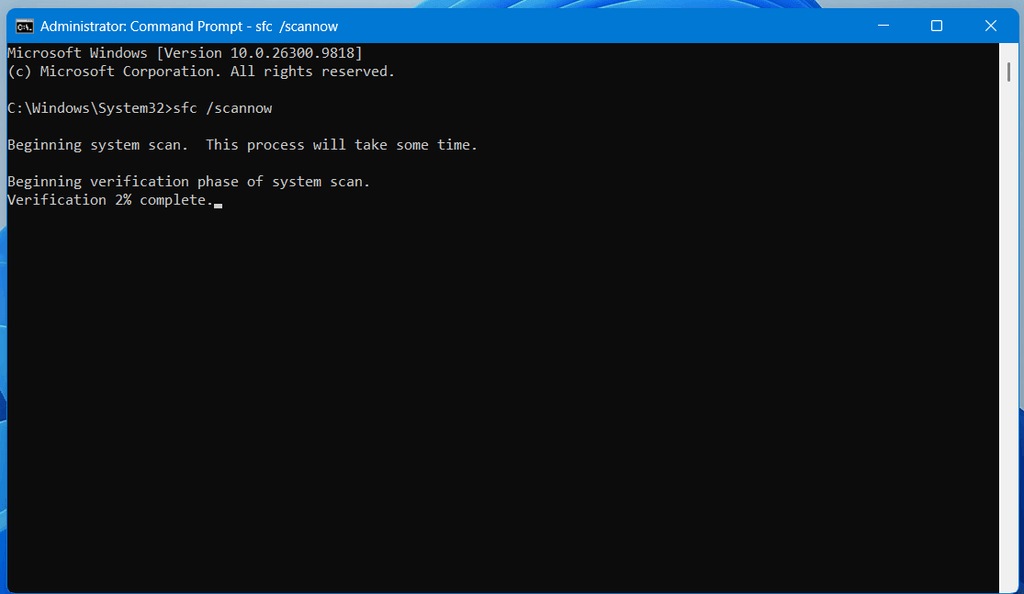
Allow the process to complete. If Windows reports that it repaired files, restart the computer and verify whether File Explorer works correctly.
These commands address system file corruption; they do not particularly reverse or remove KB5127936.
Execute a Clean Boot to Check Third-Party Issues
If File Explorer is still unresponsive, a third-party background startup application or service could be the cause of the problem.
A clean boot starts Windows with a reduced set of non-Microsoft services and startup applications.
- Hold Windows + R.
- Enter msconfig and Hit Enter.
- Go to the Services tab.
- Choose Hide all Microsoft services.
- Click Disable all.
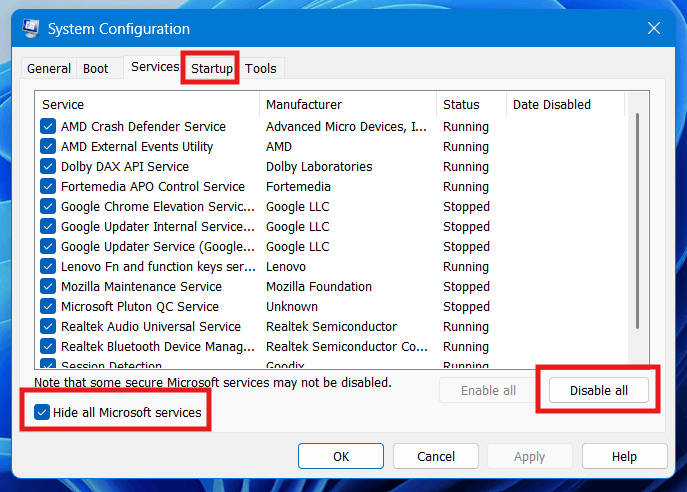
- Go to the Startup tab and click Open Task Manager.
- Turn off enabled startup applications.
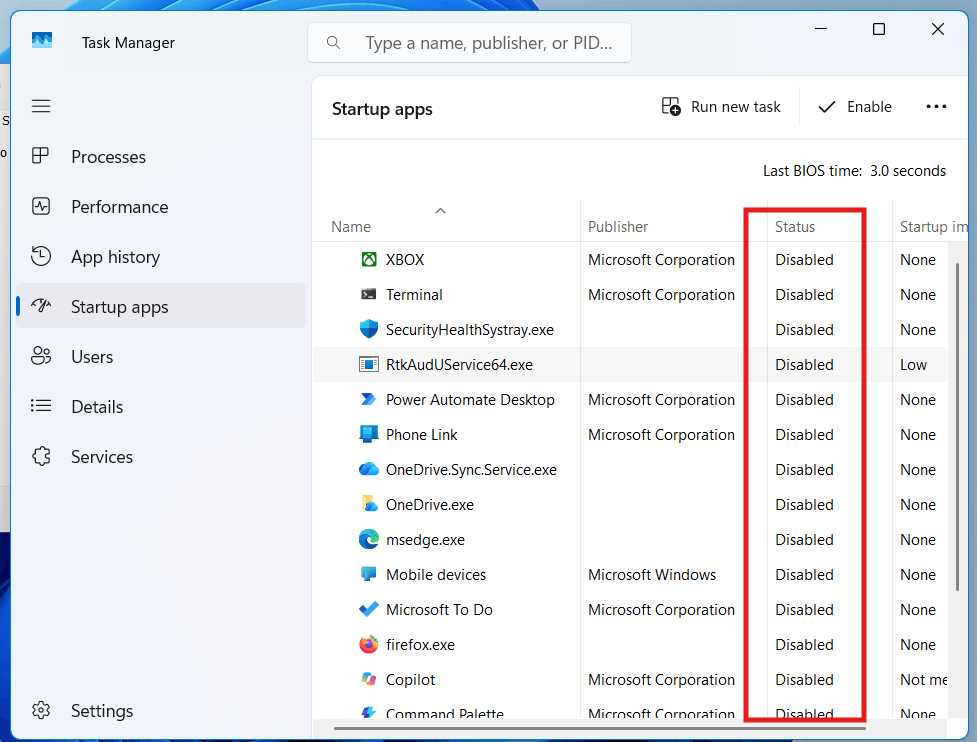
- Restart your system.
Now check whether the taskbar and File Explorer work like before.
If the problem resolves, re-enable startup applications and services slowly to identify the conflicting software. Once testing is complete, go back to normal startup settings
Final Words
Taskbar and Explorer and Taskbar Freezing after KB5127936 is the latest issue reported by a Windows 11 user, but Microsoft has not confirmed a global update-related bug. Restarting Explorer, checking installed updates, repairing system files, and analysing background apps are primary first steps. Keep an eye on Microsoft’s official release health information for any subsequent fix or acknowledgement.
Source: Bleeping computer.