
If your DAC, speakers, or a USB headset stops working just after a new Windows 11 update, and Device Manager displays “This device cannot start (Code 10)”, your hardware is completely fine. Microsoft has confirmed this as a known issue, and the October 2026 released update didn’t completely fix it.
What You Are Seeing
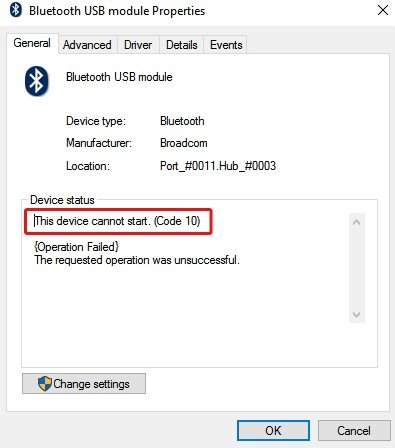
- Code 10 error on a USB audio device in Device Manager
- Volume controls froze at zero, or no volume at all
- Volume settings stop responding
- Audio working in stereo but fails in 3D or 8-channel modes’
- Microphone suddenly stops working, breaking your ongoing call.
Reason that causes the error
The issue started with the September 8, 2026 security update (KB5124008) on Windows 11 25H2 and 24H2, and Microsoft has since confirmed the error for multiple versions too. It negatively impacts some USB Audio Class 1.0 devices, a general plug-and-play standard that functions from default in-built audio drivers in your system. This is the reason there’s nothing to rectify on your side: the issue remains on the operating system’s side.
Devices that need a particular vendor driver, like USB Audio Class 2.0 gear, are not affected by the issue. Microsoft rolled out an immediate update (KB5129195) which repaired the multi-channel playback issue. The aggregate failure with Code 10 remained on the known-issues catalogue, and October’s KB5127648 is still listing it. When I confirmed, Microsoft hadn’t announced any specific resolution date.
Method-1: Shifting to Two-Channel Stereo
This solution is suggested by Microsoft itself, and it works great when the device breaks down in 3D or multichannel modes.
- Hold Win + R, enter mmsys.cpl, and hit Enter.
- Choose your USB device and select Properties on the playback tab.
- Go to the Advanced tab and select a 2-channel format from the drop-down menu.
- Click Apply and restart your system.
Disable any spatial or surround sound features too. The main resolution is to give up multichannel output until a permanent fix is released by Microsoft.
Related: Code 10 error USB headphone/speaker after Windows 11 update – Fixed!
Method-2: Eliminate the Basic reasons causing the problem
This solution will not resolve the bug, but it saves you from spending a lot of time on the wrong issue.
- Unplug your system, restart the computer, and then reconnect the device to a different port.
- Plug it directly into the system instead of a dock or hub.
- Check the device on a different computer; if that works, your hardware is completely fine.
Don’t replace your device just because of a Code 10 error, because your hardware is not affected by it.
Related: Fix Audio not working when Connecting Webcam in Windows 11
Method-3: Use a Different Audio Output
If in case you stereo mode is not being able to restore the sound, shift to the default built-in speakers, Bluetooth headphones or HDMI audio. Wireless USB audio peripherals have been considered the least affected, though nothing assures that. For microphones, a Bluetooth headset or system’s built-in mic can save you until a permanent fix is rolled out.
What to Avoid
- Downloading third-party “driver fixer” applications. This specific problem is not caused by a missing driver.
- Never replace your device on the issue of a Code 10 error alone.
- Don’t turn off Windows Update permanently. You will miss the latest update (fix) when it is available on your PC.
When Will It Be Resolved?
Microsoft mentions the issue as mitigated, not resolved, and hasn’t assured a specific date. Check Windows Update regularly, and go to Microsoft’s official Windows release health page for status updates.
Conclusion
A USB device displaying Code 10 error after the latest Windows 11 update is probably in the limelight of Microsoft. It is definitely not a hardware failure. Shift to two-channel stereo primarily, check different outputs and ports, and try not to uninstall security updates until you have no other options left.