
The cloud rebuild error 0xc1900224 prompts when Windows 11 cannot get a needed device driver from Windows Update while recovery is happening. Microsoft suggests connecting with your system manufacturer or using a different recovery media. This article explains what to verify, when retrying makes sense, and how to reinstall Windows without thinking all the recovery options preserve your files.
Before applying any changes, back up your essential information. Cloud Reformat rebuilds the system disk and eliminates settings, applications, accounts, and local files. It does not provide a “Keep my files” feature. Files already kept in OneDrive stay online. However, unsynced local changes require a particular backup.
Reason for Cloud Rebuild Error 0xc1900224
Cloud Rebuilds functions in the WinRE, or Windows Recovery Environment. It downloads the device’s drivers and Windows from Windows Update despite depending on the already installed operating system. If a required driver is not available there, recovery fails with 0xc1900224. Microsoft particularly suggests reviewing your networking and storage drivers.
A driver mentioned on your vendor’s official website is not generally launched through Windows Update. Installing the particular package manually ensures that Cloud Rebuild can download it. Microsoft’s validated retry connection is confirmation from the manufacturer that the needed drivers are available to download through Windows Update.
Do not confuse the error with 0x800704C6, which means the system has no network connection, or 0xc1900200, which specifies unmet Windows 11 hardware requirements. The driver error alone does not find a broken network adapter, unsupported processor and defective SSD.
Tell the Manufacturer to Review Driver Publication
This is Microsoft’s primary suggestion because the lost package may need action despite any changes in your system.
- Click on the Search button, and type msinfo32.
- Right -click on System Information, and choose Run as administrator.
- Write down System Model and System Manufacturer.
- Go to the manufacturer’s official support webpage and find your exact service tag or model.
- Report the error and raise a query: “Are all required networking and storage drivers for this model published on Windows Update for Cloud Rebuild?”
If support offers a downloadable driver, ask whether it can also be downloaded through Windows Update. Do not consider a successful Device Manager installation or OEM download as ensuring that the recovery requirement has been achieved.
Retry Only After the Missing Driver is Available
Microsoft tells you to retry after the manufacturer assures publication. Repeated attempts before the confirmation may experience some dependency.
- Back up your files and connect the system to power
- Go to Settings > System > Recovery.
- Choose Rebuild PC next to Rebuild this PC.
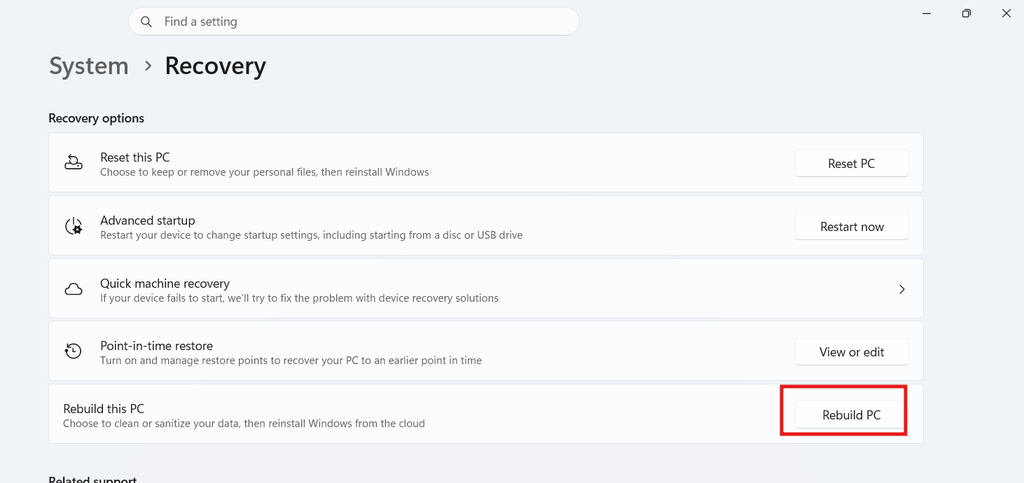
- Connect to Wi-Fi or Ethernet and follow the recovery commands.
- Verify the Windows edition, data-loss warning, and Windows edition before continuing further.
Microsoft’s Cloud Rebuild started a slow rollout through KB5127936 on October 28, 2026, for Windows 11 26H2 and 25H2. Installing the specific update allows the feature release; it is not yet a documented fix for a manufacturer driver missing from Windows Update.
Use Manufacturer Recovery Media
If the needed driver is still unavailable, Microsoft’s suggestion is manufacturer recovery media. A model-specific recovery image can supply the factory driver without relying on the Cloud Rebuilds driver download procedure.
- Search for your manufacturer’s official recovery guidance.
- Type the affected system’s service tag, serial number, and specific model.
- Create the compatible recovery USB using a different working computer,
- Follow the model-specific restore and boot instructions.
For instance, Dell’s recovery utilities search supported computers by Service Tag and need a USB drive with at least 16 GB of storage. Dell’s customized images consist of built-in drivers; Windows 11 recovery follows its compatible SupportAssist workflow. Review eligibility despite using another model’s image.
Recovery media creation formats the chosen USB drive. Restoring the system can also eliminate existing data, so back up before applying any changes.
Reinstall Windows Using Microsoft Installation Media
Microsoft installation media is another mentioned alternative. In case, your Windows still boots up, consider an in-place reinstall before selecting a disastrous clean installation.
- Go to Microsoft’s Download Windows 11 webpage.
- Under Create Windows 11 Installation Media, download and run the Media Creation Tool.
- Choose the right edition and language.
- Create a bootable USB using an empty drive with at least 8 GB of storage. Its contents will be deleted.
If Cloud Rebuild is still failing
For more professional and advanced diagnosis, go to an administrator Command Prompt and run:
reagentc /info
“Windows RE stats: Enabled” means that WinRE is allowed; it does not assure that all the recovery prerequisites work. Microsoft does not document re-enabling and disabling WinRE as a resolution for 0xc1900224.
Before closing WinRE, Users can copy these mentioned log folders to external storage:
X:\$Windows.~BT\Sources\Panther
X:\Windows\Logs\MoSetup
X:\Windows\Logs\Rebuild
Submit all of them through Feedback Hub > Report a problem > Cloud rebuild, using a different system if necessary.
Final Words
Cloud Rebuild error 0xc1900224 means a required driver isn’t available through Windows Update. Confirm with your manufacturer to verify the driver’s availability before attempting any retry. If the driver is still unavailable, use a different compatible recovery method and back up your files first.