
The 0xC000000D error breaks the connection and prevents users from connecting to a Windows 11 system via Remote Desktop, and Windows displays the prompt “The token that was passed to the function is invalid.” The great news is that Microsoft has already resolved this issue. Install the October 28, 2026 update (KB5127936) or any later updates on the system you’re connecting to, and your connection will work again.
0xC000000D Error Explained
The error shows up when an individual without any admin rights logs in to a Windows 11 system remotely. The sign-in simply fails. Users with an administrator account can often access the same system without any issue, and that difference is the fastest way to understand this specific problem.
All other Remote Desktop failures appear different. A “can’t connect” message, a blocked port, or a network timeout prompt leads elsewhere, so don’t think every RDP issue is this one.
Reason for the Remote Desktop 0xC000000D Error
These three settings have to line up, and all of them live on the host, the exact computer you are reaching into.
| Condition | Detail |
| Windows 11 version | 24H2, 25H2, 26H1 or 26H2 |
| Update installed | KB5124010 (September 22, 2026 preview) or newer |
| Security setting | Administrator protection switched on |
Some background suggestions here. Administrator protection provides a limited, separate admin token whenever a task requires elevation. After the latest September preview update, remote sign-ins from standard accounts clashed with that token handling. Company-managed systems are hit most, primarily because IT teams prefer to turn on the feature across all their devices.
Resolve the Issue by Installing KB5127396 or a Later Update
Microsoft rolled out the fix on October 28, 2026, and later updates carry it forward. Follow the steps on your host system:
- Open Settings > Windows Update and choose Check for updates.
- Nothing mentioned? Open Advanced options > Optional updates
- Install it and restart
- Log in remotely with a standard account to confirm.
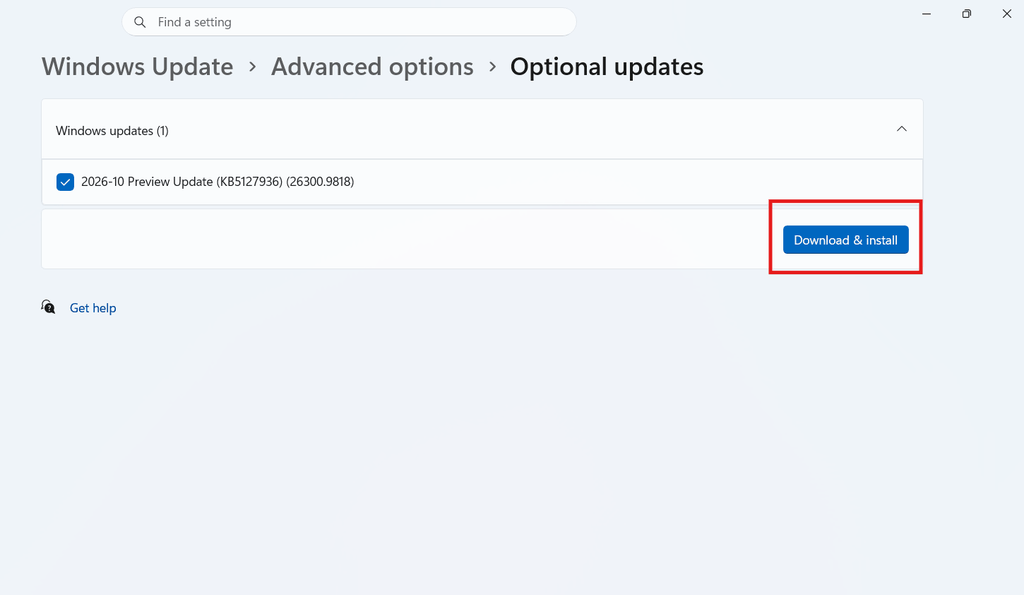
Devices managed by Intune, WSUS, or a similar tool conceal the update from your system. In that case, raise a query with whoever handles updates at your company to authorise it.
Are you interested in what other features are in that release? Read our article: KB5127936: New Right-Click Menu in Windows 11
Temporary Solution for IT Admins
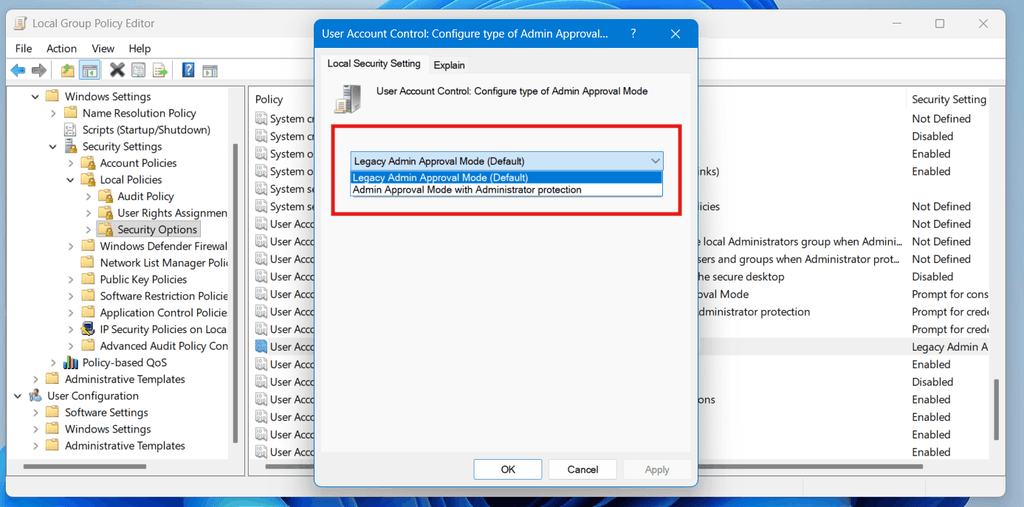
Sometimes the system can’t update the host because of testing rules, or a change freeze. Microsoft’s stopgap is to return the machine to the legacy authorization mode, which disables the feature.
- Hold Win + R, Type gpedit.msc, and press Enter. Managed fleets can push the exact policy through Intune.
- Navigate to Computer Configuration >> Windows Settings > Security Settings > Local Policies > Security Options.
- Double-click User Account Control: Configure type of Admin Approval Mode.
- Choose the legacy option.
- Apply, then restart if required, and test a standard account.
Try not to do unnecessary registry tweaks
Find this error, and you will search forum threads mentioning registry edits. One trending edit changes how remote UAC filtering functions, and that can leave local admin accounts more convenient to abuse. The policy change or the update above is a much more secure path. In case you still prefer to experiment, do it on a test machine first.
Are you affected?
Most probably not, if you are a home user. Windows 11 Home can begin a Remote Desktop session to a different computer but has no ability to receive one, so conditions on the host side never apply to it. The error is an Education, Enterprise, and Pro matter.
Users locked out of a work PC should oppose changing settings automatically. A short message to help desk is more than enough: include the code, the same spelling of the error, and when it started. The correction has to occur on the host side.
Quick Checklist
| Check | Where to look |
| Error code and wording match? | The Remote Desktop error window |
| Admins connect, but others don’t? | Try both account types |
| Host has KB5124010 or newer? | Settings > Windows Update > Update history |
| Feature turned on? | UAC policy under Security Options |
| Fix already installed? | Look for KB5127936 or later in Update history |