
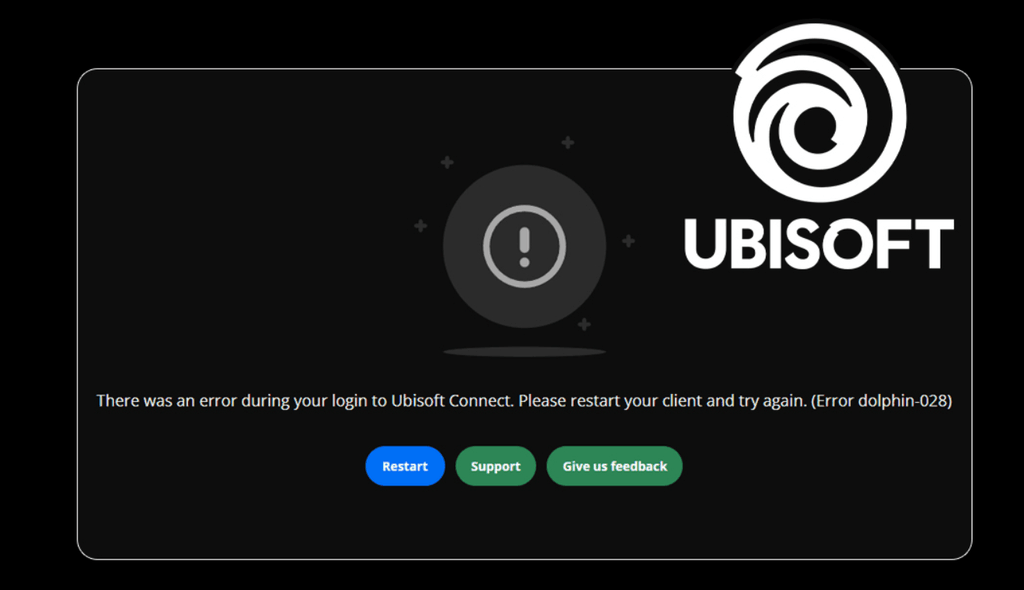
A user launches a game or opens Ubisoft Connect and, even though the library interface loads, receives a login failure with the Dolphin-028 code. The message generally shows that an error occurred during login and tells you to restart the client. The error may block every Ubisoft game on the system, and restarting usually does nothing. It can even block the user’s title from launching through Steam.
The article mentions what’s the meaning of this error and the solutions that mostly resolves it on Windows 11, arranged in an order from the fastest to most elaborate.
You can also see: Fix Rainbow Six Siege Error Code 3-0x00030089 in Windows
What the Error Dolphin-028 Really Means?
Ubisoft Connect Error Dolphin-028 is a login and connection error. Ubisoft Connect tried to communicate with online services to sign you in, but it timed out and failed. The reason is generally one of these:
- Ubisoft’s server problem
- Misconfigured or Unstable network connection
- Launcher Cache corruption
- Antivirus or firewall blocking the launcher.
- Incorrect system time or date that disrupts secure connections
- An old version of the Ubisoft Connect client
What I mentioned above matters the most. Users have continuously reported the specific error during Ubisoft outages. Check whether a server issue is causing the problem.
Solution-1: Checking Ubisoft Servers
Go to Ubisoft’s official server status page, or server checker websites like Downdetector, to check whether Ubisoft Connect is having issues. You may also find Steam community forums or social media for the latest reports.
If everyone is reporting a similar error, wait for some time. These outages are generally solved under few hours, and the error resolves without doing any change yourself. Continue if everything looks normal.
Solution-2: Restart Ubisoft Connect Client
Just closing the windows is not the solution, because background processes can hold an outdated or broken session running.
- Hold Ctrl + Shift + Esc to open Task Manager.
- Search for each Ubisoft Connect Process and click End task for every process.
- Open the launcher again and try to log in.
If it fails, restart the computer. It’s fast and clears stuck network sessions.
Solution-3: Running Ubisoft Connect as Administrator
Many users have resolved the issue just by providing the launcher with higher permissions.
- Right-click on the Ubisoft Connect shortcut.
- Click Properties, and go to the Compatibility tab.
- Tick Run this program as an administrator.
- Click Apply -OK and relaunch again.
This means Windows will not restrict the launcher from writing to its own files and folders.
Solution-4: Updating Ubisoft Connect client
An outdated client version can fail to connect to current servers. Download the latest installer from the official website of Ubisoft, then install and overwrite your current copy. Since you are updating the launcher despite uninstalling it, your saves and games will not be removed. Always download from the Official website and not from any third-party websites.
Solution-5: Clear the cache of Ubisoft Connect
A corrupted or defective cache is a common reason, and deleting it is harmless. It rebuilds itself on the next launch.
- Close the Ubisoft Connect client completely (Ref. Fix 2)
- Go to File Explorer and Open C:\Program Files (x86)\Ubisoft\Ubisoft Game Launcher\.
- Delete the cache folder.
- Open the launcher again.
Check whether you remember your Ubisoft login credentials first, because you might be asked to log in again.
Solution-6: Renew Flush DNS and Your IP Address
Many people have solved the problem by resetting the network configuration.
- Right-click the Start button and select Terminal (Admin).
- Paste the following commands one at a time, pressing Enter after each.
ipconfig /release
ipconfig /renew
ipconfig /flushdns
netsh winsock reset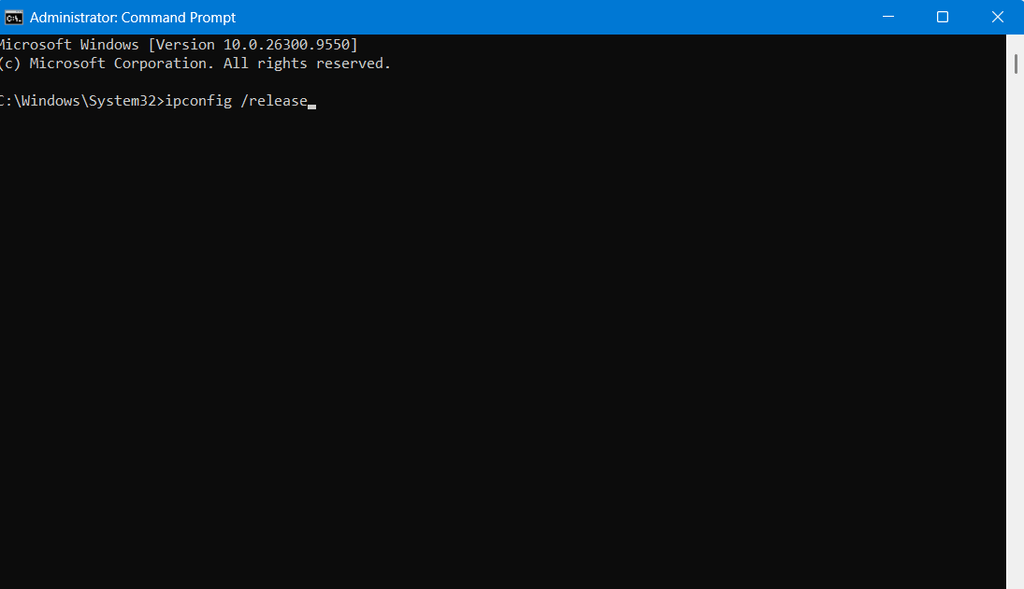
3. Restart Ubisoft Connect and try again.
How to Flush DNS Cache in Windows 10 Using CMD
If it fails again. Try connecting to a different public DNS server like Cloudflare (1.1.1.1) or Google (8.8.4.4 and 8.8.8.8) in network adapter settings.
Solution-7: Change DNS Server addresses
- Click on Start.
2. Type ncpa.cpl.
3. Select the same result under Best match.
4. On the Network connections window, look for the running adapteer.
5. Right click on the adapter and select Properties.
6. Once on the Properties window, select the option Internet transfer 7. protocol version 4 (TCP/IPV4).
8. Click on Properties.
9. Select the option Use the following DNS server addresses.
10. For Preferred DNS Server address, type 8.8.8.8
11. For Alternate DNS Server addresses, type 8.8.4.4
12. Click on OK.
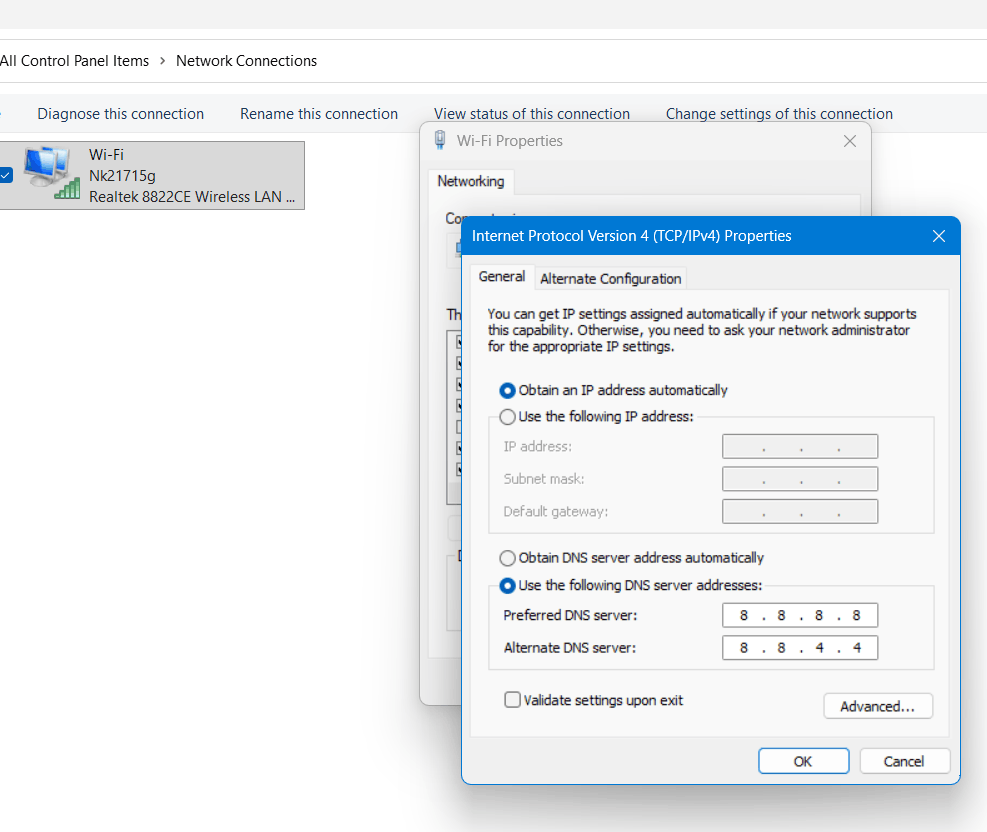
13. Close the propertties window and restart your computer.
How to Change DNS Server Address in Windows 11
Solution-8: Reinstall the Client
If the clock is turned off, secured connections may fail, and that can prompt Ubisoft Connect Error Dolphin-028.
- Go to “Settings. Time & Language > Date & Time.
- Enable Set time zone automatically and Set time automatically.
- Select Sync now in Additional settings.
Solution-9: Allow the Client Through Your Antivirus and Firewall
Security applications can restrict the launcher without notifying you. Enable the launcher through Windows Defender Firewall (Settings> Privacy & Security > Firewall & network protection> Allow an app through firewall) and provide additional exclusions for the Ubisoft Game Launcher folder in the antivirus. Disable any VPN you are using to check whether it is disrupting the process.
Solution-10: Reset the Network Settings
If the above solutions still don’t work, reset the Windows network stack. Run the following command in an administrator Terminal:
netsh winsock reset
netsh int ip reset
Then restart your computer. This may disconnect previously saved configurations, so write down any modified settings first. Windows 11 has an inbuilt setting to reset the network, remove saved VPN setups and Wi-Fi networks (Settings>Network & internet > Advanced network settings> Network reset).
Solution-11: Reinstall the Client
As a last resort, try to uninstall the launcher from Settings > Apps> Installed apps. Restart your system and install a new copy from the official Ubisoft Website. Your data stays on the online Ubisoft servers, so you won’t fall behind in progress. In case, your games are kept in a particular folder, you can normally start the fresh install at them despite of downloading everything once again.
Still shows the error?
If you have tried all of the mentioned solutions, contact the Ubisoft official support team with a list of fixes you have tried, your Windows version, and your error code. The support team can access the settings of the account that you can’t, so this resolution will save you a lot of time.