
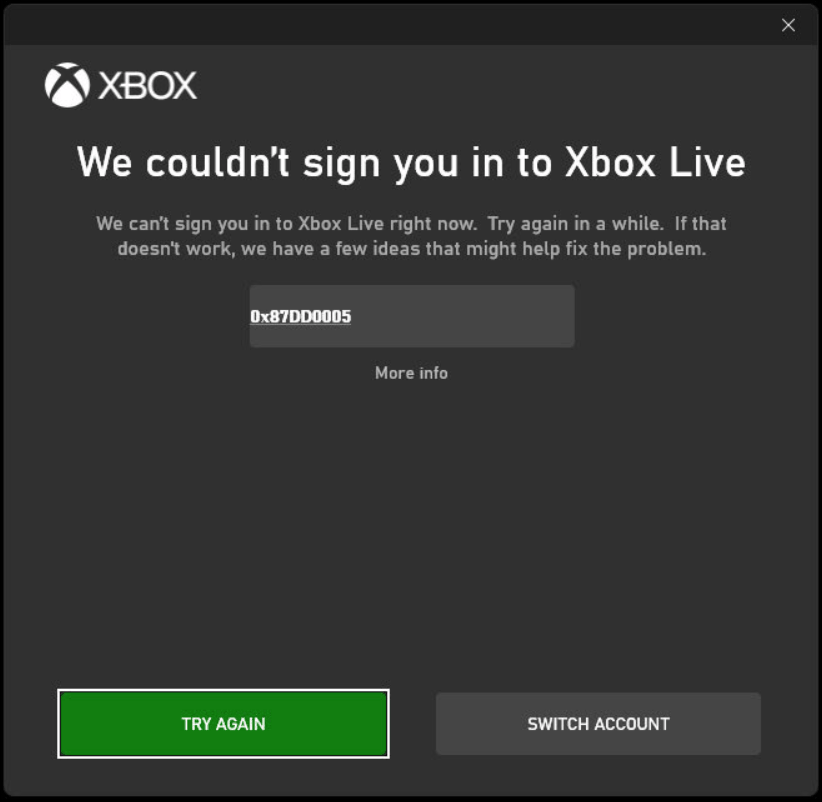
Some things are more irritating than being eliminated from a game during a match. Various Roblox players are currently seeing the error code 1025 with the notification “Disconnected from the experience.” When the message appears, the game freezes or closes, and you are kicked back out to the home screen. The notification is brief, but it means one thing: your device lost its connection to the Roblox server.
The reason is not always on your part. Your internet may have dropped, the experience may have crashed, or the Roblox server may be under maintenance. On your system, faulty cache file, firewall blocking Roblox or a wrong DNS setting may also trigger the connection interruption. As the reason varies everywhere, the permanent fix is a process of elimination.
The great news is that you don’t require any special skill to fix it. Begin with method 1 and move down the list , trying join an experience after each one. In most cases, some of the first few solutions work.
Method-1: Detect Roblox server status
Before applying any changes in your system, find out whether Roblox itself is having issues.
- Go to your browser and open the Roblox Status page, and find it.
- Check whether any maintenance or outage is listed.
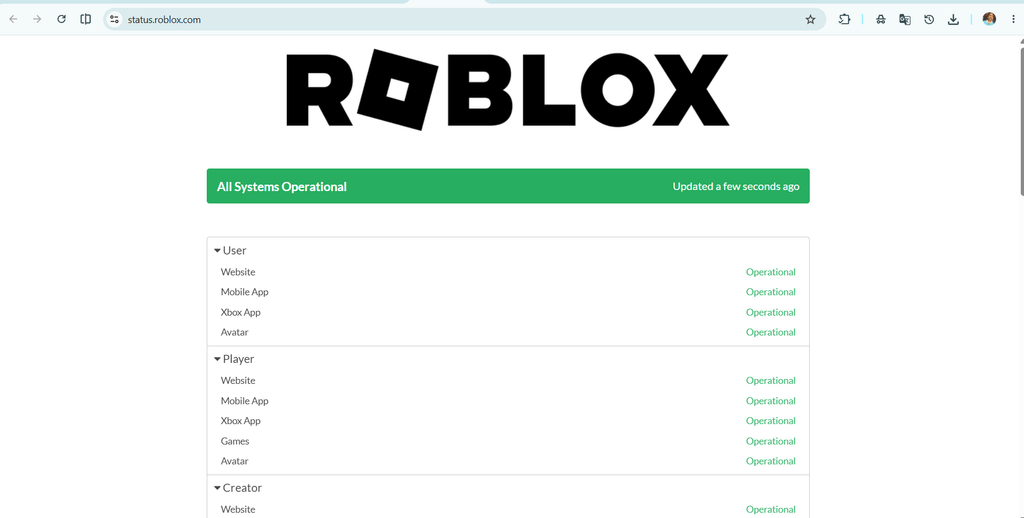
- If the problem persists. Wait until Roblox fixes itself, then try again.
- If everything seems normal, try to join a different experience. If other experiences are working, the issue is with that particular experience, so wait for some time and rejoin later.
Method-2: Restart the router and turn off VPN
A connection interruption is one of the most common causes of disconnects.
- Switch off your router and unplug it for about 30 seconds.
- Plug it in and wait until the internet returns.
- In case you use a proxy or VPN, turn it off.
- Instead of a wifi, use a wired Ethernet cable if possible.
- Close the software that consumes a lot of bandwidth, such as streaming or downloading.
- Restart Roblox and join the experience again.
Method-3: Clear the Roblox cache
Corrupted and faulty cache files can interrupt the connection to Roblox servers and the Roblox app. Deleting them is safe, and Roblox recreates them automatically.
- Close Roblox windows fully. Hit Ctrl + Shift +Esc to go to Task Manager. End any task related to Roblox.
- Press Windows + R to open RUN.
- Enter %localappdata% and hit Enter.
- Find the folder named Roblox.
- Right-click on it and choose Delete.
- Restart your system and open Roblox again.
Method-4: Reset network settings and Flush DNS
A damaged or outdated network can also be the reason for the disconnects. These instructions will refresh it.
- Open Search and enter CMD.
- Right-click on Command Prompt and run it as administrator.
- Click Yes if your User Account Control dialog appears.
- Enter these commands one at a time, hitting Enter after each:
ipconfig /release
ipconfig /flushdns
ipconfig /renew
netsh winsock reset- Close the Command Prompt window.
- Restart your system.
- Launch Roblox and try to join again.
Method-5: Allow Roblox through antivirus and Firewall
- Open Search and enter Windows Security.
- Choose Firewall & network protection.
- Click on Allow an app through firewall.
- Click Change settings.
- Search for Roblox in the list and check both Private and Public boxes.
- If Roblox is not listed, click Allow another app and add it.
- Click OK
If you have third-party antivirus installed on your PC, add Roblox to its exception list, or disable it for a moment to test.
Method-6: Reinstall Roblox
If all these solutions didn’t fix your problem till now, try to install a fresh Roblox replacing your damaged and old game files.
- Go to Start and Open Settings.
- Click on Apps and select Installed apps.
- Search for Roblox, select the three dots, and Uninstall.
- Remove the leftover Roblox files by following the steps in Method 3
- Restart your System.
- Download Roblox from the official portal and install it.
- Sign in and join an experience.
You should be able to solve Roblox error code 1025 by now. If all of the above resolutions still fail to fix your problem, try contacting Roblox Support, mentioning the specific error code, the steps you tried, along with your device specifications.