
If a background tool, Office ad-in or older software all of a sudden can’t connect to a mail server or a website, a legacy TLS setting (outdated) is generally the reason. Almost every service has abandoned TLS 1.1 or 1.0; however, some Windows essentials still try these protocols by default.
Microsoft often answered Easy Fix 51044 for years, which was a tiny MSI installer that sets some registry values so that WinHTTP would provide TLS 1.1 and 1.2. Moreover, Microsoft quit its Fix it Solution center.
What did the Original Solution really do?
It never installed any software. It created a registry value named “DefaultSecureProtocols”, which communicated to WinHTTP about the particular TLS version to provide when connecting to a server.
Who Needs this on Windows 10 or 11?
The fix was compatible with Windows Server 2008 R2 and Windows 7, where WinHTTP did not provide Tls 1.2 inbuilt. The latest version of Windows is compatible with TLS 1.2. You still need the solution because:
- A particular application uses WinHTTP and fails to negotiate TLS 1.2
- TLS 1.2 was turned off in Schannel by a hardening tool or by hand.
- You are on the outdated version of the server build or Windows.
General Symptoms
- Event Viewer highlights. “A fatal error occurred while creating a TLS client credential. The internal error state is 10013.”
- Mail or sync features fail to integrate with servers needing TLS 1.2.
- Browsers highlight “This site can’t provide a secure connection”
- Updated feature fails with handshake defects.
Before Beginning
- Create a System Restore point (look for “create a restore point” in Start).
- Before editing anything in the registry entries, right-click on every key you want to change and export it to create a backup.
Method-1: Use a .reg File
- Create a new Notepad file and paste.
Windows Registry Editor Version 5.00
[HKEY_LOCAL_MACHINE\SOFTWARE\Microsoft\Windows\CurrentVersion\Internet Settings\WinHttp]
“DefaultSecureProtocols”=dword:00000A00
[HKEY_LOCAL_MACHINE\SOFTWARE\Wow6432Node\Microsoft\Windows\CurrentVersion\Internet Settings\WinHttp]
“DefaultSecureProtocols”=dword:00000A00
[HKEY_LOCAL_MACHINE\SYSTEM\CurrentControlSet\Control\SecurityProviders\SCHANNEL\Protocols\TLS 1.2\Client]
“DisabledByDefault”=dword:00000000
“Enabled”=dword:00000001
[HKEY_LOCAL_MACHINE\SYSTEM\CurrentControlSet\Control\SecurityProviders\SCHANNEL\Protocols\TLS 1.2\Server]
“DisabledByDefault”=dword:00000000
“Enabled”=dword:00000001
- Go to File> Save As, select the type All Files, and name it Enable-TLS-1.2.reg.
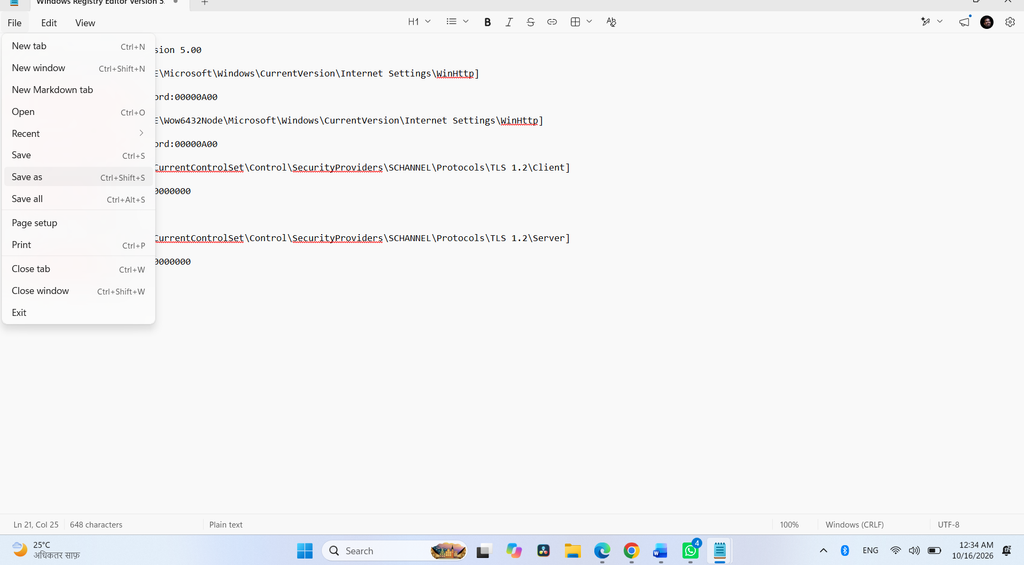
- Double-click on the file and allow the prompts.
- Restart the computer.
People often forget that the Wow6432Node entry allows 32-bit applications on 64-bit Windows.
Method-2: Manual Modification in the Registry
- Hold Win+R, enter regedit, and press Enter.
- Navigate to each path from the file above.
- If, a value or key is missing, right- click and choose New> DWORD (32-bit) or New>Key value, using the specific name shown.
- Fix each value and restart
Meaning of the Values
| Protocol (TLS Version) | Value |
| 1.0 | 0x080 |
| 1.1 | 0x200 |
| 1.2 | 0x800 |
- 0x00000A80 = TLS 1.2+1.1+1.0 (In case a legacy app needs 1.0)
- 0x00000800 = Only TLS 1.2
- 0x00000A00 = TLS 1.2 + 1.1 (an excellent protected default)
A Note on TLS 1.3
TLS 1.3 is built into Windows Server 2022 and Windows 11, so it requires no manual registry work. Windows 10 is not compatible with it in schannel, so including TLS 1.3 keys does nothing.
Confirm the Change
Open PowerShell after restarting the system and run:
Get-ItemProperty -Path “HKLM:\SOFTWARE\Microsoft\Windows\CurrentVersion\Internet Settings\WinHttp” | Select-Object DefaultSecureProtocols
With the above value, it may return 2560, that is 0xA00 in decimal. Continuously repeat for the Wow6432Node path to analyse the 32-bit setting.
Alternative: Turn off Old Protocols
Keep TLS 1.1 and 1.0 turned off in case your system does not need it.
[HKEY_LOCAL_MACHINE\SYSTEM\CurrentControlSet\Control\SecurityProviders\SCHANNEL\Protocols\TLS 1.0\Client]
“Enabled”=dword:00000000
“DisabledByDefault”=dword:00000001
[HKEY_LOCAL_MACHINE\SYSTEM\CurrentControlSet\Control\SecurityProviders\SCHANNEL\Protocols\TLS 1.1\Client]
“Enabled”=dword:00000000
“DisabledByDefault”=dword:00000001
Repeat under \Server in case the machine test your essential applications by hosting server. This is because very outdated software can only speak TLS 1.0
Still doesn’t work?
- Confirm that the software is not pushing an outdated protocol in its own settings.
- Install the latest and current Windows update.
- Search for Schannel errors under Windows logs > System in Event Viewer.
- The specific SchUseStrongCrypto settings also matter for .Net apps.
Conclusion
Easy Fix 51044 is removed; however, its work comes down to some registry values. Modifying DefaultSecureProtocols and checking TLS 1.2 is allowed in Schannel solves most outdated connection failures. First, create a backup the restart the system.