
Keyword – Program Install Troubleshooter
Many times, Windows blocks the installation of software even when everything seems all right. You may also see that an outdated program still appears to be installed even after removing it. These issues can be frustrating for the users, especially when Windows does not provide you with a straightforward solution.
The Program Install Troubleshooter is a Microsoft utility tool that can help resolve some uninstallation and installation issues. It scans for targeted problems that might be stopping an app from being removed properly and installed. If you are experiencing one of these issues on your system, you can download the tool and see if it works.
One more thing to consider is that this is a legacy Microsoft troubleshooting utility tool. It was initially designed for Windows 10, so it may not function as intended on all Windows 11 systems.
Download Program Install Troubleshooter
You can download the utility (Program Install and Uninstall Troubleshooter) directly from Microsoft’s official web page link below:
Download: Microsoft Program Install and Uninstall Troubleshooter
The file you download is named MicrosoftProgram Install and Uninstall.met.diagcab.
Unlike a general Windows software installer, it does not process as a normal .exe installer. After the download is finished, go to the file to open the troubleshooting process.
You can also review Microsoft’s official instructions here: Fix problems that block programs from being installed or removed.
Program Install Troubleshooter Use cases
The tool’s primary goal is for circumstances where Windows has issues removing or installing a desktop program. In some scenarios, the issue comes from installation information left behind by an application or damaged registry entries.
For instance, you previously uninstalled software, but when you try to install it once again, Windows notifies you that another version is already installed. You verify you installed the software, but the program is found nowhere. The troubleshooter can help if the problem is resulting from the type of installation data it can fix.
Here are some situations where you might need to try it:
- An application will not uninstall: The regular uninstall method displays an error or fails
- A software will not install: Windows blocks the installation before it finishes or displays an error.
- An outdated software has left installation data behind: Some information from past installations may be preventing you from removing or installing software properly.
- Windows think the software is already installed: You can not install a software because Windows scans for an existing version that you cannot search.
- You are having some Windows Installer issues: The utility may help with compatibility problems involving the removal or installation of desktop software.
It is essential to acknowledge that this tool is not a normal Windows repair utility. It will not solve every installation issue, and the outcome depends on what the cause of the problem is.
How to Install and Run the Program Install Troubleshooter
If you have downloaded the file, go through these steps to run it
Step 1: Download the troubleshooter
Go to the download link above and save the file on your system. The Downloads folder is the right place to keep it so you can find it easily.
Step 2: Open the file
Find MicrosoftProgram Install and Uninstall.meta.diagcab and open it. If your Windows version enables the package to work, the troubleshooting window should appear.
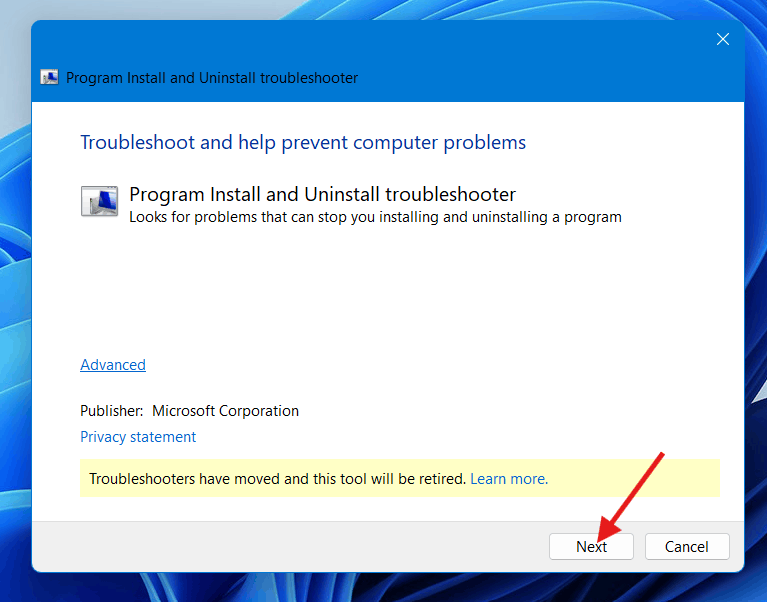
Step 3: Select the issue you are facing
The tool may give you two options: uninstall a program or install one. Choose the option based on your situation and judgment.
For instance, select the installation option in case a setup file keeps showing an error. If you cannot remove currently installed software, choose the uninstallation option.
Step 4: Choose the Program
Depending on the problem, the troubleshooter can mention a list of software installed on your device. Choose the application you are having an issue with and proceed.
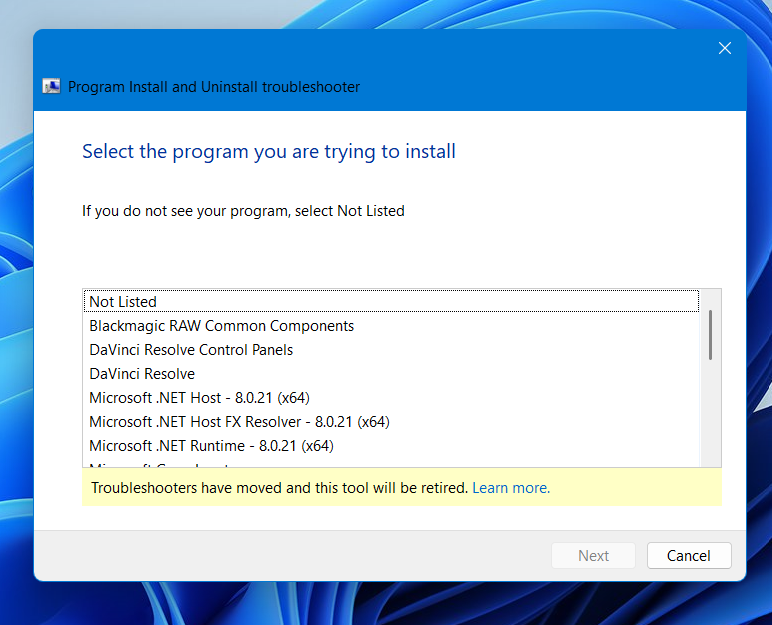
If you are not able to find the application in the list, follow any other option present on the screen.
Step 5: Follow the recommended fix
Allow the troubleshooter to inspect for issues. If it shows something it can fix, follow the commands displayed on the screen.
After the process is complete, try to uninstall or install the software again. If the errors are similar, you may need to do a thorough investigation for the underlying issue separately.
Save your work before applying any changes in settings through the troubleshooting tool. Creating a restore point is a perfect option.
Does It Work on Windows 11?
This is worth reviewing before you start to download the tool. Microsoft initially reported the program install and uninstall troubleshooter for Windows 10. Various users have reported that it is compatible with Windows 11, while some of them faced version incompatibility issues. So, you should assume it will run on every Windows 11 system.
If the file does not open, or the utility behaves unexpectedly, do not force it to run repeatedly. Despite of that use the uninstall options accessible in windows setting for find a repair tool provided by the software’s developer.
If your Problem is still not fixed by the Troubleshooter
Initially, the troubleshooter may not find anything to rectify or repair, even when you are still facing an installation issue. If you are in that state, then try a few general checks before jumping on to a more advanced method.
Primarily, restart your PC and try the installation process again. A former update or installation may have left Windows in a situation where a different setup cannot proceed.
Now, check if the application’s developer offers a repair option or a fresh installer. If you downloaded the setup file quite long ago , downloading a new copy from the official website is worth striving.
You can try uninstalling software through Windows default Settings. On Windows 11, go to Settings > Apps > Installed apps, search for the program, and choose Uninstall from its menu.
On Windows 10, go to Settings > Apps > Apps & Features.
If the issue persists, note down the specific code or error message. That data can help you find a resolution that aligns with your particular issue. Try not to delete registry entries manually until you know what their functions are. An incorrect change can sometimes cause problems.
Are the Windows Installer Cleanup Utility and Program Install and Uninstall Troubleshooter the same?
No. The Program Install and Uninstall Troubleshooter is quite distinct from the legacy Windows Installer Cleanup Utility, which has generally been distributed as MSCUU2.exe
Microsoft discontinued the Cleanup Utility because it could harm other installed components. The troubleshooter mentioned in this guide is the .diagcab package made to help solve some program removal and installation issues. If you search for an outdated download from MSCUU2.exe, do not mistake it for the tool mentioned here.