
Most people use Windows Search several times a day. Whether you want to change a setting, find a document, or open an app, the search box on the taskbar is generally the fastest place to begin. Yet, finding the correct result is not as effortless as it should be.
Microsoft is developing a modified Windows Search experience that is designed to make searchin g simpler. The updated interface transforms search results into a more refined and cleaner list. Moreover, it allows you to perform some tasks without opening any app.
For instance, you may now be able to mute your PC, adjust screen brightness, turn on Bluetooth, or switch to dark mode directly from search.
The new feature is currently undergoing testing through the Windows Insider Program. Though it’s not accessible on every Windows 11 computer, people with a compatible preview build can test whether it is available on their device.

In this guide, I will explain how to check your Windows version, explore the new Search experience, and use it if Microsoft has enrolled it for you.
Changes in the New Windows Search?
The updated and redesigned Search experience goes beyond the mere adjustment to the appearance of the taskbar. Microsoft is working on how users interact and how results are displayed to the users.
In the current interface, search results can be distributed across various sections, and searching for the right option sometimes requires just a few additional clicks. The redesign brought results into a single aggregate list, making them more interpretable.
Search will now also analyse what you type. Making a spelling mistake or using word similar to the name of a setting or app in the recently released version in made to support you search the relevant results.
One more addition is inline actions. These allow you to carry out some tasks straight from the Search interface. Despite of going to Setting to change a supported option, you can enter the action in search bar and perform it from there.
Microsoft has also overhauled the experience through WinUI 3. The goal is to make Search feel more adaptive and responsive while keeping the user interface simple.
These updates are still in development, so the available features can vary from preview builds. The version you are currently using may not be the one Microsoft finally releases to everyone.
Step-1: Check If Your System Supports the New Search
Before applying any changes, search for the exact Windows build installed on your computer. The check matters because the updated Search experience was rolled out through a particular Windows Insider preview despite a general Windows update.
Microsoft’s first announcement mentioned Windows 11 version 26H1 build 28120.3181 in the Experimental (26H1) channel and 26H2 build 26340.9616 in the Experimental channel. These are the initial previews, not an assurance that they are the latest builds officially available now.
Microsoft has posted a sequence of preview updates, so find the current release notes before thinking about whether your system is compatible or not.
Step-2: Find Your Build Number and Windows Version
You can check this data without downloading any third-party software.
- Hold Windows + R to open the Run dialog.
- Enter winver and hit Enter.
- Wait until the About Windows pop-up appears.
- Note the OS build and Windows version mentioned there.
Match your build number with compatible builds listed in Microsoft’s updated Windows Insider release notes.
If you are currently using a standard release of Windows 11, you might not have availability to the new search interface so far. Installing every possible available Windows update does not turn on experimental features.
There is no requirement to reinstall Windows just to verify your version. The winver command displays the data required for this first check.
Step-3: Check your Windows Insider Channel
If your system is currently running a compliant preview build, the next step in inspection is the Insider channel.
- Hold Windows + I to go to Settings.
- Choose Windows Update.
- Go to Windows Insider Program.
- Check the channel linked to your device.
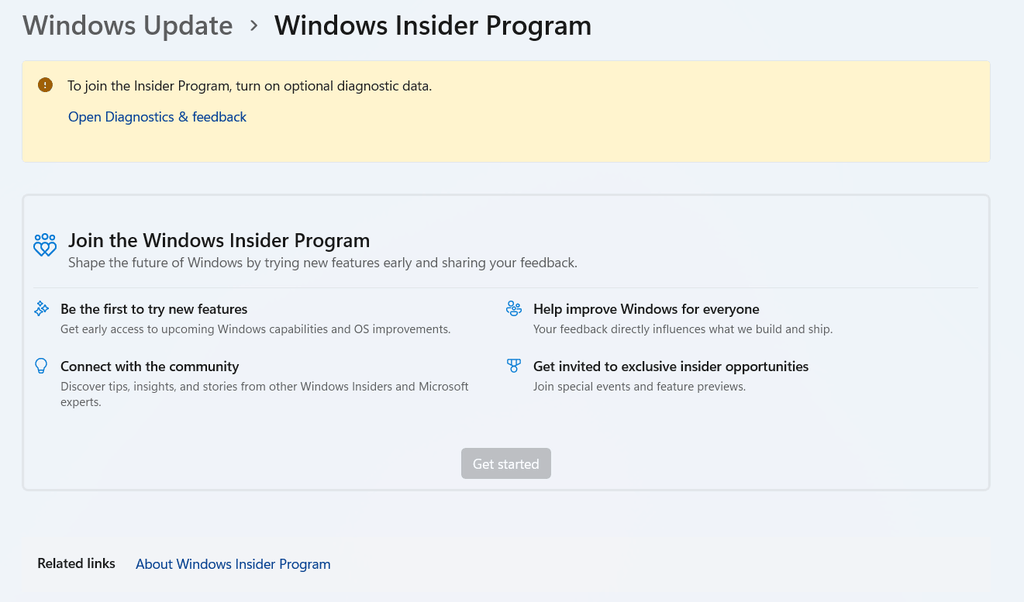
Microsoft’s initial rollout of the new Search experience was through its Experimental channels. You have to check whether your device is using a regular Windows release or a different channel; the feature may be available.
In case you have not joined the Windows Insider Program, examine it thoroughly before joining just to experience Windows Search. Preview builds are developed for testing and may contain issues that affect daily use. You should review Microsoft’s official guidance and be aware of the currently available recovers official guidance and be aware of the currently available recover options before updating to and experimental build.
Moreover, enrolling in the program does not give assurance of immediate access to the new Search. Microsoft will roll out a feature slowly, even among people running the similar general build.
Step-4: Check for Updates and Restart
In case your system is already running a compatible Insider build, check if a newer update is available.
- Open Settings and click Windows Update.
- Choose Check for updates.
- Install any applicable updates provided for your system,
- Restart the PC if needed.
Microsoft’s official guide specifically includes checking for updates and restarting before looking for the availability of the latest Search feature flag. This is worth the effort before trying any other steps.
After restarting, give Windows some time to completely load, then go back to Insider settings and check if the relevant option is showing.
An update may make your device ready for the feature, but it does not guarantee that you will get it right away. The release is managed by Microsoft, and various compatible devices may receive the new feature later than others.
Step-5: Look for the New Windows Search Experience update
After updating your system, check if Microsoft has released the feature available through the Feature Flags section.
- Go to Settings.
- Choose Windows Update.
- Open the Windows Insider Program.
- Find out Feature Flags, if the option is available in your build.
- Look for New Windows Search Experience.
- If it is available, follow the instructions provided to turn it on.
The exact available options and layout can change between preview builds. If you are not able to find the search option or the section, it does not directly mean that Windows is malfunctioning.
Your system may not have been provided the feature, or your build number may not be compatible with the latest version of the experience.
For the updated data, go to Microsoft’s official announcement page:
Read Microsoft’s official announcement of the new Windows Search.
I suggest beginning with Microsoft’s officially documented instructions despite of enabling unrelated feature flags or changing hidden settings.
Step-6: Go to Search and Explore the New Features
If you have turned on the option, restart your system if the instructions require it. After Windows restarts, go to Search from the taskbar.
Initialise with a basic search for a Windows setting or an installed application. Experience how results are ordered and if the new interface makes it simpler to search for what you need.
After that, you can try various tasks Microsoft has validated, such as:
- Turning Bluetooth on.
- Switching to dark mode
- Turning on Night light
- Adjusting screen brightness
- Minimizing or arranging open windows.
- Muting the system
These commands rely on the version of the feature currently running on your device. Some tasks may not be present in every preview, and their functionality can differ as Microsoft progresses development.
Try a different compatible command if an action does not work before evaluating the entire feature as false. It is also worth reviewing the release notes for your specific build.
Why the New Search Option Still Doesn’t Appear
There are certain aspects worth checking if you have followed the instructions but are still not able to find the new interface.
Primarily, confirm if you are using the compatible Insider channel and Windows build. The feature was rolled out through particular experimental builds, so a regular Windows 11 update may not provide the feature.
Now, check if Windows Update has any more applicable updates that are yet to be installed. Restart the device after updating and search for the option again.
The other possibility is that Microsoft has not turned on the feature for your system as of now. A slow and gradual release signifies that two devices running the same version of Windows might not be provided with the same feature at the same time.
Eventually, review the latest release notes. The path of settings and the behaviour of experimental features can update as the latest preview builds are rolled out.
Try not to change unrelated Windows settings repeatedly in an attempt to force the feature to become visible. Whether you receive the feature or not completely depends on Microsoft. Waiting for a supported release is usually the best option.
Should You Install a Preview Build only to Get the New Search Feature?
It relies on how you use your system.
If you are a feature enthusiast and enjoy testing Windows latest features, an insider build may be a credible option. You can experience the new Search feature and post reviews to Microsoft while it is still under development.
I wouldn’t suggest switching your main work computer to an experimental build just to get the feature. Preview version updates come with changes and bugs you may not expect.
Alternative utilities can turn on hidden Windows features, but they can’t guarantee the feature will work. Their function relies on the way Microsoft has implemented the feature and the exact build. Using them without reviewing the supported version can lead to hallucinated results.
If you lean more towards a stable system, try to continue using the current Search function and wait for the revamped version to become accessible through a regular Windows release.