
Looking at your Windows 11 system connected to a stable Wi-fi network and still unable to open websites can be confusing. The wireless connection shows active, yet the Microsoft Store, browsers, email and various other online services may fail to work. In certain cases, the same Wi-Fi network functions normally on a different phone.
This issue does not always indicate that the wireless adapter is damaged. Windows may have connected to the router successfully, but the router itself may not have any internet connection. Proxy settings, VPN software, DNS problems, Incorrect IP configuration and network drivers can also stop your system from going online.
Before applying any change to the network settings, verify if the issue only affects your computer or every other device connected to the same router. This will help you select the right resolution.
Verify If the Problem is Only With Windows or Your Router
Begin by establishing a connection to your phone or a different computer to the same Wi-Fi connection. Open any website and see whether the connection works or not.
The result will help in narrowing down the causes:
- If all the devices have no internet, check the modem, router or internet service provider.
- If other systems work but your Windows 11 device does not, inspect the computer’s local network settings.
- If the computer works on a mobile hotspot but not on your home WiFi, the problem may include the modem or its compatibility with the PC
Also, check if any outage is reported in the area by your internet providers. There is no benefit in applying any changes to Windows settings when the connection itself is not available.
Restart the Modem, Computer and Router
A temporary issue with the modem or router can interfere with internet access even while the wireless connection stays active.
Save your data and restart the Windows 11 system. Then restart your network router and modem.
- Unplug the modem and router from the main power source.
- Wait for 30 seconds.
- Connect the modem first and wait for its indicator lights to stabilise.
- Plug in the router and wait until it finishes the startup process.
- Reconnect your Windows 11 system to the stable Wi-Fi network.
In case you have a combined modem and router, you only need to restart that device.
Open any website again. If different computers still cannot get access to the internet, contact your ISP despite repeatedly applying changes to Windows network settings.
Forget the Particular Network and Connect again
Windows saves wireless network connections, including their connection settings and passwords. An outdated or damaged saved connection can sometimes stop a normal connection from establishing.
Deleting the saved network and connecting can start a new and fresh connection.
- Press Windows + I to go to Settings.
- Select Network & internet > Wi-Fi.
- Click on Manage Known Networks.
- Search for your connected Wi-Fi network and choose Forget//
- Return back to available network list.
- Choose the same Wi-Fi connection and type its password.
After the connection is established, verify if websites load normally
Confirm that you know the Wi-Fi password before forgetting the particular network.
Use Windows Network Troubleshooter
Windows 11 consists of automated network diagnostics that can recognise some specific issues and suggest repairs.
Microsoft suggests using the Get Help app to open the Network and Internet troubleshooter.
- Go to the Start menu and enter Get Help.
- Launch the utility.
- Search for network or internet connection troubleshooting.
- Follow the on-screen guidelines for the Network and Internet troubleshooter.
- Apply the mentioned repair in case Windows recognises a problem.
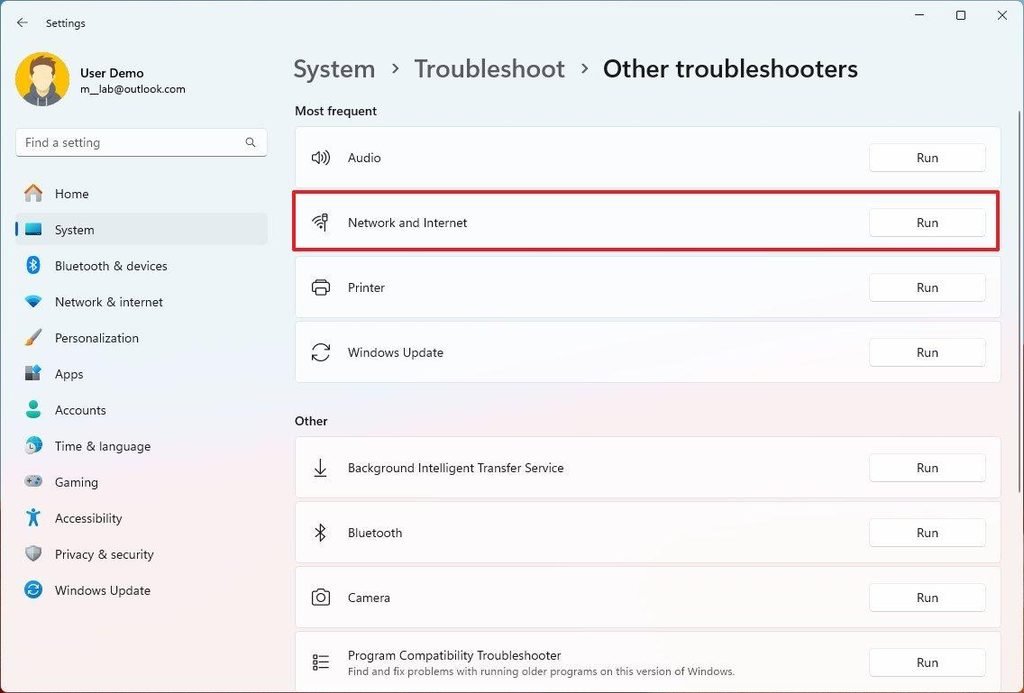
The troubleshooter might detect wrong network configuration or different connectivity problems. However, it is not capable of repairing every hardware, ISP or router problem
Disable an Unused Proxy or VPN Connection
A proxy or VPN has the ability to change how internet traffic travels from your system. If its network becomes unavailable or its configurations are incorrect, websites may stop loading even though Windows stays connected to Wi-Fi
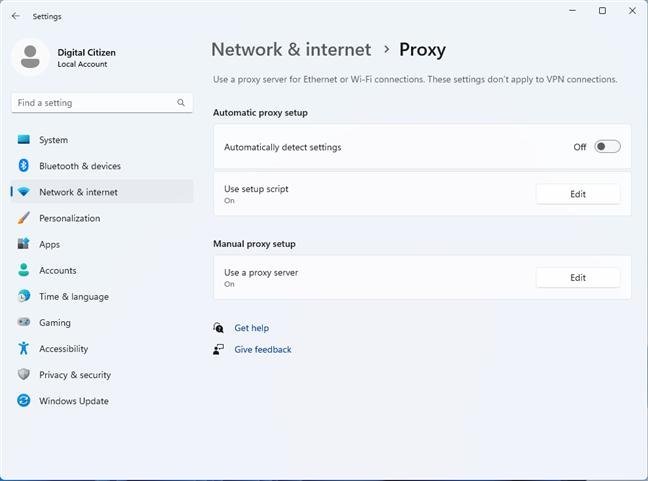
Primarily, disconnect any VPN you are using and verify the proxy configuration
- Go to Settings using Windows + I
- Choose Network & internet > Proxy.
- Analyse the available proxy settings.
- Disable unwanted manual proxy settings if you do not use them
- Test the internet connection by opening a website again.
Read more in Windows 11 Network settings
Try to remove proxy settings supplied by your school or network administrator and employer. Certain organisations need them for internet access.
Final Words
The Wi-Fi is connected, but no internet issue in Windows 11 can happen because of router issues or a wrong saved connection profile. Temporary Windows network errors, or unwanted proxy and VPN settings.
Read our article on updating the Wi-Fi driver in Windows 10 & 11
The above-mentioned steps can resolve many general connectivity issues without going into advanced network settings. In case your Windows 11 system still cannot access the internet, the problem may need further investigation of its IP configuration, DNS settings or wireless adapter driver