
Some Windows 11 users are reporting a serious startup issue after installing the November 2026 security update KB5132061.
For a complete overview of the update, its improvements, and supported Windows versions, see our guide to Windows 11 KB5132061 and its November 2026 changes.
Affected systems reportedly restart repeatedly, enter Automatic Repair, or display errors such as 0xc0000001 and INACCESSIBLE_BOOT_DEVICE instead of loading the operating system.
The reports involve different Windows 11 versions and hardware configurations, including 26H2, 25H2, and 24H2.
Microsoft has not officially listed this boot failure as a confirmed known issue. However, several user reports describe similar symptoms after installing the update.
What Happens After Installing KB5132061?
KB5132061 is the November 10, 2026 cumulative security update for Windows 11. It applies to the following versions and builds:
| Windows Version | Updated Build |
| Windows 11 24H2 Enterprise and Education | 26100.9974 |
| Windows 11 25H2 | 26200.9974 |
| Windows 11 26H2 | 26300.9974 |
You can check the official KB5132061 release notes published by Microsoft for the update’s changes, supported editions, and current known-issue information.
Some affected systems restart after installing the update but fail to reach the sign-in screen. Instead, they repeatedly display Automatic Repair or enter the Windows Recovery Environment.
Reported Symptoms
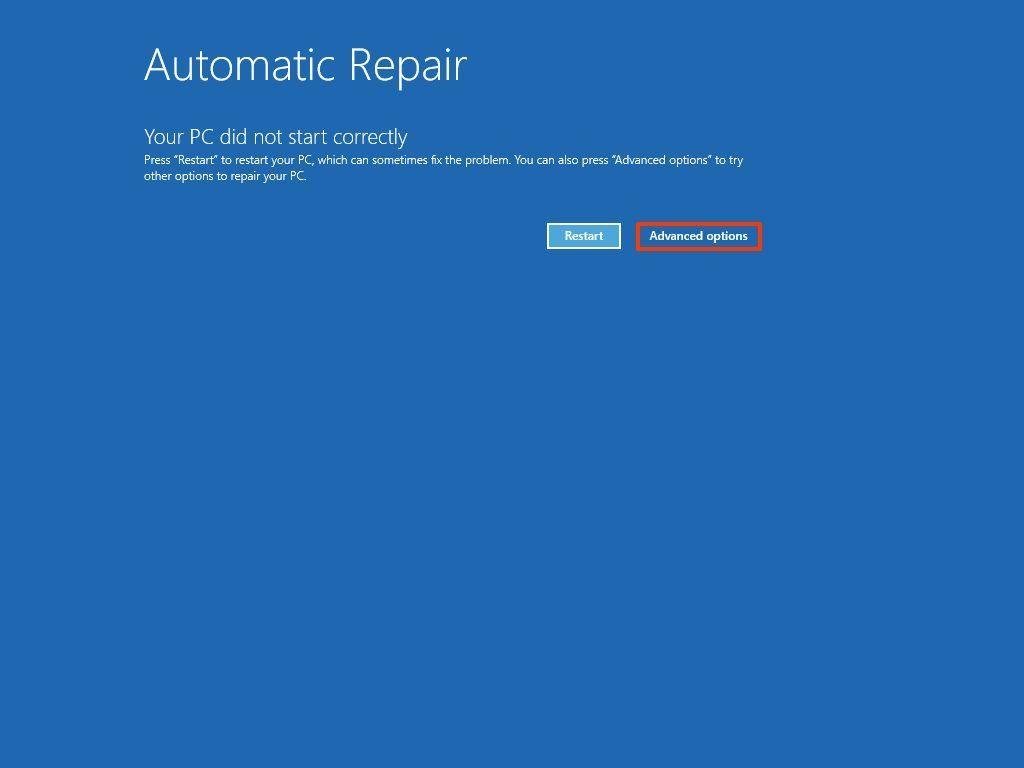
- Automatic Repair repeatedly restarts the computer.
- INACCESSIBLE_BOOT_DEVICE appears during startup.
- Startup Repair reports that a recently serviced boot binary is corrupted.
- Some systems display recovery errors such as 0xc0000001, 0xc000000e, and 0xc0000098.
- Windows loads successfully in Safe Mode but fails during normal startup in some reported cases.
- An offline DISM rollback attempt fails with error 0x800f082f on at least one affected system.
A Windows 11 24H2 user also reported that KB5132061 appeared as Install Pending, while the previous October update KB5127648 showed as Uninstall Pending. Even after examining the servicing logs, the user could not identify a specific corrupted file.
Possible Reasons for Windows 11 Boot Failure After KB5132061
The exact cause remains unknown. Available reports do not prove that KB5132061 directly corrupts the bootloader or that every affected system has the same problem.
Some reports describe incomplete Windows servicing operations and startup failures. However, they do not establish whether a boot driver, firmware configuration, or another component is responsible.
In one report involving an AMD ThinkPad, disabling the SVM Mode (AMD-V hardware virtualisation) setting in BIOS allowed Windows to start and complete the pending update installation. The user had previously experienced error 0xc0000001 and an Automatic Repair loop.
Another user reported FLTMGR-related blue-screen crashes and repeated system failures after installing the same update. Rolling back or uninstalling the update reportedly stopped those crashes.
These reports suggest that servicing or hardware compatibility problems could be involved on certain devices. However, they do not establish a confirmed Microsoft fix or a universal cause.
Fix the Windows 11 Boot Loop After KB5132061
Try the following recovery methods in order. The available options depend on whether Windows Recovery Environment or Safe Mode can be accessed.
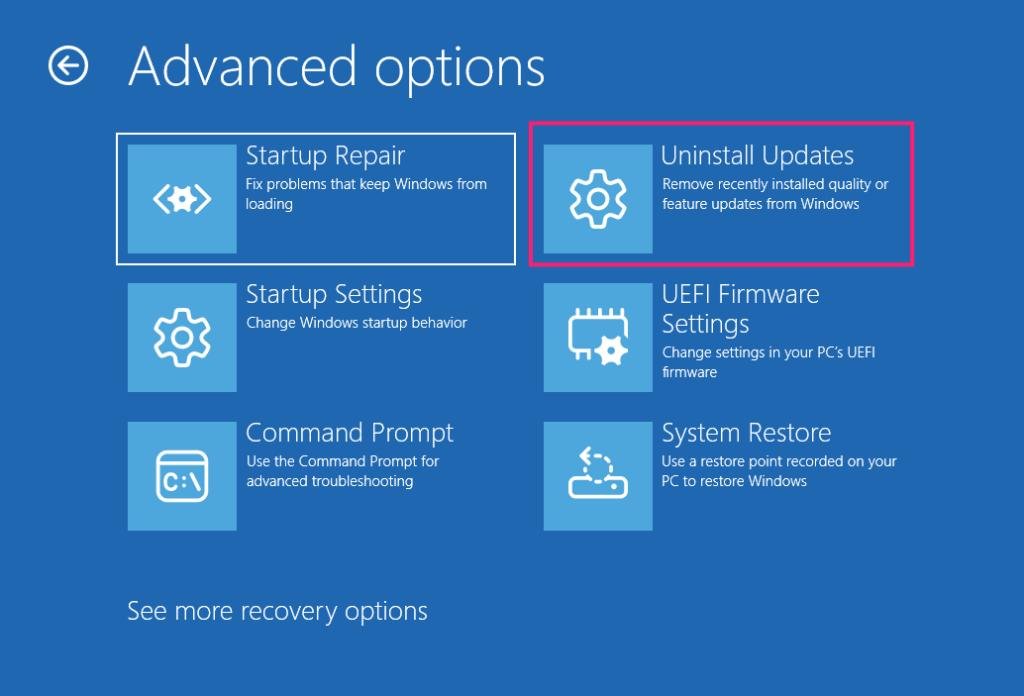
Uninstall the Latest Windows Update
If Windows repeatedly enters Automatic Repair, try uninstalling the latest quality update.
Microsoft also explains how to uninstall a Windows update through the Windows Recovery Environment when the PC cannot start normally.
- Start your system and allow Windows Recovery Environment to open.
- Choose Troubleshoot.
- Go to Advanced options.
- Click Uninstall Updates.
- Choose Uninstall latest quality update.
- Follow the on-screen instructions and restart your system.
If the system starts normally, go to Settings > Windows Update and pause updates temporarily while investigating the problem.
Note: This troubleshooting method has not worked for every reported system.
Try System Restore
If a restore point was created before installing KB5132061, System Restore may help return Windows to its previous working configuration.
- Open Windows Recovery Environment.
- Go to Troubleshoot > Advanced options.
- Choose System Restore.
- Select a restore point created before the November update.
- Follow the on-screen instructions.
System Restore does not guarantee that it will resolve the problem. One affected user reported that restoring the previous system state did not restore normal startup.
Check Whether Safe Mode Works
If you can enter Safe Mode, check whether a startup component or driver is preventing normal startup.
- Go to Troubleshoot > Advanced options > Startup Settings.
- Choose Restart.
- Press F4 or 4 to enter Safe Mode.
- Open Event Viewer.
- Go to Windows Logs > System.
- Look for Event ID 41 and Event ID 1001 around the failed startup time.
Event ID 41 can indicate that Windows did not shut down properly, while Event ID 1001 may contain information about a reported bug check. Neither event identifies the root cause by itself.
Also check C:\Windows\Minidump and C:\Windows\MEMORY.DMP for available crash dumps.
If a dump file is available, WinDbg can help identify a driver potentially related to the failure. Do not assume that every logged driver error is responsible for the boot problem.
Check AMD Virtualisation Settings (Advanced Users)
One reported AMD ThinkPad workaround involved disabling the SVM Mode (AMD-V hardware virtualisation) setting in BIOS.
On compatible devices, this option may appear under Security, Advanced, or CPU Configuration, depending on the manufacturer.
However, this is not a guaranteed or universal solution. Turning off hardware virtualisation can affect virtual machines, Docker, WSL2, Hyper-V, and virtualisation-based security features such as Memory Integrity.
Do not change this setting without understanding the possible consequences. Also, make sure you have your BitLocker recovery key before changing BIOS settings.
If Windows asks for a recovery key during startup, follow our guide on how to fix the BitLocker Recovery screen in Windows 11 or 10.
If you decide to test this workaround, note down the original BIOS settings so you can restore them later.
Back Up Your Files Before Recovery
If all recovery methods fail, avoid repeatedly modifying pending Windows servicing packages or changing boot files without a proper recovery plan.
Use Windows installation media to access recovery tools and back up essential files to an external drive. If the installation remains unbootable and none of the available methods works, reinstalling Windows may become necessary.
An in-place repair installation generally requires Windows to start so that Windows Setup can run. If the system cannot boot, you may need to use installation media for a clean installation instead.
A clean installation can delete existing settings, applications, and personal files. Therefore, protect your important data before proceeding.
Is Microsoft Finding a Solution to the KB5132061 Boot Problem?
As of November 17, 2026, Microsoft’s official support documentation does not list the reported boot-loop problem as a confirmed known issue.
Microsoft has documented separate installation failures involving errors 0x80070306, 0x800f0989, and 0x800f0993 on some Windows 11 devices. The company has provided an automatic remediation process for those installation problems through Windows Update. These errors should not be confused with a system that becomes unbootable after update servicing.
Users facing startup failures can report the problem through Feedback Hub when Windows is accessible. Administrators should also preserve crash dumps, CBS logs, and recovery information for further investigation.
Conclusion
The reported KB5132061 boot failures deserve attention because they can prevent affected Windows 11 computers from starting normally. Several users have described similar symptoms on different hardware configurations, but the exact cause and a universal recovery method remain unknown.
If your system is affected, first try uninstalling the latest quality update or using System Restore from the Windows Recovery Environment. If Safe Mode works, inspect available crash records before changing firmware settings or drivers.
Always back up your important files before reinstalling Windows or attempting advanced recovery methods.