
Microsoft rolled out the KB5132061 update for Windows 11 on November 10, 2026, introducing stricter and more precise PowerShell security validation for signature verification and signing. It can lead to the failure of formerly signed PowerShell scripts.
The issue primarily affects scripts consisting of malformed UTF-8 data or files that Windows interprets using the wrong text encoding. Therefore, developers and administrators may experience signature issues when signing or running scripts that functioned before installing the update.
Related: Windows 11 KB5132061 (November 2026) Update: What’s New, Fixes, and Download
If you are facing a PowerShell signature verification error after updating to the patch KB5132061, go through the methods mentioned below to recognise affected files and repair them.
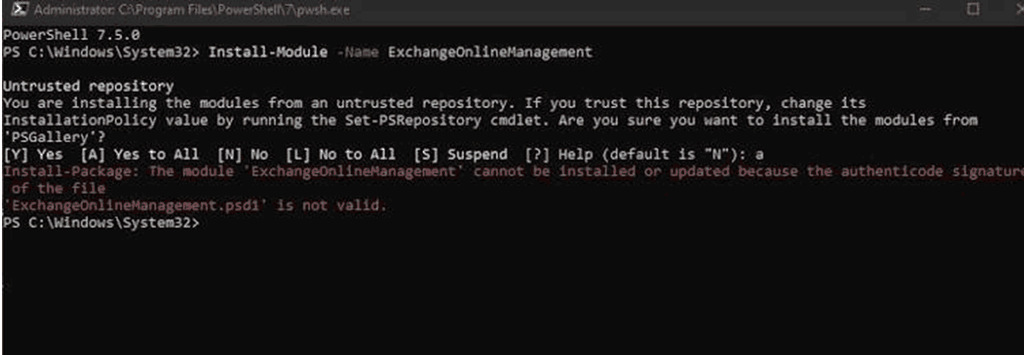
Reason for the Failure of Signature Verification
PowerShell relies on digital signatures to verify the integrity and authenticity of scripts. These signatures enable Windows to verify if a script has been edited and if it derives from a trusted publisher.
Microsoft has made a stronger encoding validation requirement during signature verification and script signing after the KB5132061 update. Windows now fails to interpret malformed UTF-8 data that could formerly be interpreted using substitute or alternate characters.
The particular changes can affect scripts in multiple circumstances:
- The script consists of invalid UTF-8 bytes.
- A UTF-8 file lacking a Byte Order Mark (BOM) is interpreted using the code page of the system.
- A script already saved in an encoding like Shift-JIS is wrongly interpreted as UTF-8.
As a result, a formerly signed script may no longer pass signature verification successfully. Though, not every PowerShell signature failed error is a result of the recent update. The file may also have been modified, or its signing certificate may not be authentic.
Related: KB5132061: Windows 11 Installation Problems and How to Fix Them
PowerShell Signature Error Common Symptoms
Affected users may experience the symptoms mentioned below after installation of the November security patch.
- Get-AuthenticodeSignature reports NotSigned for a previously signed script.
- Set-AuthenticodeSignature returns UnknownError.
- PowerShell prompts the message “No mapping for the Unicode character exists in the target multi-byte code page.”
- On devices that are enforcing App Control for Business, affected scripts may run in ConstrainedLanguage mode.
Based on these systems alone, do not assume an encoding problem. Microsoft suggests scanning the affected file before attempting any further repair.
Fixing Microsoft’s PowerShell Repair Script
Microsoft’s PowerShell Repair Script Download
Microsoft offers a utility known as Repair-SignedPowerShellutf8.ps1 to recognise and repair specific encoding issues.
Download the Script to repair script-signature encoding issues from Microsoft’s official support page.
Sample PowerShell script to repair script-signature encoding issues
Save the full script, naming it Repair-SignedPowerShellUf8.ps1
Start Windows PowerShell 5.1 in a FullLanguage session and adhere to the organisation’s execution policy and application-control. Try not to turn off security policies. Run the utility simply.
Scan PowerShell File for Encoding issues
Before changing or replacing a script, start the utility in Scan mode. This verifies files without modifying them.
Go to PowerShell in the folder consisting of the downloaded utility and run the command below:
.\Repair-SignedPowerShellUtf8.ps1 -Mode Scan -Path C:\Scripts -Recurse | Format-Table Path, Issue, Signature Status, Action -Wrap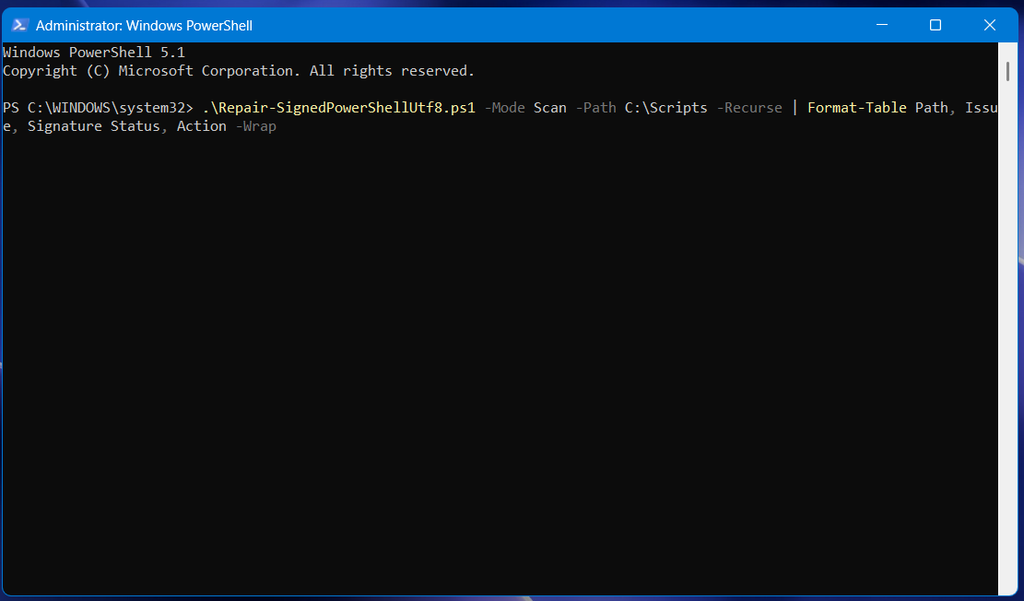
Replace the folder containing your PowerShell scripts with C:\Scripts (vice versa).
The scan recognises possible encoding issues and shows the current signature status along with a particular suggested action.
For instance:
- CodePageTextReadAsUtf8 points out that specific language text, like Shift-JIS, may be interpreted as UTF-8.
- Utf8WithoutBom shows a potential mismatch between the system code page and UTF-8 text.
- MalformedUtf8 indicates that a file interpreted as UTF-8 consists of invalid UTF-8 data.
If the scan’s outcome is None, try not to attempt an encoding repair just because the signature status mentioned NotSigned. Introspect other potential certificate and signature problems.
Conversion of the affected script to UTF-8 with BOM
For a permanent solution, Microsoft suggests converting the affected script into valid UTF-8 encoding with a Byte Order Mark (BOM), examining its contents and signing it again.
Run the command mentioned below:
.\Repair-SignedPowerShellUtf8.ps1 -Mode ConvertToUtf8Bom -Path C:\Scripts\Deploy.ps1Replace the file path with the location of the affected script.1 suffix.
The tool creates a separate copy with the .utf8bom.ps1 suffix. It does not overwrite the original file. The legacy signature is deleted from the converted copy.
In case the script uses a particular source encoding, give its code page when needed. For instance, Shift-JIS uses code page 932:
.\Repair-SignedPowerShellUtf8.ps1 -Mode ConvertToUtf8Bom -Path C:\Scripts\Deploy.ps1 -SourceCodePage 932Go to the converted file and cautiously analyse its contents. Verify commands, special characters, and comments before proceeding.
Sign the Converted Script Again
After analysing the converted file and cautiously analysing its contents. Check comments, commands, and characters before proceeding further.
For instance, if the certificate you approved is already available in the $cert variable, run the following command:
Set-AuthenticodeSignature -FilePath C:\Scripts\Deploy.utf8bom.ps1 -Certificate $certNow check this signature:
Get-AuthenticodeSignature -FilePath C:\Scripts\Deploy.utf8bom.ps1 | Format-List Status, StatusMessageVerify that a valid status is showing. Test the script before executing it on different devices.
Try to Repair Temporarily Without Re-signing
In case, you cannot suddenly sign the script once more, Microsoft utility too offer a temporary repair mode for some specific encoding issue.
Run the command:
.\Repair-SignedPowerShellUtf8.ps1 -Mode Repair -Path C:\Scripts\Deploy.ps1This procedure generates a separate copy and tries to preserve the existing signature. It is compatible with some encoding cases but not for every issue.
The repair is not assured. Deploy the outcome file only if it SignatureStatus is Valid, and analyse and test it first.
Conclusion
The PowerShell signature verification change in the new patch KB5132061 is a deliberate security enhancement despite a general PowerShell malfunction. It puts work on how Windows interprets script encoding and rejects modified or malformed UTF-8 data.
Users who are facing this problem should primarily scan their scripts, recognise the encoding error, and follow Microsoft’s suggested repair guidelines. Converting the affected file to valid UTF-8 with BOM and consequently signing it again provides a permanent solution.