
Windows 11 users may experience Printer Error 87 – “ The parameter is incorrect” when adding a shared printer through Settings. The error affects printers published in Active Directory and can stop Windows from completing the installation.
Microsoft reported this problem after the October 2026 update and fixed it in the November 10, 2026 security update. In case you are still facing this error, follow the steps mentioned below.
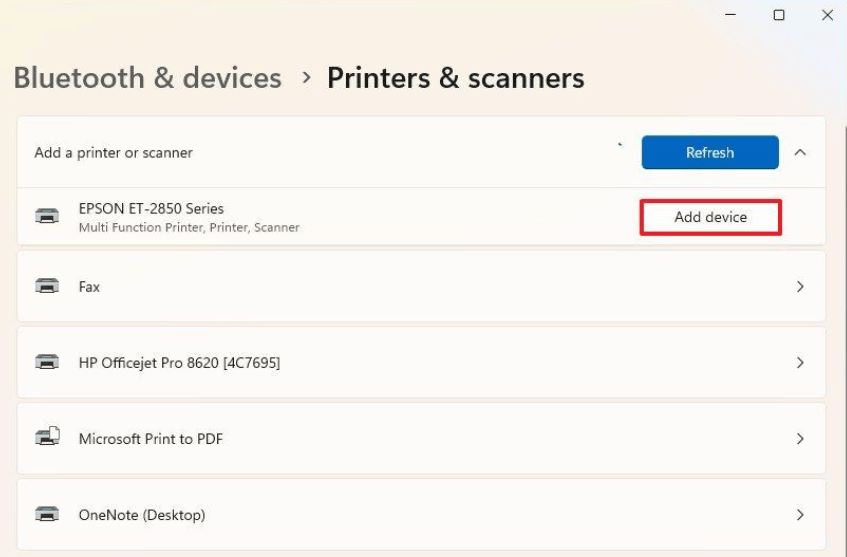
Reason for the Printer Error 87 in Windows 11
The issue is linked to adding printers published through Active Directory. It can happen when you try to open:
Settings > Bluetooth & Devices > Printers & scanners > Add device
After selecting a shared printer, Windows may not complete the installation and display Error 87.
Microsoft reported this problem in the October 2026 patch update. The great news is that it does not normally affect normal printing functions and printers that are already installed. The problem is primarily connected to integrating an Active Directory-published printer.
Fixing the Windows 11 Printer Error 87
Installing the November 2026 Update
- Hold Win + I to go to Settings.
- Navigate to Windows Update.
- Click Check for updates.
- Download and install patch KB5132061 if it shows up.
- Restart your system if required.
After the update is installed, try to add the shared printer again.
If you face any problems installing the update, read our guide to fix KB5132061 installation problems.
Verify Windows Build and Version
In case you are not sure if your system has the November update, verify its build and current version
- Hit Win + R
- Enter winver and press Enter.
- Look at the OS build and the version in the interface.
The November update consists of the following builds:
- Windows 11 26H2 – 26300.9974
- Windows 11 25H2 – 26200.9974
- Windows 11 24H2 Education and Enterprise – 26100.9974.
If your system is eligible but the update is still missing, recheck Windows Update.
Restarting the Print Spooler Service
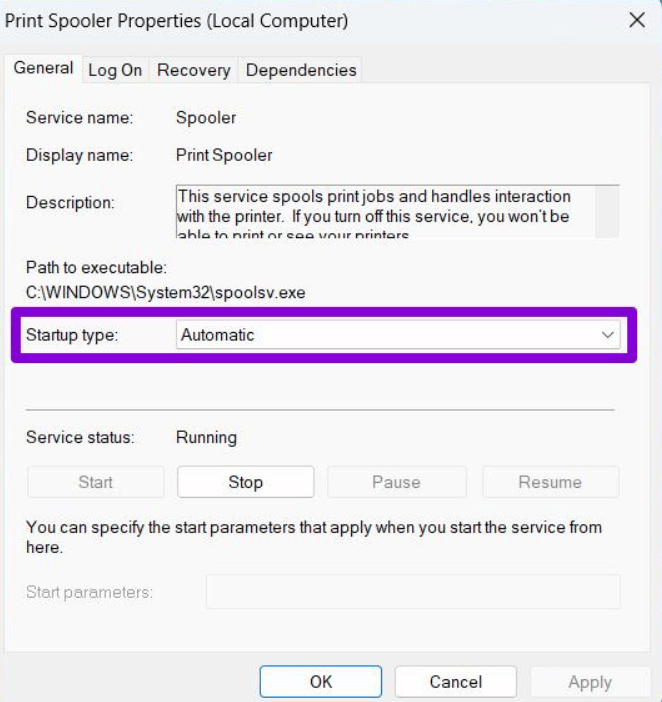
If you are still having trouble adding a printer, check the Print Spooler service. Windows functions this service to handle print jobs and make communication with printers.
- Hold Win + R, enter services.msc, and hit Enter.
- Look for Print Spooler.
- Right-click on it and choose Restart.
- Wait until the service restarts, then try to add the printer again.
This is a common troubleshooting method, not an assured resolution for the particular update-related bug.
Check Printer Server and Your Network Connection
Shared printers posted through Active Directory generally rely on the printer server and the organisation’s network. If the error continues to persist, verify with your IT administrator to confirm if the printer server is accessible.
Also confirm these statements:
- Your system is connected to the organisation’s network or VPN.
- The shared printer is still available.
- Your account allows you to use it
- The printer server is stable and responding normally.
In case different systems can connect to the same printer, the problem may be limited to your Windows configuration.
If the issue continues to persist
If the November patch is installed on your system and you still cannot add a new printer, check your Windows build and verify the printer server before applying any further changes.
Try not to uninstall the Windows update or remove all printer drivers all of a sudden. The specific issue concerns adding Active Directory-published printers, not each and every printing function or printer in Windows 11.
In case, none of the verifications help, connect to your IT administrator and share the same error message and its triggering points.
Conclusion
Printer Error 87 in Windows 11 can interfere with the process of adding a new shared Active Directory printer. Microsoft recognised the issue after the October 2026 update and reported it through KB5132061.
Primarily, install the November security update. If the error continues, look for the Print Spooler service, network connection, and print server to identify the exact cause.