
Microsoft has reported a latest printing issue affecting Windows systems after installation of the November 2026 patch updates. The problem can prevent some documents from printing when they consist of images with zero width or height at the chosen printing resolution.
The issue primarily affects Microsoft Word documents printed through Windows Graphic Device Interface (GDI). Though, Microsoft issues a warning that various other applications could also face printing failures.
Surprisingly, the vulnerable images may not be visible in the document itself. They can exist as layout anchors, hidden watermarks or objects placed automatically by document-generation software.
Microsoft is currently inspecting the problem under service alert WI1549472. As of now, the organisation has not posted an official workaround or confirmed fix.
Windows Updates that Cause the Printing Problem
The problem is linked to the November 2026 Windows security patch and later updates. The vulnerable KB packages cover Windows, Windows 11, and Windows Server.
You can also read about the other changes and fixes included in the Windows 11 KB5132061 update
| November 2026 KB | Windows Version |
| KB5132061 | Windows 11 26H2 |
| KB5132061 | Windows 11 25H2 |
| KB5132061 | Windows 11 24H2 |
| KB5132059 | Windows 11 26H1 |
| KB5131087 | Windows 11 23H2 |
| KB5131096 | Windows 10 22H2 |
| KB5131096 | Windows 10 21H2 |
| KB5131085 | Windows 10 Enterprise LTSC 2019 |
| KB5131291 | Windows 10 Enterprise LTSC 2016 |
| KB5131080 | Windows Server 2025 |
| KB5131090 | Windows Server 2022 |
| KB5131085 | Windows Server 2019 |
| KB5131291 | Windows Server 2016 |
The issue is not limited to a specific printer manufacturer. It is associated with the method Windows uses to process some image objects while printing.
This is different from the earlier Windows 11 Printer Error 87 issue, which affected adding Active Directory-published printers
Reason for Failure of Printing by Word Document
Certain documents consist of image objects that have zero width or height at the selected print resolution. Though these objects are invisible on the screen, Windows can still include them in the process of preparing the document for printing.
They can be interpreted by the system through:
- Objects used for positioning and page layout.
- Invisible images used as watermarks
- Automated document-generation software that places image objects without showing an actual graphic.
- Document templates consisting of hidden graphics.
Microsoft has analysed the issue when printing Word documents through GDI. Multiple other apps using affected printing methods may also face the same issue.
This points out that a printer can function normally with different files while a specific Word document fails to print.
Troubleshooting Windows Printing Issues
Microsoft has not yet posted an official resolution. However, users can inspect the vulnerable document before thinking of any security update removal.
Microsoft’s guide to fixing printing problems in Word and other apps
Verify if Other Documents are Printing Normally
Open a common text document first and try to print it through the same printer.
If the test document prints successfully but a specific Word file does not, the issue may be linked to objects present inside that document.
This can support in distinguishing between a general printer connection issue or document-specific problem.
Inspect Hidden Images in Microsoft Word
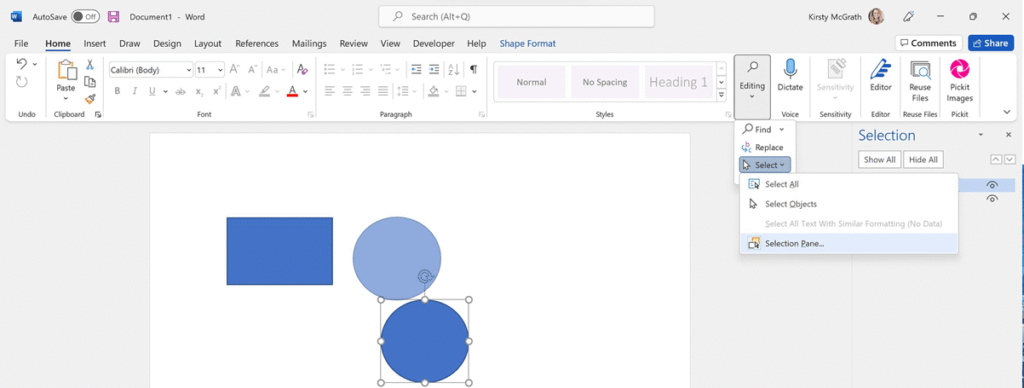
Open the document in Word and go to:
- Choose the Home tab.
- Go to the Select menu.
- Click on Selection Pane.
- Inspect the listed shapes, images and other objects.
- Find empty or unnecessary objects that may be present inside the document layout.
Save a copy of the affected file before proceeding to change anything. If you recognise a suspicious object, check whether recreating or removing it enables the document to print.
This is troubleshooting advice from our side, not a confirmed Microsoft resolution.
Check Templates of the Document
In case, Multiple documents are created from the same template, it may fail. Inspect the original template too.
If A layout object or invisible image is present in the template, it will be included in every new document automatically. Rectifying the template may prevent the same issue from affecting newly created files.
Try not to uninstall the Security Update Immediately
Avoid removing a Windows security update out of frustration. It can leave the system without essential security protections.
Therefore, do not remove the November update just because one document is failing to print. First, test if the issue is limited to a specific file and whether the document can be rectified.
Export the Word Document as PDF
If the affected Word document is still not printing, try to export a separate copy as a PDF and print that file instead.
Follow the steps mentioned below:
- Open the affected Document in Microsoft Word.
- Choose File > Save As.
- Select PDF as the format of the file.
- Save the PDF to your system.
- Open the saved PDF file using a third-party or built-in PDF reader tool.
- Click on Print to send it to your printer.
This method can help if the printing failure is linked to Microsoft Word object processing in the original document. However, it is not assured to work because affected image objects can also be hidden in the exported PDF file.
Microsoft’s Official Fix
Yes, Microsoft has reported the printing failure and is currently investigating it under service alert WI1549472.
But the company has not offered an official workaround or released a public resolution date yet.
Administrators and users should keep an eye on Microsoft’s Windows servicing announcement for further updates. This article will be edited immediately after a permanent fix is released by Microsoft.