
Your Windows 11 system may launch normally, but all of a sudden it completely stops responding after about five minutes. The display stays on, and you may still look at your mouse cursor on the screen, though pressing keys or clicking does not give any response. In some cases, the audio also fails to function, and the only way out is to force a restart.
In case you are facing the issue, an uncommon scheduled task associated with Secure Boot certificate updates could be the cause. Various Windows users have mentioned that the Secure-Boot-Update task sets off the freeze shortly after startup. Turning off this task temporarily has helped some vulnerable systems.
Here, we are listing troubleshooting methods you can try while Windows 11 freezes just five minutes after startup.
Verify the Secure-Boot-Update Scheduled Task
One of the most interesting pieces of information regarding this issue comes from a Microsoft Q&A discussion. A user said that their system stopped responding precisely five minutes after the sign-in screen displayed. After a thorough investigation, another user found out that triggering the Secure-Boot-Update scheduled task suddenly imitated the same problem.
You can read the original Microsoft Q&A discussion about the five-minute startup freeze for the reported investigation and workaround.
The task is in control of applying updated Secure Boot certificates through UEFI firmware and Windows.
You can verify its status using the steps mentioned below:
- Hold Win + R to open the Run dialog.
- Enter taskschd.msc and hit Enter.
- Expand Task Scheduler Library.
- Go to Microsoft > Windows > PI.
- Search for the Secure-Boot-Update task.
- Verify if the task is turned on and check its last run time and result.
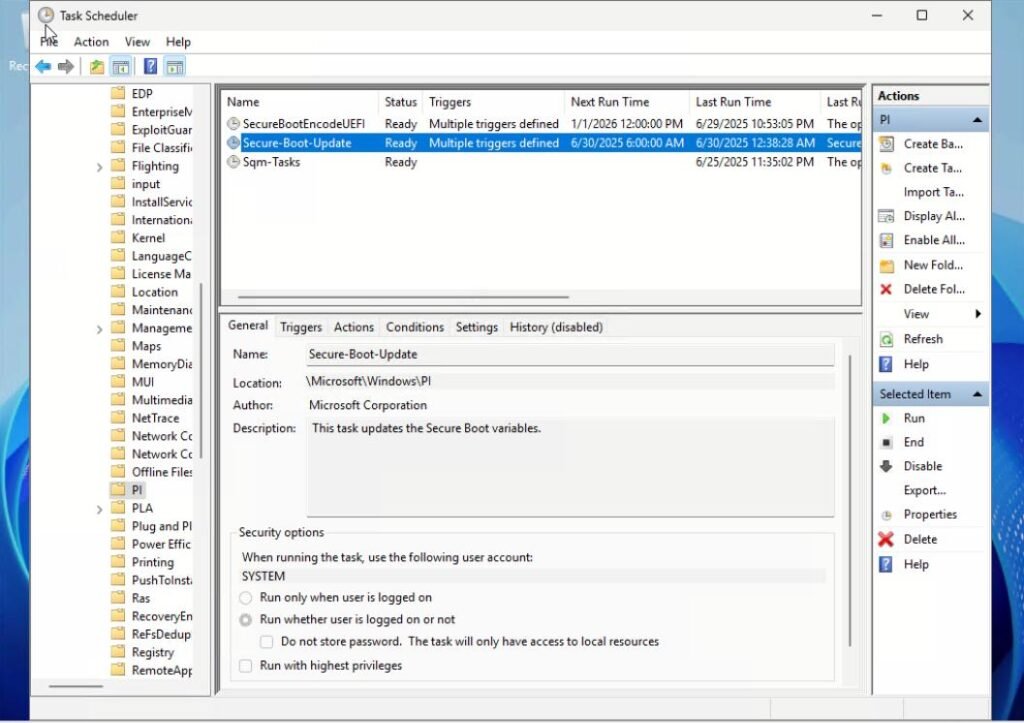
If the specific task runs around the exact time your computer stops responding, it is worth inspecting further.
Certain affected users also reported that turning off the task resolves the problem. To check this workaround, right-click Secure-Boot-Update and choose Disable. Restart the system and analyse if the problem disappears.
Note: Disabling this task is not a permanent solution suggested by Microsoft. It stops Windows from applying essential Secure Boot certificate updates. Restore the task after checking and find a compatible Windows fix or firmware. Try not to leave it disabled for a long time.
Microsoft explains the importance of Secure Boot certificate servicing in its Secure Boot troubleshooting guide.
Disconnect the Ethernet Connection Before Startup
Another fascinating workaround reported by users includes disconnecting the internet connection.
Certain users acknowledged that their system remained responsive even when they disconnected the Ethernet cable before starting Windows. Afterwards, they connected to a Wi-Fi network manually after enabling the PC to run for a few minutes.
You can test this method by the steps mentioned:
- Turn off (Shut down) your PC.
- Disconnect the Ethernet cable, if it is connected.
- Start Windows normally, like you always do.
- Wait until the 5-minute timeframe has passed.
- Verify if the computer continues to respond.
- If it does, connect to your Wi-Fi network manually and inspect if the freezing returns.
If the system works normally without Ethernet but becomes unresponsive after reconnecting to the internet, inspect the background update processes and scheduled tasks.
This is a community-reported troubleshooting method, not a confirmed workaround.
Update BIOS to the Latest Version
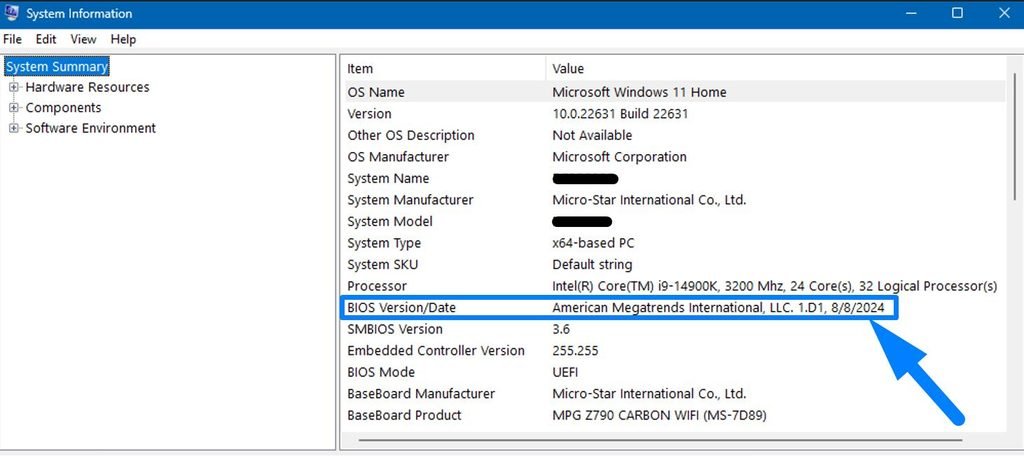
An incompatible or outdated BIOS can affect your system when Windows work alongside motherboard firmware. The is specifically worth inspecting when the freezing starts after a firmware-related change or Windows update.
Follow the steps mentioned below:
- Hold Win +R, enter msinfo32, and hit Enter.
- Note down your System Model and System Manufacturer.
- Go to the official support website of your PC’s manufacturer.
- Search for the firmware or BIOS download for your exact model
- Verify if a newer or latest version is available to download.
- Follow the manufacturer’s installation guidelines.
Keep your charger plugged in to the laptop during the update. Try not to interrupt the installation.
Also, keep your BitLocker recovery key available before executing a firmware update because Secure Boot and BIOS changes can set off a BitLocker recovery prompt.
For additional guidance, see our guide on how to fix the BitLocker Recovery screen on startup in Windows 11 or 10
Verify if Windows Freezes in Safe Mode
In case your PC stops responding shortly after startup, executing Safe Mode can support in determining if a background service, application, or a third-party driver is involved.
To enter Safe Mode:
- Open Settings using Win + I.
- Go to System > Recovery.
- Choose Restart now under Advanced startup.
- Select Troubleshoot > Advanced options > Startup Settings.
- Click Restart.
- Press 4 to enable Safe Mode.
Keep your computer running for at least 10-15 minutes and verify if the freezing occurs again.
If Windows functions normally in Safe Mode, investigate newly installed applications, scheduled tasks, drivers and startup programs.
Execute a Clean Boot
Third-party services and Background applications can interfere with Windows sometimes. A clean boot helps recognise and identify if a non-Microsoft service is responsible for the occurrence.
You can also follow our guide on performing a Clean Boot in Windows 11 to understand how to disable unnecessary startup applications and services
- Hold Win + R, type msconfig, and hit Enter.
- Go to the Services Tab.
- Choose Hide all Microsoft Services.
- Click Disable all.
- Open the Startup tab and choose Open Task Manager.
- Disable unnecessary startup applications.
- Restart your system.
Check if the system still freezes after 5-10 minutes.
If the problem is resolved, enable the startup applications and disabled services slowly to identify the affected program.
Install Available Windows Updates
In case the issue began after the latest Windows update, verify if Microsoft has launched a subsequent update resolving the issue.
- Go to Settings.
- Open Windows Update
- Choose Check for updates.
- Install available updates.
- Restart your system
You should visit your manufacturer’s official website for updated storage drivers and chipset drivers.
If the issue reappears suddenly after installing a specific cumulative update, check Microsoft’s Windows release health dashboard for known issues before thinking about its removal.
Final Words
A Windows 11 system that becomes unresponsive almost exactly five minutes after startup can be hard to resolve, specifically when the display remains visible but the audio, keyboard and mouse freeze.
The Secure-Boot-Update scheduled task is an essential lead because various users have reported similar non-responding behaviour and a temporary resolution including this task. Though, disabling it indefinitely is not advisable because Windows requires it to apply major Secure Boot certificate updates.
Begin by checking the scheduled task, inspecting the Ethernet connection, and updating your BIOS. If the problem persists, use Clean Boot and Safe Mode to identify other possible causes.