
Microsoft Windows 11 delivers update every month to get better hold of security, device compatibility and system reliability. However, cumulative update installation doesn’t ensure a hassle-free experience. Many users face problems like driver issues, application errors, unpredictable system behaviour, or Windows features failing to work correctly.
If you are facing KB5132061 problems in Windows 11, this article covers troubleshooting methods to help you analyse and resolve update-related errors and issues. Before applying any changes, check Microsoft’s official Windows Release Health dashboard for any confirmed problems linked with this specific update.
To see every detail of this security update, read: Windows 11 KB5132061 (November 2026) Update: What’s New, Fixes, and Download
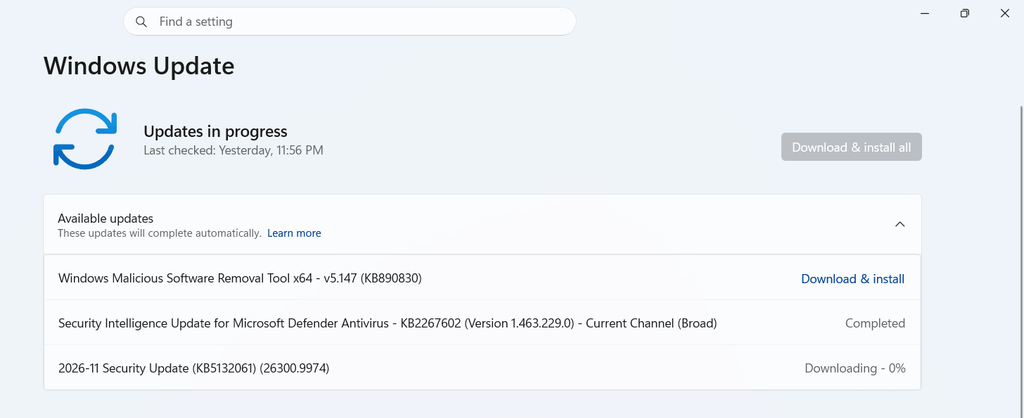
Check If Windows Services Are Working
Windows depends on background services to handle applications, updates, networking and various other system functions. If a major service stops working, some Windows features may become unavailable to the user.
- Press Win + R
- Enter services.msc and hit Enter.
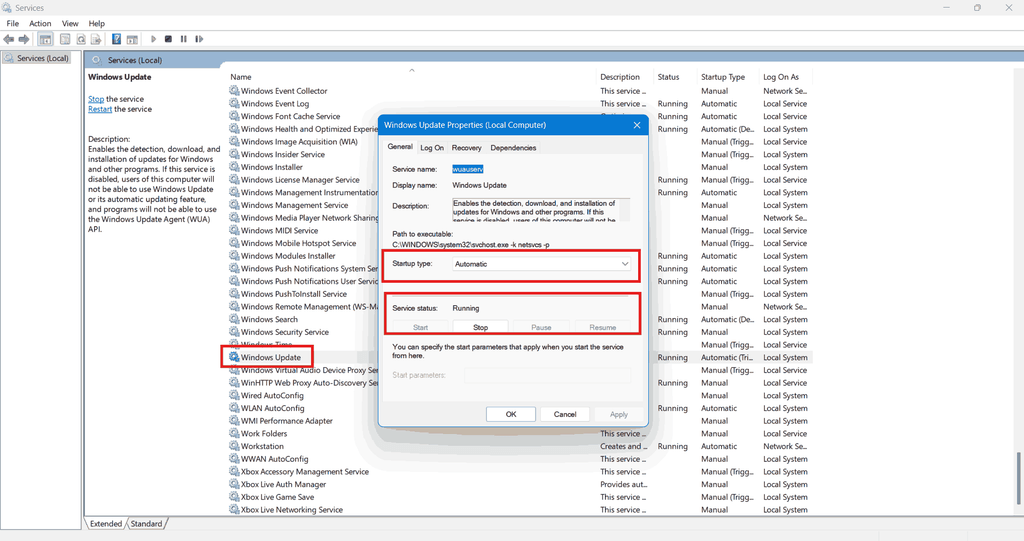
- Find the service associated with the affected Windows update such as Background intelligent transfer service, App readiness, Cryptographic services and Windows update itself.
- Right-click on them one by one and select Properties.
- Verify and check its Service status and Startup type.
- Make sure that each of the services has Startup set to Automatic.
- Also, make sure that each of the Services has Running status.
- If appropriate, begin the service or restore its suggested startup setting.
Try not to change the startup configuration of irrelevant services. The right settings rely on the specific service and Windows configuration.
Repairing Windows Component Files
Obsolete Windows components can be the reason for system failures, application errors and malfunctioning features. However, in-built utilities like DISM and System File Checker can help a user repair and scan particular types of system issues.
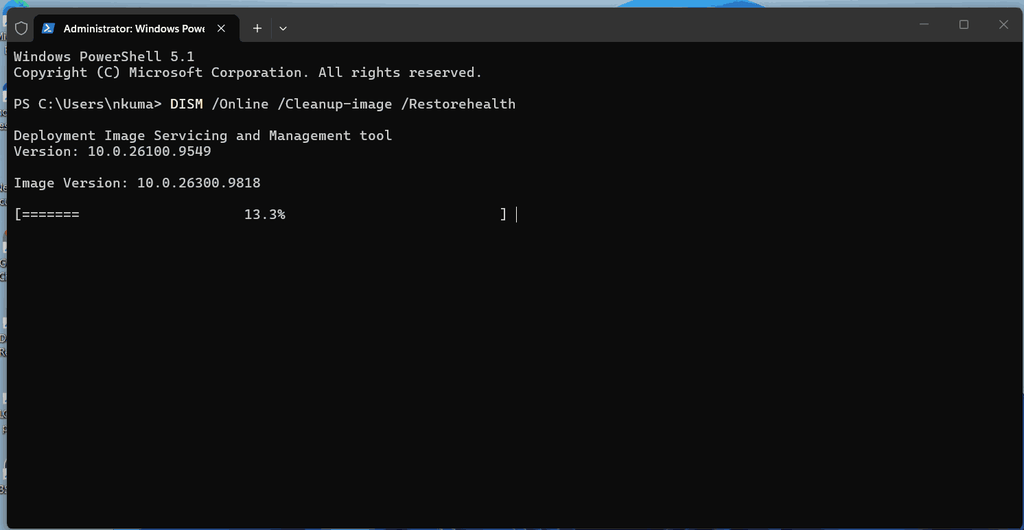
- Right-click the Start button and select the option Terminal (Admin) from the menu.
- Accept the User Account Control prompt.
- Run the command mentioned:
DISM /Online /Cleanup-Image /RestoreHealth- Wait for it to finish.
- Then, enter the following command:
sfc /scannow- Allow the scan to finish and restart your system.
Check if the affected Windows feature functions normally after restarting.
Related: What is SFC (System File Checker) and How to Run in Windows 11 or 10?
Application Compatibility Verification
An App that functioned before installing KB5132061 may act distinctly after a system requires updating. This can occur because of obsolete software, unsupported drivers, or changes in system components.
Try the steps mentioned below:
- Go to Settings > Apps > Installed apps.
- Find the application you are having problems with.
- Select its three-dot menu.
- Select Advanced options, if it is present.
- Use Repair to resolve the issue without deleting its data.
In case Repair fails, consider resetting your device, but keep in mind that this can delete the application’s stored settings and data.
For legacy desktop applications, verify the developer’s website for a supported version.
Roll Back or Update the Particular Drivers
Driver support problems can affect Bluetooth, audio peripherals, USB devices, and network connections.
- Hold Win + X to Open Device Manager.
- Expand the category consisting of the affected driver.
- Right-click the device and choose Properties.
- Navigate to the Driver tab.
- Open the tab.
- Check for an available driver update.
- Use Roll Back Driver if the problem started after a recent driver change
Download the driver directly from the computer manufacturer’s official website support pages or Windows Update.
Windows Settings Restoration
An already set-up configuration change or an update may affect particular Windows preferences. In case a feature stops acting as predicted, analyse its Settings page before trying more advanced methods.
For instance, check:
- System > Display for scaling and screen settings,
- Network & internet for connectivity issues.
- System > Sound for input and output devices.
- Apps > Startup for apps launching automatically.
- Bluetooth & devices for connectivity configuration.
Restore only the settings related to the issue you are facing.
Uninstall KB5132061 When Required
In case, you experience more serious problem immediately after installing KB5132061 and the previous troubleshooting methods have not worked, uninstalling the update might be the option.
- Go to Settings.
- Open Windows Update > Update history.
- Choose Uninstall updates.
- Look for KB5132061 if mentioned in the list.
- Choose Uninstall, then follow the instructions.
- Restart your system
Some updates can not be uninstalled through this user interface. Also, uninstalling a security update can leave Windows security at risk, so use this option only when required, and I suggest following Microsoft’s guidelines.
In case, everything failed, manually download this file from Microsoft update catalog and install it following the on-screen instructions.
Conclusion
KB5132061 issue in Windows 11 can include various system drivers, applications, components and configuration settings. Begin by recognising the affected feature, looking for relevant services and repairing Windows components before attempting more advanced changes. In case the issue is still not resolved, consult Microsoft’s Release Health dashboard for further updates and confirmed workarounds.