
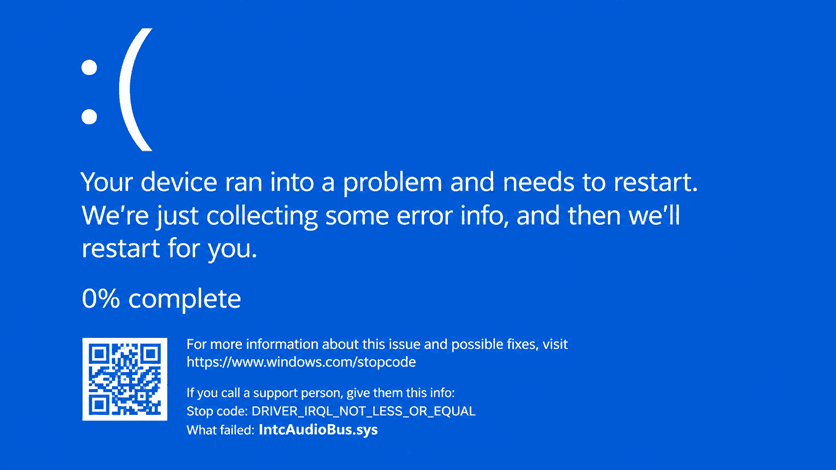
Various Windows 11 24H2 users are experiencing a blue-screen issue linked to Intel Smart Sound Technology (Intel SST). This error primarily affects some 11th Gen Intel Core laptops, especially systems that are updated from Windows 10. The problem can lead to system crashes while using audio features or during startup.
The error occurs because of a version compatibility problem between Windows 11 24H2 and the Intel SST driver. Microsoft has confirmed the issue and integrated a safeguard on affected systems to stop the update from installing automatically. Though, certain user may still experience the error if their system was not protected or after manually installing the updates.
In this article, you will understand the reason why the Intel Smart Sound Technology BSOD occurs, which devices are affected, and how to resolve it safely.
Intel Smart Sound Technology Explained
Intel SST, or Intel Smart Sound Technology, is an audio processing technology and driver used in various advanced Intel-based laptops. It supports handling audio features like noise reduction, voice recognition, microphone processing and audio effects.
Many devices use Intel SST for these particular features:
- Built-in microphone
- Built-in speakers
- Noise reduction
- Voice assistants
- Microphone and camera processing
- Additional audio effects
As Intel SST functions closely with the audio hardware, a problematic driver can affect users with issues like microphone problems, no sound, or even a blue-screen error. The affected driver file is IntcAudioBus.sys, a part of the Intel SST Audio controller
Reason for BSOD Error
The blue-screen problem happens when Windows 11 24H2 is installed on a system using an unsupported Intel SST driver. Intel and Microsoft say that driver versions 10.30.0.5152 and 10.29.0.5142 can lead to a BSOD on users with 11th Gen Intel Core processors.
The issue is not limited to one laptop brand. HP, MSI, Dell, Lenovo and various other manufacturers may be affected if their system has an incompatible SST driver installed. Users have experienced a similar problem in MSI and Intel community forums, specifically after trying to shift to Windows 11 24H2.
Devices That Are Affected
Your system may be affected if both of the below-mentioned statements are true:
- It is using an 11th Gen Intel Core processor.
- It is integrated with Intel SST driver version 10.30.0.5152 or 10.29.0.5152.
Microsoft started a compatibility hold, also known as a safeguard, to prevent affected devices from installing the Windows 11 24H2 update automatically. 51876952 is the safeguard ID.
What Occurs When the BSOD Error Happens
After the issue occurs, you may experience one or more of these issues:
- Blue-screen error while starting up
- PC restarting automatically
- Audio stops working
- Windows fails to load properly
- System becomes unstable
- Microphone stops working
- System crashes while using audio applications.
In some cases, the PC may get stuck in a restart loop. This can make it difficult to use the system normally.
Microsoft’s Official Solution
Microsoft announced KB5078895 to explain the compatibility problem and the required resolution. The company mentions that affected systems must install a newer Intel SST audio controller driver before shifting to Windows 11 24H2.
Microsoft has also started to place a compatibility hold on the affected systems. This will prevent Windows 11 24H2 systems from installing the updates automatically through Windows Update.
Check if your system is affected
To verify whether you system may be affected by the error, follow the steps mentioned below:
- Hold Win + X.
- Select Devic e Manager.
- Expand Sound, video and game controllers.
- Find Intel Smart Sound Technology.
- Right-click the Device and choose Properties.
- Navigate to the Driver tab
- Check the driver version
If the Intel SST driver version is 10.30.0.5152 or 10.29.0.5152, your system may be affected.
You can also follow these steps to check the driver file version:
- Go to File Explorer.
- Open C:\Windows\System32\drivers.
- Look for IntcAudioBus.sys.
- Right-click the file and choose Properties.
- Navigate to the Details tab.
- Verify the file version.
If the fie version is 10.30.0.5151 or 10.29.0.5152, the device is affected.
Fixing Intel SST BSOD
In case, your system is experiencing the Intel SST BSOD, follow these instructions in order.
Step-1: Boot into Safe Mode
If your system continues to crash, boot into Safe Mode.
- Restart your System.
- When Windows starts loading, force restart the PC.
- Repeat this 2-3 times.
- Windows will open the recovery environment.
- Go to Troubleshoot > Advanced options > Startup Settings.
- Click Restart.
- Press F4 OR 4 to enter Safe Mode.
Step-2: Update the Intel SST driver.
The primary resolution is to update the Intel SST driver. Microsoft says the error is solved by updating the Intel Smart Sound Technology driver to version 10.29.5714 or later, or 10.30.00.5714 or later.
- Open your laptop manufacturer’s official support website.
- Find your exact laptop model.
- Download the latest Intel Smart Sound Technology driver or Intel SST.
- Install the driver.
- Restart your system.
You can also look in Windows Update for the latest driver:
- Go to Settings > Windows Update.
- Click Check for updates.
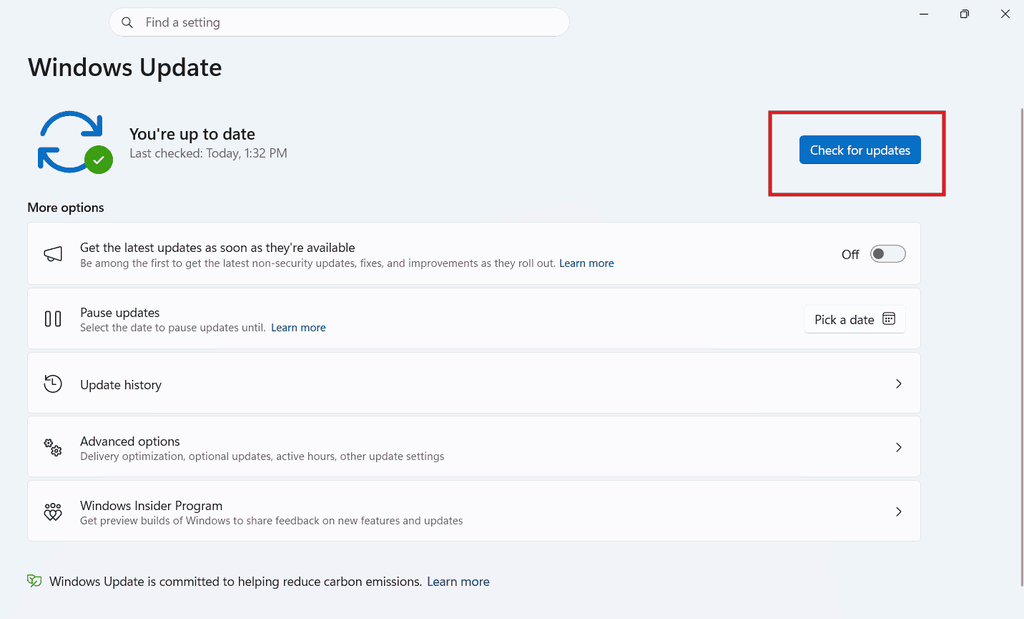
3. Install any available driver updates.
Restart your system.
Step-3: Uninstall the legacy Intel SST driver
If updating the driver is not working, delete the old driver first.
- Go to Device Manager.
- Expand Sound, video and game controllers.
- Right-click on Intel Smart Sound Technology.
- Click Uninstall device.
- Check the option to delete the driver, if available.
- Restart your system.
- Install the newest Intel SST driver available for your laptop.
Step-4: Install BIOS Updates
- Go to your laptop manufacturer’s official website.
- Find your exact laptop model.
- Download the latest BIOS update.
- Install the BIOS update cautiously.
- Restart your system.
Do not stop or pause the BIOS update process.
Step-5: Run SFC and DISM
If your BSOD error still continues to persist, repair Windows system files.
- Open Command Prompt (Administrator).
- Run this command:
sfc /scannow- Wait until the scan finishes.
- Then run this command:
DISM /Online /Cleanup-Image /RestoreHealth- Restart your system.
Step-6: Check Windows Update again
After installing the updated SST driver, navigate to Settings > Windows Update and check for updates again. Once the supported driver is installed. Windows 11 2442 should no longer be blocked on that particular device.
Final Words
The Intel Smart Sound Technology BSOD is not a random Windows error. It is primarily a driver compatibility problem that influences a particular group of 11th Gen Intel laptops trying to shift to Windows 11 24H2. As the problem can crash the system during startup, Microsoft has stopped the upgrades on unsupported devices till the right driver is installed.
The most protected method is to verify your Intel SST driver version first, update it from your laptop’s official manufacturer website, and only then upgrade to Windows 11 24H2. If in case your system is stuck in a BSOD loop, use Safe Mode to replace or delete the affected driver. Avoid trying to force the update through an ISO file or Installation Assistant till the supported driver is installed.
Once the problem is resolved, keep your BIOS, chipset and audio drivers updated. Create a restore point before major Windows upgrades and create regular backups of essential files. This lessens the risk of data loss if a further update causes a different compatibility problem