
Microsoft’s Windows 11 is rolling out a privacy enhancement that enables users to manage camera, microphone, and location access for multiple desktop applications. Till now, legacy Windows applications shared a common aggregate permission setting for all the resources, making it hard to stop one application without restricting others,
The main difference is included in Windows 11 Insider Preview Build 26220.9836, released on October 30, 2026. It puts desktop applications closer to the particular app permissions management controls already out there for Microsoft Store applications.
Here is I will explain the functioning of new feature, where to seek it and what people should be aware of before applying any changes to their settings.
The Primary Changes
Legacy desktop software, also called Win32 applications, are normally installed using MSI or EXE files. For instance, video conferencing software, desktop browsers, and various third-party utilities.
Formerly, Windows provided a shared desktop-app access switch for location, microphone, and camera. This allowed desktop applications to access the specific resource, while turning it off blocked broader access.
The latest feature adds separate permission controls for each desktop application. This means you can allow a trusted video-calling program to function your webcam while blocking access to a different application.
The new update includes three permissions:
- Camera: Manages which particular desktop apps can access and use your webcam.
- Microphone: Blocks specific applications from accessing the system’s microphone.
- Locations: Denies access to locations for applications that really need it.
Microsoft mentions that the goal is to offer better visibility into applications’ access and make privacy controls easier to manage.
Changing the Permission for Desktop Applications
In case your system is running a compatible Insider build with the latest features turned on, you can control access straight from your Settings.
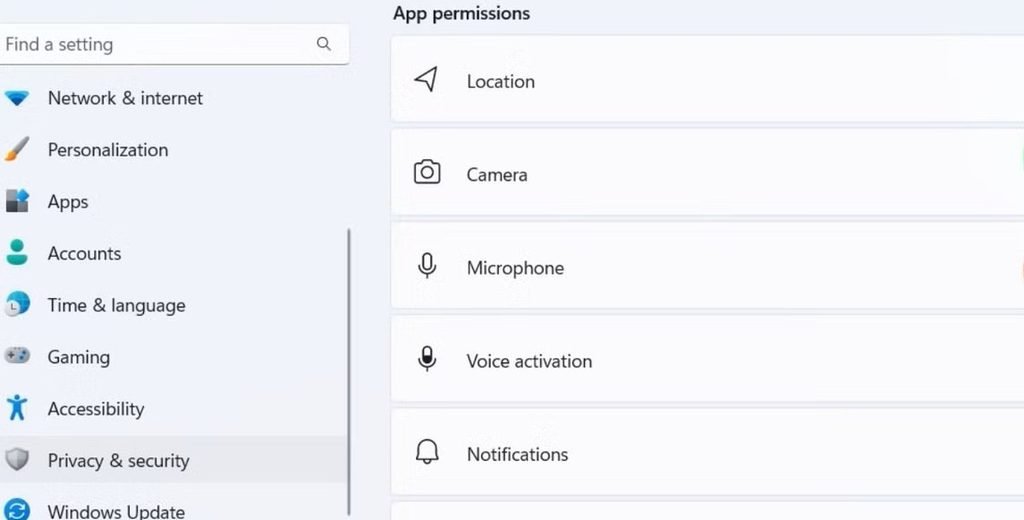
- Hold Windows + I to go to the Settings application
- Choose Privacy & security from the left menu bar.
- Navigate to App permissions and open Camera.
- Search for the desktop application whose access you want to control.
- Use the button next to it.
- Deny or allow access to controls.
- Roll back to the previous page and restart the process for Location or Microphone, if needed.
You do not need to apply any changes to all three categories. Analyse the permissions for each app specifically and turn off only the access that an app does not require.
Apps that have not been granted access to a resource previously will be displayed for permission when a user requests it.
To do the same in Windows 10. Read our previous article:
[How To] Change App Permissions On Windows 10
If an Application Displays Unsigned
During analysing the application list, you may observe that certain applications appear with the label Unsigned despite a familiar name.
This occurs when Windows is not able to authorise the publisher data linked with an application. It does no harm to the software on its own, but it is a cause for attention.
Microsoft also issues a warning that browser-hosted technologies or applications using shared system components might display under unexpected names.
Before providing any access, review the application’s publisher and confirm that you recognise the software. Try not to grant location, microphone, and camera access to third-party and unfamiliar programs.
What about Existing Permissions?
You do not have to apply settings to every application again when the feature is released.
Microsoft has confirmed that existing permission decisions will remain preserved:
- Applications that are allowed to access a resource retain that permission
- Applications that formerly denied access remain blocked.
- Applications that previously have not requested access can display a prompt when they require it.
- Existing enterprise permission policies continue to work.
This points out that the update does not automatically reset your previous privacy choices to provide access to every application.
You Still Can’t See Individual Desktop App Permissions?
Microsoft launched the feature in Insider Beta Build 26229.9836, based on Windows 11 version 25H2. It is an experimental update and is not guaranteed for normal availability.
To verify your current build:
- Hold Windows + R.
- Type winver and Hit Enter.
- Review the OS build information in the window.
If you are currently using a regular basic public release, you can still control camera, microphone, and location access for compatible Microsoft Store applications individually. For legacy desktop applications, use the program’s own privacy setting if possible, or the shared Windows permission switch.
For managing similar control access for files and folders in Windows 10, go through our article:
Windows 10 – How to Configure User Permissions for Files, Folders
Final Words
The latest privacy control labels a limitation in the way Windows manages legacy desktop programs. Despite of allowing or denying access for desktop applications aggregately, users will now be able to control individual applications separately.
However, the feature is currently being tested through the Windows Insider Program. It is a convenient enhancement for any user who needs more control over which applications can access their camera, microphone, and location.
For technical verification, visit Microsoft’s official page: Microsoft – Insider Beta Build 26220.9836