
Cursor moving randomly on its own in Windows 11 can be irritating. In most cases, dirty touchpads, incorrect touchpad sensitivity settings, and device driver settings bring trouble. The cause of this problem is simple, and so is the fix. Let us see the most effective methods to fix a cursor that moves randomly in Windows 11.
Uninstall the device driver and restart the system:
- Right-click on Start.
- Select the Device Manager.
- Now navigate and find Mice and other pointing devices.
- Expand Mice and other pointing devices by clicking on the arrow on the left.
- Now right-click on the HID-compliant mouse and select Uninstall device.
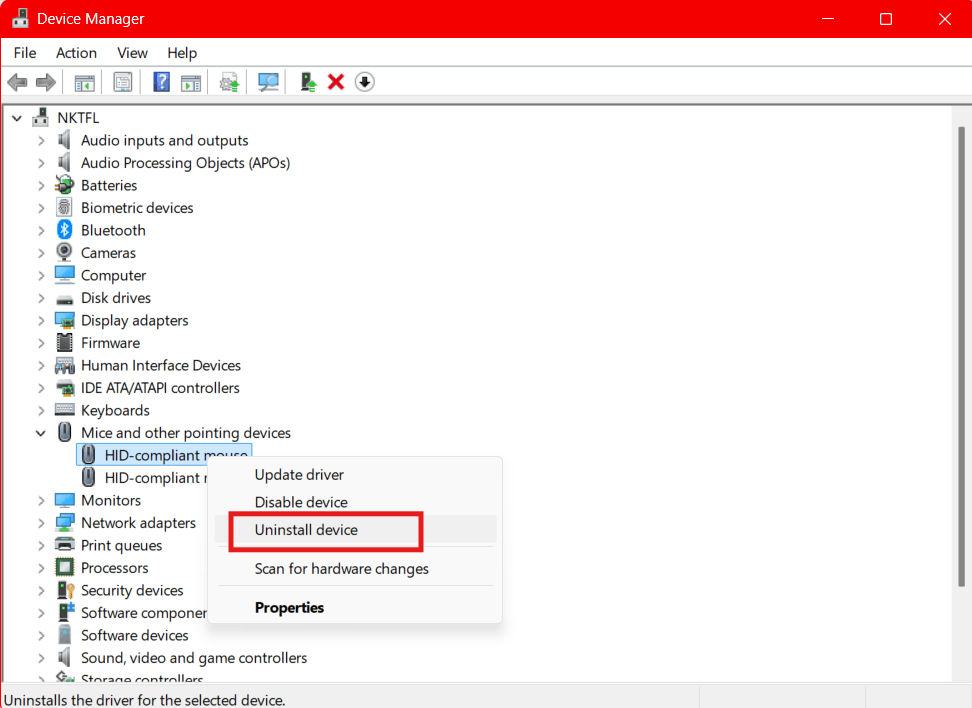
- Check for any extra HID-compliant mouse option present under Mice and
other pointing devices. - If present, you need to uninstall this device too. For this, right-click on the
extra HID-compliant mouse option and select Uninstall device. - Now, Restart your system. Upon the restart, the mouse will be automatically
installed. This can solve the issue of the cursor moving randomly on its own.
Adjust touchpad tap, sensitivity and gestures settings:
- Click on Start and select Settings.
- From the left pane, select Bluetooth and Devices.
- Scroll down and select Touchpad.
- Click on Taps to expand it.
- In the drop-down menu, check if Touchpad sensitivity is selected as Most
sensitive. You can change Touchpad sensitivity to Low sensitivity or
Medium sensitivity. Check if the issue is fixed.
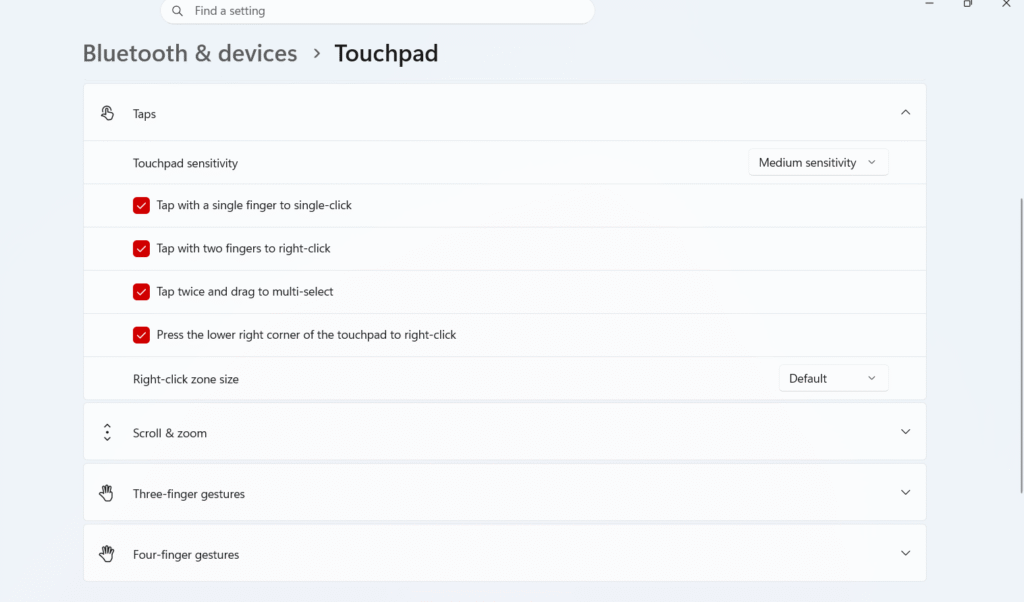
- You can also try making changes to the other options in the drop-down menu one by one and see if the issue gets fixed.
- Gestures can trigger accidental inputs. So, try to make changes in gestures to see if the problem is solved.
- For this, click on Three finger gestures.
- In the drop-down menu, look for Swipes where you get to see different
settings. You can try reshuffling them one by one and see if the issue gets
solved. - Perform the similar steps for Four finger gestures.
Clean the touchpad:
You can also try cleaning the touchpad to remove moisture, dust, hair, etc. that can cause touchpad interferences, which may have in turn resulted in causing the cursor to move randomly.
Check for touchpad issues:
If any of the above-mentioned methods fail to resolve the issue, check for touchpad issues. For this:
- Click on Start. and select Settings.
- From Settings, select Bluetooth and devices.
- Click on Touchpad and turn off the touchpad.
- Now, you can connect an external mouse to the system. This way, the cursor will behave normally.
- This may fix Cursor moving randomly.