
Microsoft is launching a modified Run dialogue in Windows 11 with the release of the November 2026 Preview update. The more widely known Win + R interface, which has been a part of Windows for decades, is getting a new-age interface with improved launch performance, dark mode support and a cleaner appearance.
Windows + R is one of several useful Windows 11 keyboard shortcuts that help users access system tools quickly. Read more keyboard shortcuts in this article: Windows 11 keyboard shortcuts.
The latest change arrives through KB5132057, rolled out on November 13, 2026, for Windows 11 editions 26H2 and 25H2. Unlike a mandatory interface replacement, Users can enable the redesigned Run interface through Windows settings. The old version also stays available.
The article explains the changes, which Windows builds support the modification, and how to enable it.
New Changes in the Windows 11 Run Dialog?
The Run dialogue is a built-in Windows utility tool that enables users to start applications, open folders, and run commands without going to the Start menu or File Explorer.
Holding Windows + R previously opened a small, classic-looking interface. Microsoft has now modified this look using the latest Windows interface technologies.
The user will experience various changes in the new modified version of the Run dialogue:
- Dark Mode Support: The latest dialog follows the current system theme, making it more compatible with Windows dark mode.
- Modern Seamless Design: The user interface follows the theme and visual style of Windows 11 despite the older Run dialog.
- Quick Home Folder Access: Users can enter ~\ to go directly to the user directory and continue accessing sub-folders.
- Faster Launching: Microsoft mentioned a median time-to-show of 94 milliseconds in comparison to 103 milliseconds for the old dialog.
- Command History: The Down and Up arrow keys continue to allow users to shift through previously entered commands.
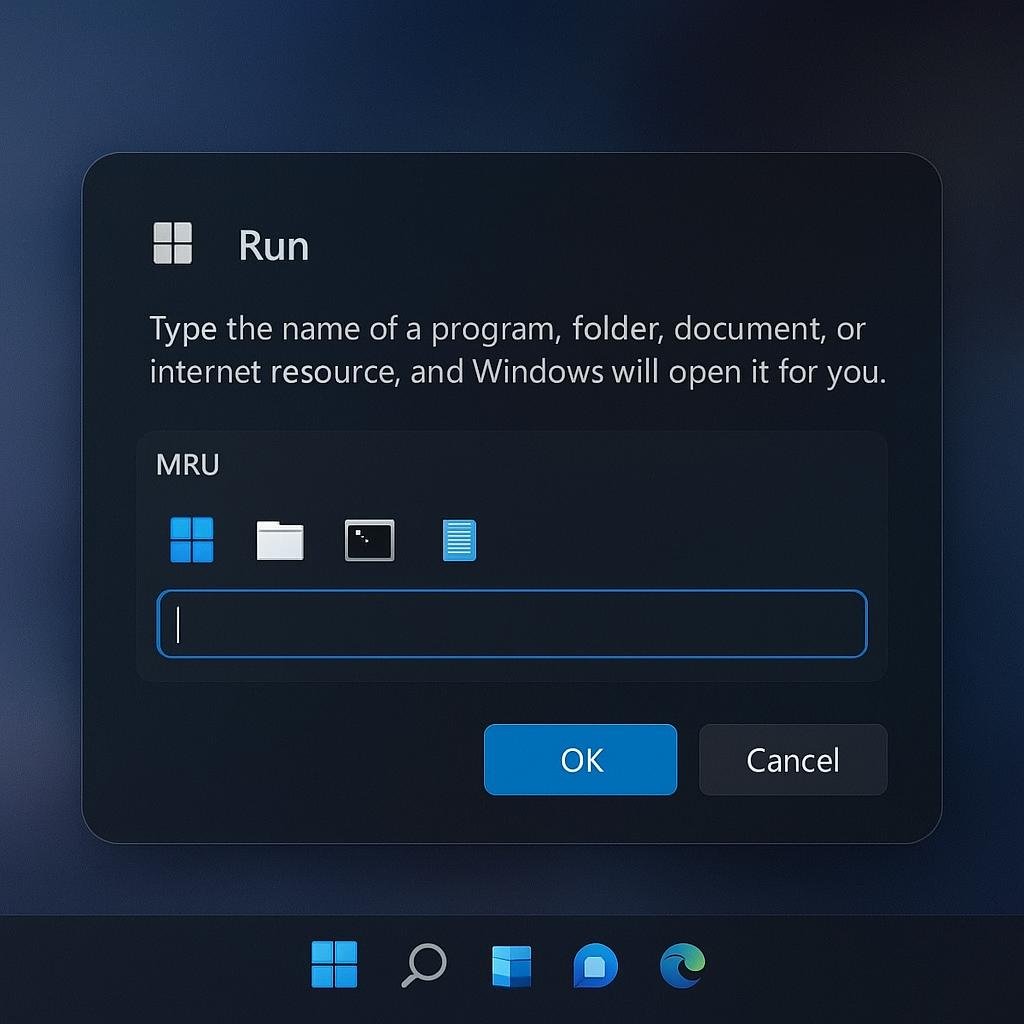
The new look does not eliminate the basic functionality of the Run utility. You can still type commands, launch programs, and open network or local paths.
Windows 11 Versions Supporting the New Run Dialog
Microsoft reported the redesigned Run interface in KB5132057, which is available through the Windows Insider Release Preview channel.
The supported builds and versions are:
| Windows Version | OS Build | Update |
| Windows 11 25H2 | 26200.10066 | KB5132057 |
| Windows 11 26H2 | 26300.10066 | KB5132057 |
The patch was released on November 13, 2026
Microsoft has documented these changes in its Windows 11 KB5132057 Release Preview announcement
Note: These are Release Preview builds, not a guarantee that the interface has updated through every Windows 11 stable installation. Microsoft is slowly rolling out the updates, so that means even eligible Insider systems might not receive the option all of a sudden.
Enabling the New Run Dialog in Windows 11
In case your system has received the modified experience, you can turn it on straight from Windows Settings. There is no requirement to modify the Registry or download a particular application.
If you have difficulty accessing Settings, see these different ways to open Settings in Windows 11.
Follow the steps mentioned below:
- Hold Windows + I to go to Settings.
- Choose System from the left pane.
- Scroll down and click on Advanced.
- Navigate to the New Run dialog option.
- Enable the toggle to turn on the redesigned experience.
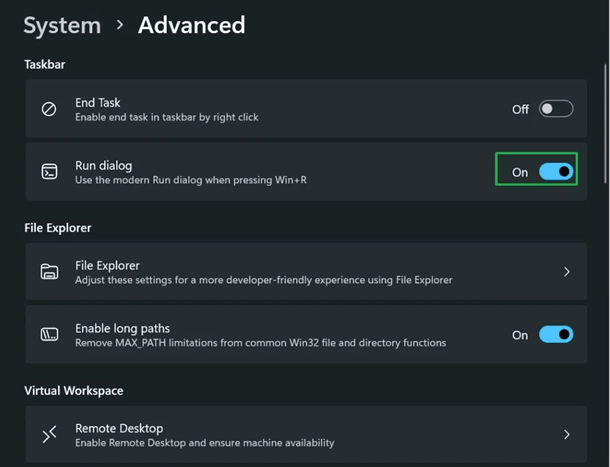
After toggling the settings, hold Windows + R on your keyboard.
Windows should now launch the latest Run dialog despite the classic design.
If the option is still unavailable, verify your OS build and Windows version under Settings > System > About. You should also install the latest required Release Preview update and look for the new option again. The slow release may mean that option has not arrived on your system yet.
On managed systems, an organisation administrator may also hide or disable Advanced settings controls through policy.
For additional technical details, refer to Microsoft’s documentation for the modern Run dialog.
Toggle back to the Classic Run Dialog
Not every user will like the redesigned interface. In case, you want the old Run window back, Microsoft has featured an option to switch from the old to the new look.
To restore the old dialog, follow the following steps:
- Open Settings.
- Go to System > Advanced
- Look for the New Run dialog toggle button.
- Disable it
- Hold Windows + R to open the Run utility again.
Windows will now display the traditional Run experience.
You can repeat the steps mentioned above to switch between both the interfaces.
Speed Comparison of New Run Dialog and the Classic Version
Microsoft’s main purpose while redeveloping the utility was primarily based on speed and performance.
According to the Windows Command Line Team’s report, the modified Run dialog has a median launch time of 94 milliseconds. The legacy version mentioned a median time of 103 milliseconds in the comparison.
The new look uses WinUI 3 and C# and is put together using .NET Ahead-of-Time (AOT).
Microsoft has also shared code with the Command Palette project in PowerToys.
Though, this enhancement concerns the quickness of the Run window launch. It does not signify that applications opened through Run will load files or execute commands faster.
Accessibility of the New Run Dialog for all Windows 11 users
As of now, Microsoft has rolled out the feature in the Release Preview channel through KB5132057. Its availability is still in question for the stable users.
A Release Preview announcement should not be mistaken for widespread availability. Users on general stable Windows 11 installations may need to wait until a public update is announced.
Microsoft has also not mentioned a universal installation date for every Windows 11 system in the release notes.
Conclusion
The new modified Run interface is a convenient improvement for Windows 11 users who often execute programs, access folders and launch programs using Win + R. Its new appearance, quick home-directory navigation, command history and dark mode support make the widely known tool more compatible and consistent with the rest of Windows 11.
In case your system has already received KB5132056 and the latest Run interface option is available, you can try the new experience without losing any access to the old version.