
Microsoft has rolled out KB5132061 for Windows 11 on November 10, 2026. The update consists of reliability improvements, security fixes, and the latest features that were previously tested in the October preview KB5127936 update.
KB5127936 launched on October 28, 2026, for Windows 11 26H2 and 25H2. It included multiple changes and fixes, including enhancements to networking updates, Xbox Game Bar changes, File Explorer and Cloud Rebuild. Most of these improvements are expected to reach Windows users through the release of the November Patch.
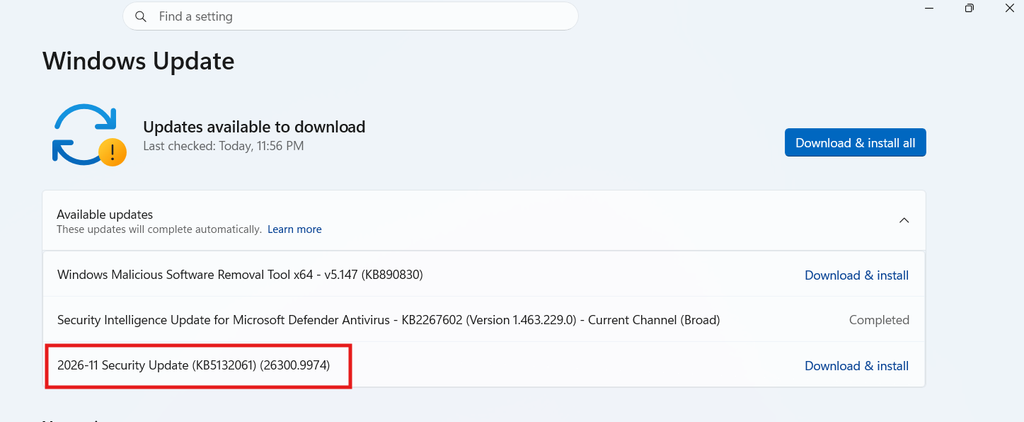
Windows 11 versions and build numbers mentioned:
| Windows 11 version | Build after KB5132061 |
| 26H2 | 26300.9974 |
| 25H2 | 26200.9974 |
| 24H2 | 26200.9974 |
After installation completes, go to Settings > System > About to verify the installed build number. You can also check it by following these steps:
- Press Windows + R
- Type winver
- Hit Enter
This is an alternate way to check your Build number.
New Features and Changes in KB5132061
Customizable right-click menu
One of the anticipated changes is the new customizable right-click menu present in File Explorer. Microsoft mentions that users can select the specific commands and app extensions to display. Users can also analyse the organised structure of the context menu.
This will make the context menu more convenient and less cluttered, making it easier to personalise. The change was launched in KB5127936 and is expected to outspread globally through the release of November update.
File Explorer Enhancements
The preview update also made changes in File Explorer search results, inserted a shortcut to the top user profile folder using ~, and refined dark-mode support for the Folder Options dialogue.
This new feature may not be available immediately on every system after the installation of the update. Microsoft often releases interface changes slowly, even after the update installation is completed.
Cloud Rebuild
Cloud Rebuild is another essential integration. It can reinstall Windows using a new Windows image and drivers obtained from Windows Updates, even if Windows does not start.
The feature is out there in Settings > System > Recovery. It reformats the system disk and deletes accounts. Settings, installed apps and local files. It does not provide any option for keeping your files.
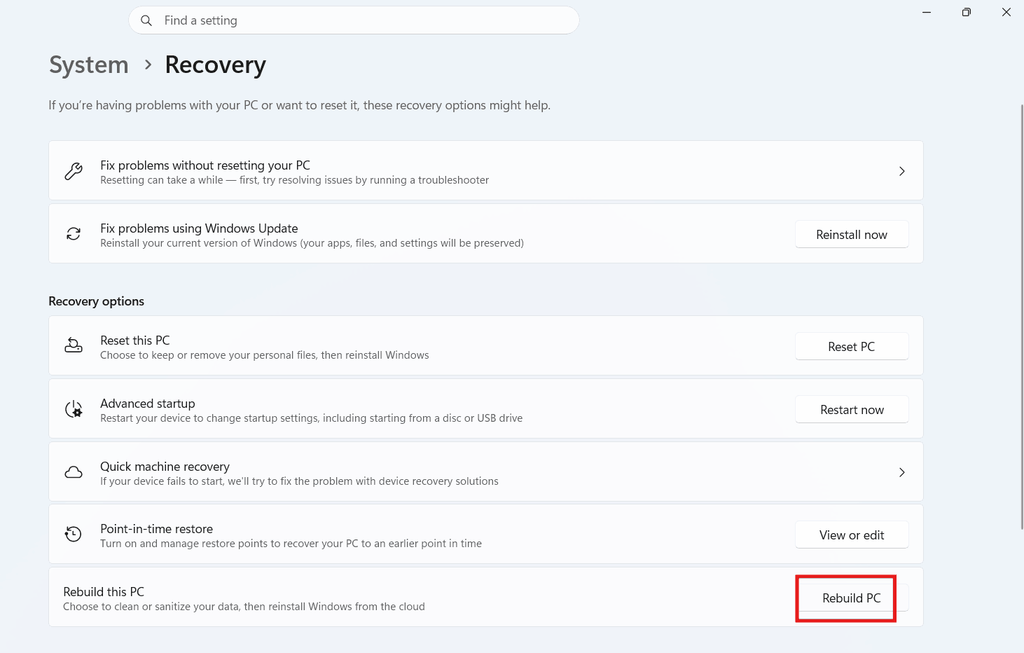
Cloud Rebuild needs a functioning Windows Recovery environment, compatible drivers, an internet connection, and compatible hardware. If a needed driver is not available through Windows Update, recovery may stop with error 0xc1900224.
Change is Xbox Game Bar
KB5127936 also made tweaks in Xbox Game Bar with a new Gaming Task View. It integrates an Exit to Desktop option during gaming through the latest navigation bar and quick access to Power options.
Gamers will prefer the update changes more, but it is less likely to become a trending topic compared to File Explorer and Cloud Rebuild changes.
Performance and Networking changes
The previous update came with IPv6 CLAT (464XLAT) compatibility for Ethernet and Wi-Fi. Moreover, it provided an extra feature called Edge Accelerated App Launch.
Accelerated App Launch is designed to speed up Microsoft Edge when it is running in the background. Microsoft ensure a 33% increase in the speed of Microsoft Edge with this feature.
Security Fixes in the update
The update consists of security fixes for Windows 11. Microsoft’s official Security Response Centre will publish the thorough analysis of vulnerability information individually after the release.
Try not to copy CVE numbers, vulnerability counts, or misuse details from third-party pages before verifying Microsoft’s official security update guide. The same security fixes will be reported in Microsoft’s official release notes.
Users are reporting various known issues to Microsoft for the November 10, 2026 Windows 11 update. The issues are regarding USB Audio 1.0 devices failing to start and showing error code 10 in Device Manager after installation of the latest security update.
KB5132061 includes extra high-confidence device targeting data, increasing coverage of devices eligible to automatically obtain new Secure Boot certificates. Certificate deployment through Windows updates continues across supported PCs and non-managed business devices in the upcoming months.
The update fixed SB Audio 1.0 devices might fail to start and display error code 10 in Device Manager after installing a recent security patch, which we have also illustrated in a previous post.
The security update fixed the problem where adding a printer published in Active Directory through Settings -> Bluetooth & devices -> Printers & scanners -> Add device might fail with error 87, “The parameter is incorrect.” This issue was introduced by the October 2026 update and does not generally affect existing printers or printing.
Also, KB5132061 improves NTLM security by enabling clients to offer NTLM message signing by default for non-anonymous connections. This modification helps reduce exposure to NTLM relay attacks and provides auditing to identify connections that are not using signing.
The security patch adjusts daylight saving time (DST) rules for Cuba for the extended 2026-2027 DST period. Cuba remains on UTC-04:00 and doesn’t recognise the Nov 2026 and Mar 2027 transitions. It returns to UTC-05:00 in Nov 2027 and set back its regular seasonal schedule in 2028.
Powershell Changes
This update brings strength to the security and protection of PowerShell script signature and signing verification by introducing stricter encoding validation. As a result, scripts with invalid UTF-8 encoding might fail signature validation even if they were previously accepted. To solve the specific issue, analyse the affected scripts, save them using valid UTF-8 encoding with a byte order mark (BOM), and sign them again. For more support, visit Microsoft’s official guidance for signed PowerShell scripts
KB5132061 Known Issues
Microsoft has not yet reported any known issues for the November 10, 2026 Windows 11 update.
If you are facing an issue after update installation, verify Microsoft’s official release notes and Windows release health dashboard for current updates. Do not think an issue is caused by the update unless Microsoft reports it or various separate reports acknowledge the problem.
How to Download and Install the Update
- Open Settings > Windows Update.
- Click Check for updates.
- If the update is displayed on the screen, choose Download and install.
- Restart the PC when the prompt appears.
The update may not be available immediately for every device. Microsoft often releases feature-related changes gradually.
- Go to the Microsoft Update Catalogue.
- Find KB5132061.
- Select the package that aligns with your Windows processor architecture and version.
- Download the .msu file.
- Open the downloaded file and restart your system.
In case the update fails to install
If the update fails or stops, restart your system and try again. If it still fails, verify the error code and follow the right troubleshooting guide.
Alternatively, I’ve listed the steps below in order. Begin with simple fixes before moving to more complex and advanced methods.
- Restart the system and try to update again
- Free up disk space, specifically on the system drive.
- Run the Windows Update Troubleshooter.
- Run DISM /Online /Cleanup-Image /RestoreHealth or sfc /scannow
- If the problem persists. Reset Windows Update components.
- Check Device Manager for driver-related issues.
- Reinstall or update any defective drivers.
- Look for the disk health using third-party software or built-in tools.
- Sometimes, the Windows Update Assistant works if a normal installation fails.
- Use the Windows 11 ISO method if required
- Use Cloud Rebuild only if you are out of options.
- Back up essential files before using Cloud Rebuild.
Final Words
In case of an update failure, try not to panic. Begin with normal solutions, then move to more professional repair methods only if required. After resolving the issue, go to Windows Update again, check disk health, install pending drivers and create a restore point. Configure a backup routine to avoid any data loss. In case the problem persists or you experience data loss, look for professional help or use recovery tools carefully.
Source: Microsoft Support