
Microsoft has begun automatically upgrading eligible Windows 11 systems to edition 26H2 as part of a slow rollout that started on November 18, 2026. The upgrade affects business devices and personal computers that are not handled by an IT department and are currently running Windows 11 25H2 and 24H2 on their systems.
Till now, use could obtain the 2026 update by manually checking Windows Update and choosing to download. Microsoft is now introducing automatic delievery so supported systems can receive the feature update without users having to search for it manually. We have prviously covered Windows 11 KB5132061 (November 2026) Update: What’s New, Fixes, and Download which you can read.
The change is not being rolled out to all Windows 11 system at once. Microsoft is steadily expanding the change based on Windows Update settings and device eligibility.
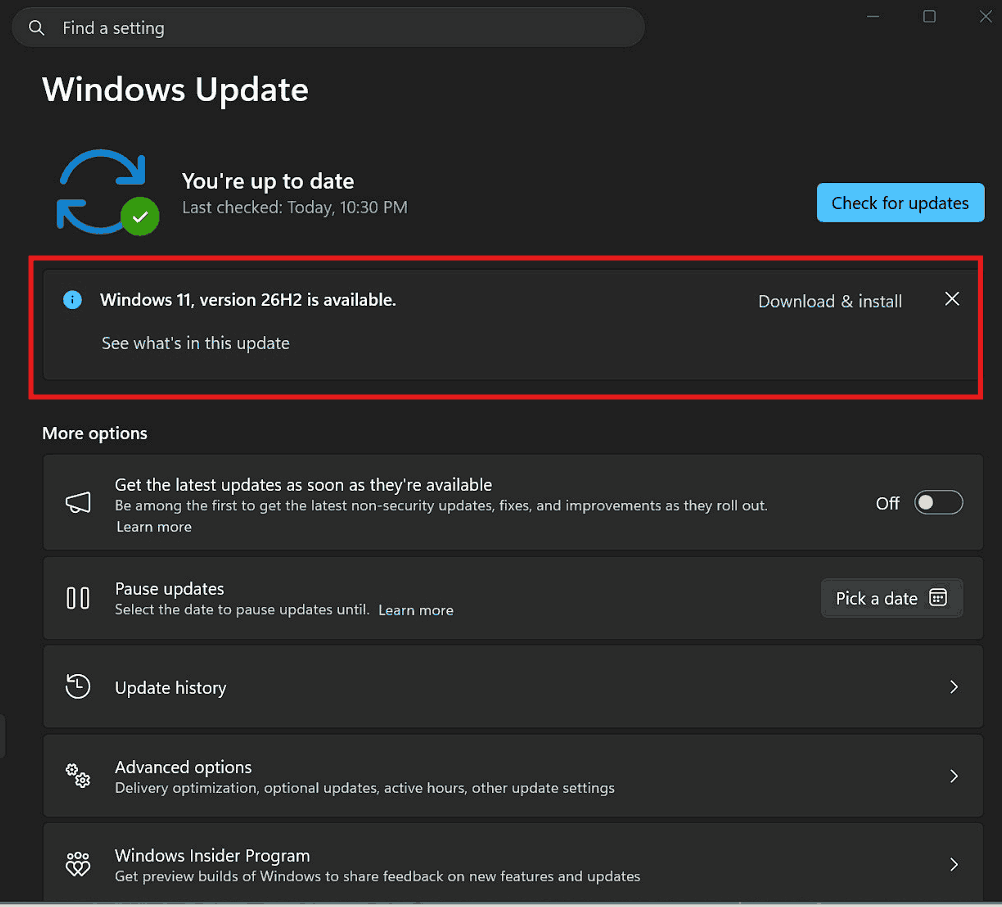
Microsoft Starts Automatic Windows 26H2 Release
Microsoft reported the rollout change on November 18 through its official Windows release health information. The company mentioned that at the beginning, automatic delivery would target eligible devices currently running Windows 25H2 and 24H3 that are not handled by IT departments.
Windows 11 26H2 was originally released on September 29, 2026. Its initial availability enabled users to complete the installation manually. The November 18 development states the next stage, in which Windows Update can automatically provide the upgrade to unmanaged business and personal systems.
This points out that users do not necessarily go to Windows Update and start the installation themselves. As the release gradually expands, more eligible computers will receive the update automatically.
Microsoft is still relying on the controlled release method. Therefore, two systems running the same Windows version might not get the upgrade on the same day.
Versions That Are Getting the Automatic Upgrade
The recent automatic rollout involves eligible systems running:
- Windows 11 version 26H2
- Windows 11 version 25H2
Business devices and personal computers that are not handled by an organisation’s IT department are the starting targets.
Computers functioning using IT management systems and enterprise update policies are not part of this gradual automatic consumer rollout. Administrators can start managing feature-update deployment through their policies and existing tools.
There is also an essential distinction related to Windows 11 24H2. Pro and Home editions will no longer receive updates from October 13, 2026. Microsoft suggests shifting eligible devices to a compatible version to continue receiving quality and monthly security updates. Education and Enterprise versions have a different support timeline.
Windows 11 26H1 is not part of this upgrade path. Microsoft developed that release for particular new devices despite an in-place feature update for existing 25H2 and 24H2 systems.
Check and Install Windows 11 26H2
In case, your system is currently running Windows 11 25H2 or 24H2, you can verify if the 26H2 feature update is available.
- Press Win + I to go to Settings.
- Choose Windows Update from the left pane.
- Click Check for updates.
- Wait until Windows searches for available updates.
- If Windows 11 version 26H2 appears, choose Download & install.
- Enable Windows to download the needed files and restart your system when instructed.
You can also turn on the option that allows Windows to provide the latest updates sooner.
- Go to Settings > Windows Update.
- Look for the option Get the latest updates as soon as they are available.
- Enable the option.
- Return to the Windows Update interface and check for updates again.
Turning this option on does not ensure that every system will receive 26H2 all of a sudden. Hardware eligibility, compatibility and Microsoft’s release safeguards can still affect availability.
What is KB5121794, and how does 26H2 install?
Windows 11 26H2 uses an enablement package despite a classic large feature-update installation for eligible 25H2 and 24H2 systems.
Microsoft reports that these three Windows versions share a similar core operating system and the same underlying system files. Most of the features linked with 26H2 are already available in prior monthly updates but stay inactive till the enablement package switches them on.
The feature update in enrolled under KB5121794; it needs Windows 11 version 25H2 and 24H2 and the September 22, 2026 update, KB5124010, or a later cumulative upgrade.
As the required components are already available on compatible systems, the shift can be relatively fast. Microsoft mentions the enablement package needs a single restart to finish the update.
After installing the update, the system runs Windows 11 version 26H2 despite its previous feature-update edition.
Check If Your System Has Windows 11 26H2
You can check the installed Windows version without going to Windows Update.
- Hold Win + R to open the Run dialog interface.
- Enter winver and hit Enter.
- Verify the Windows edition shown in the About Windows window.
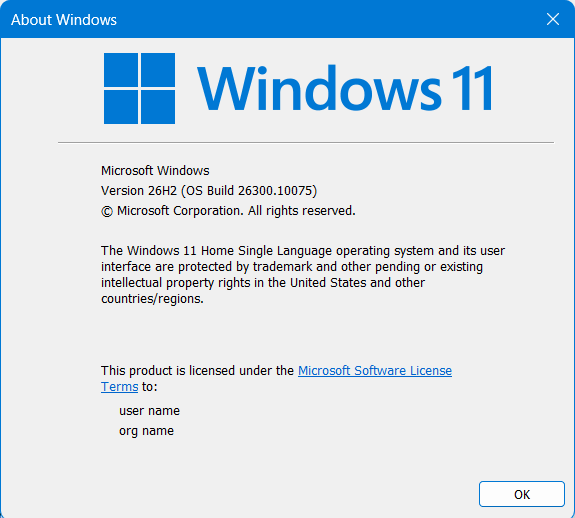
In case the interface shows version 26H2, your system has successfully shifted to the new release. If it is still showing 25H2 and 2hH2, the feature update has not yet been installed.
Final Words
Microsoft’s November 18 release expansion makes Windows 11 26H2 more convenient to be available for unmanaged business and personal computers. Users running 25H2 and 24H2 can verify Windows Update to check if the upgrade is available, while automatic delivery will slowly reach to more systems.
The update uses the lightweight KB5121794 enablement package and needs just a restart to activate edition 26H2. If the upgrade has not yet appeared on your system, wait until Microsoft’s rollout reaches your device rather than enforcing an installation through third-party or unofficial tools.