
Starting your system, entering your password, and then getting stuck with a black screen is frustrating. The sign-in is still working, but the desktop home screen never appears; there’s nowhere to click. Various users on Windows 11 26H2 have experienced the same problem, especially in virtual desktop environments and at work.
The good news is that Microsoft has confirmed the issue on its health page and released a fix. The issue was raised and resolved on October 13, 2026, through update KB5127648. This points to the fact that, in most cases, you just need to install the latest update to resolve the issue. If you are unable to update it as of now, there is also a fast temporary fix that makes your desktop appear without restarting the PC.
We explain thoroughly what the problem really is, what it affects, and the guide you can follow to solve it. Begin with the first method, and if you are currently stuck on a Windows 11 26H2 Black Screen, jump directly to the method.
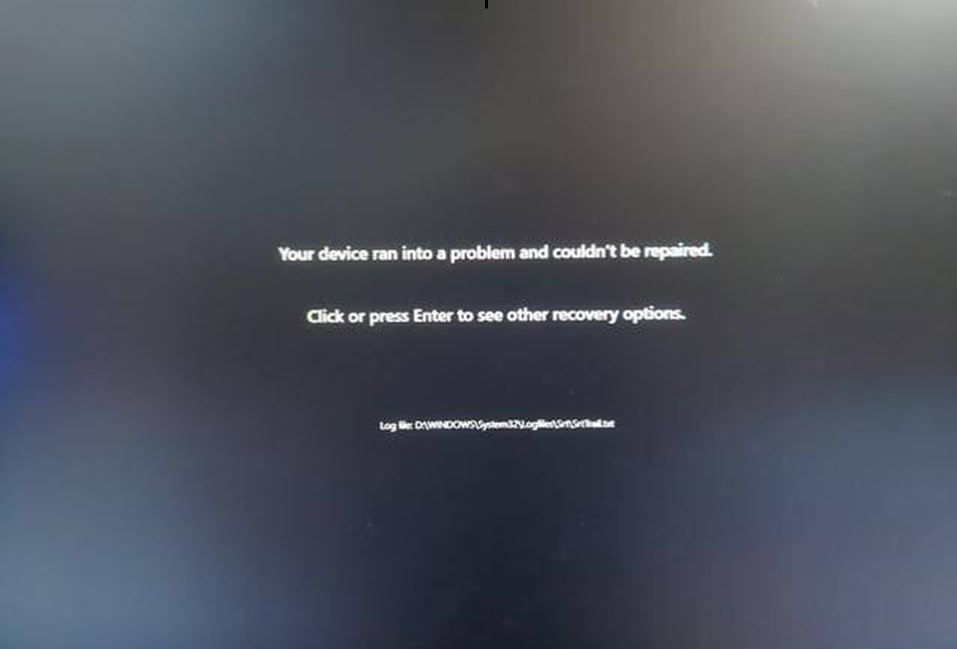
Windows 11 26H2 Black screen issue after sign-in explained
Based on Microsoft’s official announcement, some devices can face desktop loading problems immediately after installing version 26H2 and late updates of Windows 11. The problem has mostly been noticed on Azure Virtual Desktop (AVD) hosts that use FDlogix for the management of user profiles. It’s also happening mostly with existing user profiles.
Common characteristics include:
- A black screen shows up after sign-in.
- The desktop does not load on its own, and you are unable to open it until the session is established manually.
- Log in Application event may show Windows Explorer crashes.
Versions affected: Windows 11 24H2, 25H2, 26H1, and 26H2. Windows Server stays normal.
If you use a normal home PC, you are unlikely to experience this, as reports primarily reflect virtual desktop setups. The solution below still applies if you are seeing it.
Method-1: Install update KB5127648
This is Microsoft’s official resolution. It says the problem is solved by the updates rolled out on October 13, 2026 (KB5127648) and updates released after that date. If you have already installed the update, you are not required to do any changes.
- Go to Start and open Settings.
- Click on Windows Update in the left panel.
- Click Check for updates.
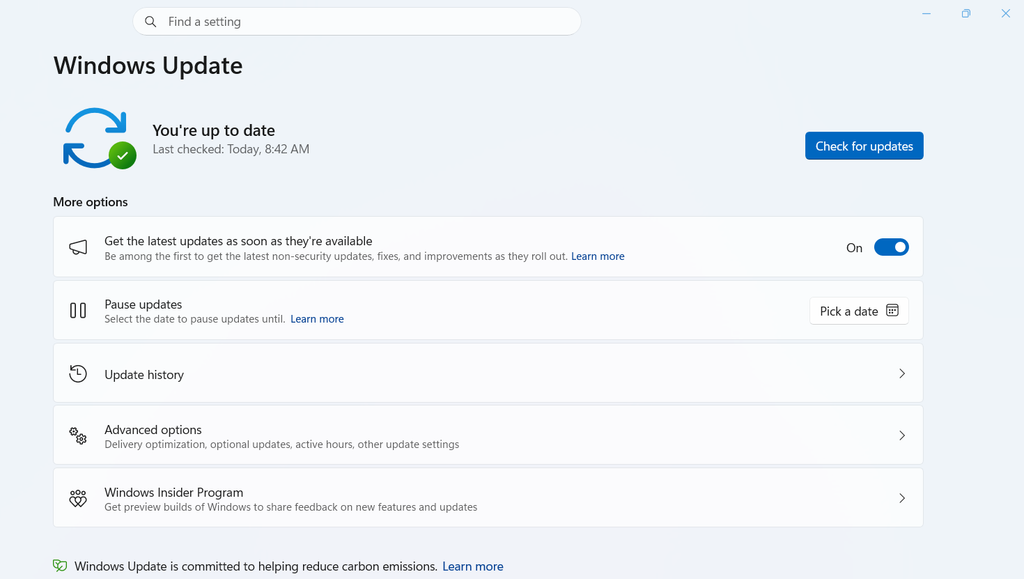
- Wait until the Windows downloads the update, and then install it.
- Restart your system when prompted.
If the update fails to install or does not show up, you can download it from Microsoft’s official Update Catalog. Choose the file that aligns with your system type and Windows version (ARM64 or x64), then open it and follow the on-screen instructions. If you’re still facing problems regarding the installation process, go to our recently updated guide on fixing KB5127648 failing to install on Windows 11.
Method-2: Launch explorer.exe manually
If you can’t update yet and are still stuck on the black screen, you can make the desktop appear by starting Windows Explorer yourself. Microsoft mentions this as a temporary solution.
- On the black screen, hold Ctrl + Shift + Esc to open Task Manager.
- Click on Run new task at the top of the window.
- Enter explorer.exe in the prompt.
- Click OK.
Your taskbar and desktop should come back within the first few seconds. Consider this only a temporary fix. The issue may return when you log in again. Repeat the same steps until the KB5127648 update is installed on your PC.
Method-3: Check if KB5127648 is installed
Sometimes you are not sure if the update is installed or not. It’s worth considering before doing any other changes.
- Open Start and go to Settings.
- Open Windows Update.
- Scroll down and click on Update history.
- Look under the interface of Quality Updates for KB5127648 or a newer update.
If you see it mentioned as missing or failed, start over with method 1 and install it again. If the issue persists even with the installed update, restart your system once again before trying anything again.
Method 4: Use Known Issue Rollback (IT admins)
This Windows 11 26H2 Black Screen solution is for organisations and businesses that manage Windows updates through Group Policy. Known Issue Rollback (KIR) turns off the particular change that causes the issue until a permanent fix is found. The resolution is rolled out for the devices that have not received KB5127648 yet.
- Download the KIR policy that aligns with your Windows version from Microsoft’s release health page. Microsoft released each one for Windows 11 24H2, 25H2, 26H2, and a special one for 26H1.
- Install the KIR policy file on your local device.
- Go to Group Policy and Open Computer Configuration > Administrative Templates, then search for the Known Issue Rollback entry you installed.
- Configure and modify the policy as mentioned in Microsoft’s instructions.
- Restart the affected systems so the setting gets applied.
You must install and configure the policy for it to start working. Microsoft also states that this policy disables the changes that are causing this issue until a future update rolls out.