
Windows 11 Speed Test: Run the feature from Quick Settings
Microsoft’s latest Windows 11 update adds a user-friendly way to test your internet connection speed. Instead of opening a browser and visiting a third-party speed-testing website, Windows users can now test their connection straight from Quick Settings. The new features include ping, upload speed, and download speed checks, making it more convenient to examine the network performance.
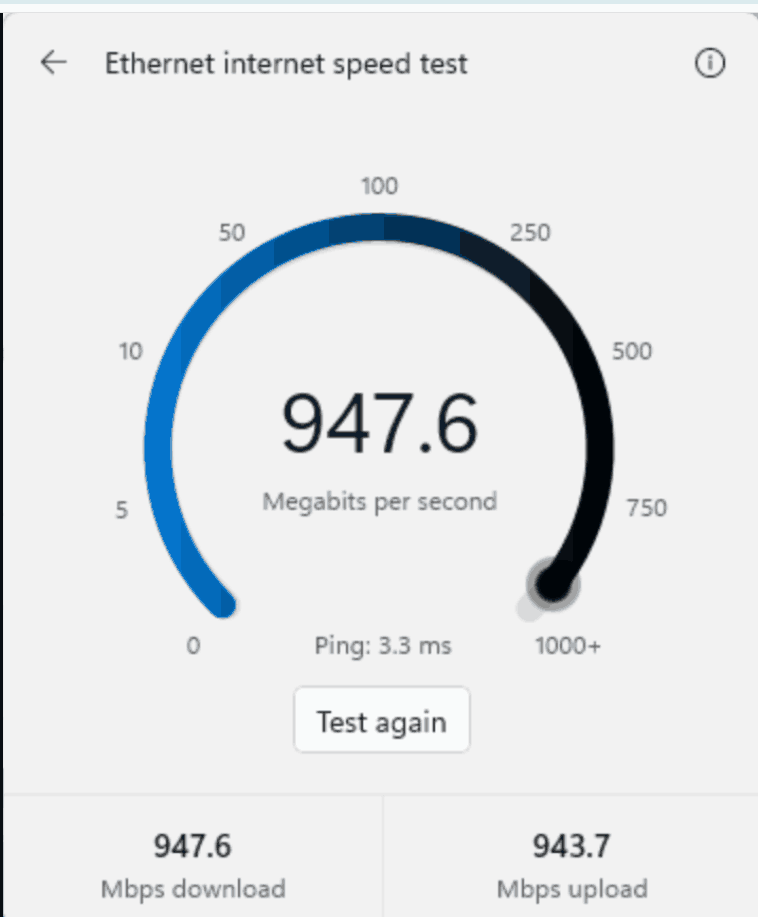
Microsoft launched this updated feature in Windows 11 Insider Preview Build 26340.9767, rolled out on October 23, 2026. The updated experience is being released gradually, so it may not be available on every system running the exact build. In this article, I am going to explain how it functions, how to find it, and what to do if the option is missing.
What’s New in the Windows 11 Speed Test?
The primary change is that the speed test runs inside Windows instead of directing you to a browser. The previous taskbar shortcut opened a browser-based speed test; now the new feature shows the test and its outcome straight in Quick Settings.
This allows the shortcut to be more useful, as it lets you continue checking your speed without any interruption to your personal work. For instance, you can open Quick Test if video calls lose quality or if a download is slow.
The new feature displays three measurements:
- Ping: Time taken for a connection to reach a server and return. A lower ping is normally better for functionalities that require fast response
- Upload speed: Determined by your connection’s ability to quickly send data online.
- Download speed: Speed of receiving data from the web.
Steps to Run an Internet Speed Test in Windows 11
In case the feature is showing on your system, you can open it from the network icon in taskbar or Quick Settings. You do not need any third-party speed-testing software.
Step-1: Go to Quick Settings
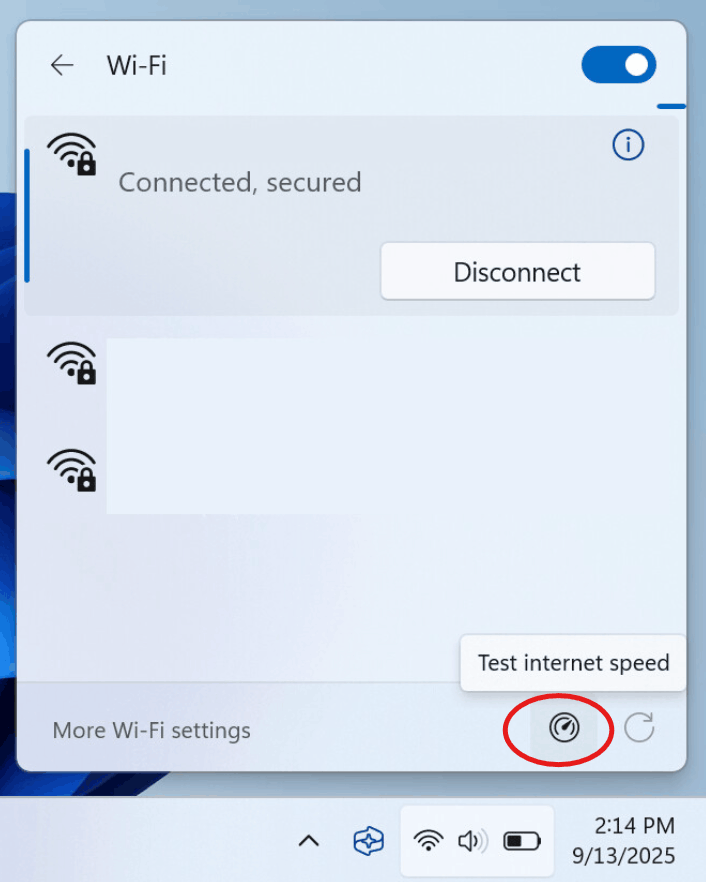
Click the network, sound, or battery section on the right panel of the Windows 11 taskbar. This displays Quick Settings panel, where you can get access to generally used system controls.
Step-2: Look for the new Speed Test option
Find the new Speed Test control in Quick Settings. If it is available there, click on it and execute the process.
You may be allowed to run the test from the cellular network flyout or Wi-Fi. One more option is to right-click the network icon in the taskbar and choose Test internet speed.
Step-3: Wait until the test finishes
After starting the test, Windows shows its progress inside its own interface. Allow it to finish so you can get access to the results for your system’s connection.
Step-4: Examine the results
Review the ping values, upload speed, and download speed. If you are experiencing a slow connection speed, you can compare these outcomes with a different test done under similar conditions.
Remember, your internet plan, network congestion, and Wi-fi signal strength can alter the figures. Launching the test again can also display a slightly different result.
Getting the New Windows 11 Speed Test in Your System
The recently rolled out feature is currently being tested and developed through the Windows Insider Program. It was introduced in Windows 11 Insider Experimental Preview Build 26340.9767, based on the 26H2 version of Windows 11.
To identify your system’s current build, hold Windows + R, type winver, and hit Enter. The window interface will show you the OS build number and Windows version.
Before installing the preview build, review whether you are comfortable getting a feature that is still being tested. Insider updates can contain changes or bugs that influence everyday users. It is normally better not to shift your primary work system to an experimental update just to try a specific feature.
Read Microsoft’s official announcement here: Windows 11 Insider Preview Build 26340.9767.
Why is your system missing Speed Test in Quick Settings?
Even when your system is running a supported preview build, the updated feature may not display instantly. Microsoft is releasing the feature gradually, which means that various Insiders can get the option before others.
Verify your Windows build. Run winver and match the mentioned build number with Microsoft’s official release notes. A general Windows 11 update installation does not mean it will include the experimental feature.
Check for Windows updates. Go to Windows Update and start installing any compatible updates offered for your system. Restart the PC if needed, then find the option again.
If available, look for Feature Flags. Some primarily launched testing reports point out that the option named Quick Settings Speed Test may be hidden under Windows Insider Program feature flags. This feature is not guaranteed to display on all systems, and the available options can shift between preview builds.
Wait for the complete release. If the feature is still unavailable, your system may not have the updated experience yet. Try to avoid using unofficial third-party tools or changing unrelated settings.
Conclusion
The recently rolled out Windows 11 speed test also displays connection measurements more accurately. Users can access it from the taskbar itself. With ping, upload speed, and download speed shown directly in Quick Settings, testing a connection has become simpler.
As of now, the option stays part of the Windows Insider preview rollout. If it is not displaying on your system, verify the Microsoft’s latest release notes and build number instead of assuming defects in Windows.