
Phone actions in Windows Search allow you to text or call a contact and access phone controls, including Do Not Disturb, through a compatible phone connected with Phone Link. Microsoft launched these new additions on October 30, 2026, as part of the latest Search experience for Windows Insiders.
The update is currently linked to the Experimental and Experimental (26H1) channels, not every Windows 11 installation. This article mentions the requirements, how to make Phone Link ready, and what to verify if phone actions do not appear.
Phone Actions in Windows Search Explained
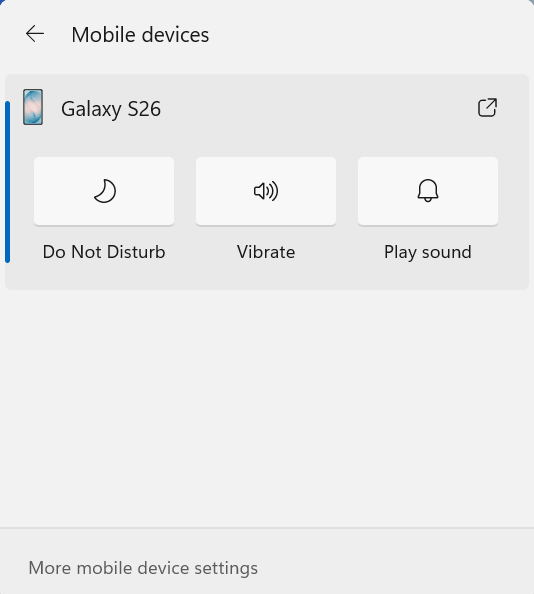
Phone actions open another way to function your connected phone from Windows. Even after opening Phone Link first, you can search for a compatible phone task straight from the new search interface. Microsoft ensures texting, calling, and various phone actions like turning on Do Not Disturb.
Android support is also available now. Microsoft mentions iPhone support is set for early 2027.
However, Phone Link is already compatible with certain iPhone functions; that does not mean all IOS users can currently access the new Search integration.
Read our article on the New Windows Search guide to get a wider idea of the search redesign: this post only aims to help you understand its phone feature specifically.
Confirm Windows Channel and Build
Microsoft’s October 30 update mentions Experimental Build 26340.9843 and Experimental (26H1) Build 28129.33.93 alongside the broader Search functionalities. A similar report also includes Beta releases, but marks these Search features for Experimental channels.
- Hold Windows + R.
- Enter winver and Hit Enter.
- Write down your OS build and Windows version.
- Go to Settings > Windows Update > Windows Insider Program.
- Verify your Insider channel and match it with Microsoft’s official release notes.
Do not think that installing a regular Windows 11 cumulative update allows you to function phone actions. A supported preview build and access to the latest search experience are two different requirements. Try not to change your main work system to an experimental build only to experience this new feature.
Use Phone Link to Connect Your Phone
Search phone actions need a compatible phone connected through Phone Link. Begin by confirming that the connection works before troubleshooting or introspecting Search.
Microsoft’s ongoing Android setup requirements consist of Android 10 or later and the system and phone connected to the exact same Wi-Fi network. Keep both devices close to each other and switched on during setup,
- Go to Start, enter Phone Link in the search bar, and run it.
- Choose Android and follow the setup commands.
- Open or click Link to Windows on your phone when a prompt appears.
- Finish the sign-in and pairing instructions displayed on your device.
- Check and grant the permissions required for the updated features you prefer to use.
After pairing, verify if Phone Link appears on your phone and can operate the phone functions you require. If the codes do not match or pairing fails, Microsoft suggests closing and reopening Phone Link and starting the setup again from the device.
Configure Calling Before Using Search
Making calls requires a Bluetooth connection on both the devices. A stable Wi-Fi connection is not enough for Phone Link calling.
- Enable Bluetooth on your phone and PC.
- Go to Phone Link on the PC.
- Choose Calls
- Select Get Started if calling has not been set up yet.
- Follow the pairing commands appearing on your screen.
- Allow the required permissions on your phone.
In case you skipped calling while the original setup was ongoing, go to Phone Link > Settings > Features > Calls. Turn on the option enabling the app to manage and make calls from your phone.
Try connecting to a familiar contact from Phone Link primarily. If that doesn’t work, resolve the Phone Link connection before trying the same tasks repeatedly from Search. Microsoft offers a separate call troubleshooting guide for pairing and Bluetooth issues.
Use Phone Actions from Windows Search
After your phone is connected and the latest Search experience is available, click on Search from the taskbar. Microsoft reported that the updated user interface is compatible for texting or calling a contact and obtaining access to Do Not Disturb through connected phone.
Follow these easy instructions:
- Type a phone task or contact name you prefer.
- Verify whether Search provides the same phone action.
- Choose the relevant result.
- Check any left-out permission details and contact message before proceeding.
These are the advised ways to inspect the interface, not the official Microsoft-published command strings. Microsoft’s report does not include a full list of the fixed order of confirmation screen or accepted phrases. Try not to expect every instruction to produce a similar outcome.
For instance, you can search for a texting or calling task that includes a contact already present in Phone Link. Before sending a message or calling, examine the recipient and message carefully.
Use the Do Not Disturb Option in Phone
Microsoft also mentions Do Not Disturb alongside other compatible phone actions. This is shown as a control for the connected phone, so do not misidentify it as Windows’ own notification settings.
Try to search for Do Not Disturb and analyse the outcomes before running it. Confirm it refers to your connected phone rather than your PC. After using the function, look to your phone to ensure any change in the intended settings.
Microsoft has not yet posted detailed support and compatibility guidelines for every phone control in the announcement. In case calling works but a specific settings is missing, do not think the whole Phone Link connection is sacrificed.
Phone Actions Missing?
First, think of the broken phone connection and missing search feature as two distinct issues.
- Phone Link is working, but Search displays no Phone actions: Verify the Insider Channel, Windows build, and availability of the latest search experience.
- Phone is disconnected: Keep both devices connected. Close to each other and on the same Wi-Fi connection. After that, Reopen Phone Link.
- You are trying the function on iPhone: Microsoft has not mentioned availability of this search feature for iPhone; iOS compatibility is planned for early 2027.
- Messages are functioning, but calls are failing: Check Bluetooth settings ands finish all the configurations.
You can also go to Settings > Windows Update > Check for updates and restart when needed. Though, an update is not a guarantee to immediately get access to an experimental feature.
It still isn’t working?
Use Phone Link straight for messages and calls till the new Search additions are available. Existing features do not need the latest search interface.
For continued calling issues, do follow Microsoft’s Phone Link troubleshooting command despite applying inconvenient changes in Search settings or allowing documented feature flags. Phone actions are an integration to the Search interface, not a prime reason to erase your phone or reinstall Windows