
Certain Windows 11 users are facing issues launching, installing or using apps after installing the latest hotpatch updates. Microsoft has addressed the problem and is investigating reports of failures in applications linked to Windows hotpatch.
Vulnerable applications may face the error ERROR_ALLOTTED_SPACE_EXCEEDED (0xC0000099). The issue is associated with applications that are responsible for loading the Windows Installer library, msi.dll, and is very likely to affect 32-bit applications. However, some 64-bit programs can also be affected.
Reason for Error 0xC0000099 in Windows 11?
Microsoft has recognised a compatibility issue linked with the latest Windows 11 hotpatch updates. The problem includes applications loading the Windows Installer DLL (msi.dll), which can lead to failure during startup, operation or installation.
The error code 0xC0000099 is linked to ERROR_ALLOTTED_SPACE_EXCEEDED. Though, in this particular case, the reported issue is associated with the hotpatch compatibility problem, despite necessarily pointing that your system has run out of disk space.
The affected Windows 11 versions are 24H2 and later, relying on the particular hotpatch installed. Other third-party applications and Microsoft Office may also be affected.
Related: Windows 11 Boot Loop After KB5132061: Fix INACCESSIBLE_BOOT_DEVICE
Methods to Fix Hotpatch Error 0xC0000099
Before moving to more advanced and professional changes, check if the issue started immediately after installation of a recent Windows update. If the application was functioning correctly before the hotpatch and began failing later, the update may be the cause.
Restart the System and the Affected Application
Windows process failure or a temporary application issue may stop a program from launching normally. Restarting the system can help eliminate temporary issues before applying more advanced troubleshooting methods.
- Close the application that shows the error.
- Hold Ctrl+ =Alt + Delete and go to Task Manager if the program stays stuck.
- End the affected application if it’s currently running.
- Restart your system.
- Launch the application again and verify if the error appears.
If the problem persists, proceed with the following methods.
Check for the Latest Windows Updates
Microsoft may launch a servicing fix or subsequent update to acknowledge the hotpatch compatibility problem. Go to Windows Update for any latest updates before applying any change to the settings.
- Hold Win + I to go to Settings.
- Choose Windows Update.
- Click on Check for Updates.
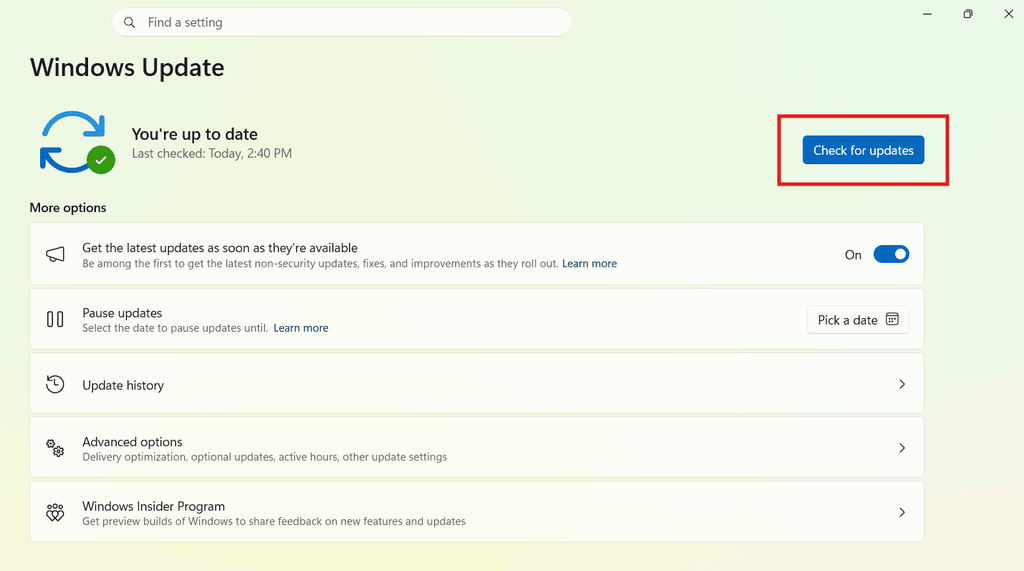
- Install new updates, if available.
- Restart the system if Windows commands it.
In case Microsoft rolls out a resolution for this particular issue, installing the applicable update may resolve the application failure.
3. Reinstall or Repair the Affected Application
If only a single application is failing, repairing its installation may work in restoring the damaged or missing components. This is specifically worth trying when the program launch depends on Windows Installer.
- Hold Win + I to open Settings.
- Go to Apps > Installed apps.
- Search for the application that shows the error.
- Click the three-dot menu next to it, if present.
- Choose Repair or Modify, depending on the affected application.
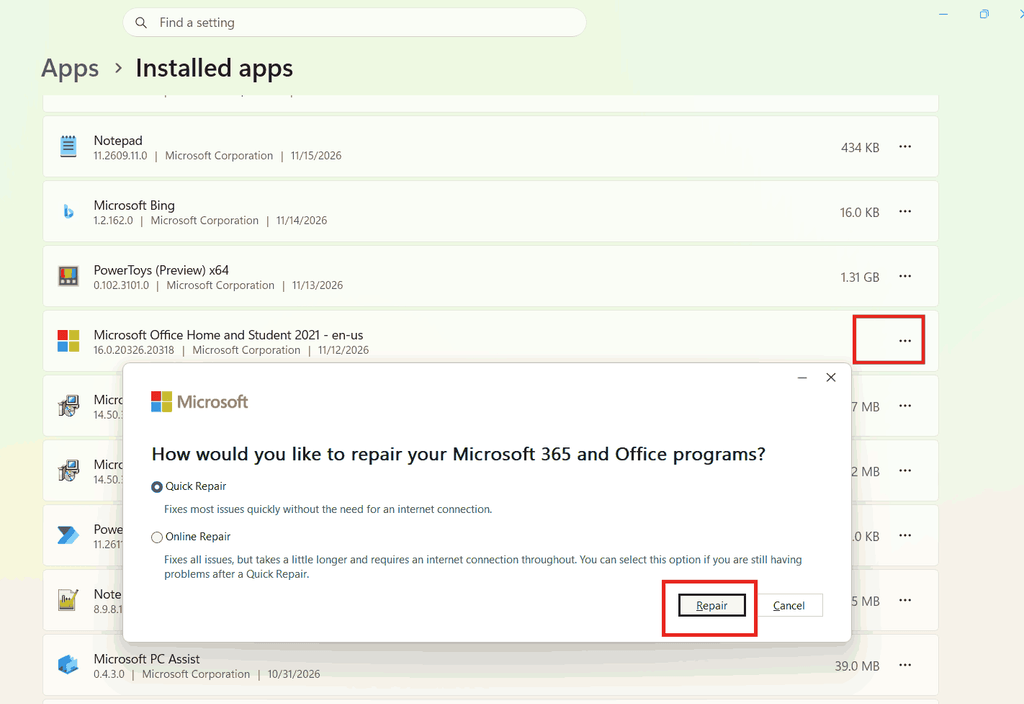
- Follow the repair commands.
In case the repair option is not available, download the latest installer from the application’s official website, then reinstall the app. Back up important applications’ data before trying this method.
Related: Windows 11 Printer Error 87: Fix “The Parameter Is Incorrect”
4. Check If the Hotpatch Can Be Removed
If the application failure started just after the installation of a Windows hotpatch and the all of the above methods did not work, verify whether Windows displays an option to remove the affected update.
- Go to Settings using Win + I
- Navigate to Windows Update.
- Open Update history.
- Check the recently installed updates.
- Check whether the affected update can be removed through the Uninstall option or available recovery.
Hotpatch updates may not be removed in the same way as general cumulative updates. Do not try to remove the update using registry changes and unsupported commands. In case Windows does not let you remove the update, wait until Microsoft’s corrective guidance arrives.
Final Words
The Windows 11 hotpatch error 0xC0000099 can stop applications from installing, opening, or working normally. Microsoft has addressed the compatibility issue involving applications that load the Windows Installer library, specifically 32-bit applications.
In case the issue started after a recent hotfix update, restart your system, check for newer Windows updates, repair the particular application, and check if the update can be removed through compatible Windows options. Since Microsoft is still investigating the problem, a further workaround or official corrective update may become available.