
A user plugs in a USB speaker or headset, and there is nothing. Device Manager shows a yellow warning, the volume slider stays, and there is no sound. If you are experiencing this just after a Windows update, you are not alone. Various Windows 11 users, and particularly 26H2 users, have faced the same issue (Code 10 error).
Microsoft has confirmed the Code 10 error. The complication started after the September 8, 2026 security update, and it affected some USB Audio Class 1.0 devices. These are generally USB audio adapters, DACs, desktop speakers, and older headsets. Microsoft rolled out an immediate update (KB5129195) that resolved part of the problem, but the issue is still marked as unresolved, and the full solution is expected in upcoming updates.
It all points to the fact that there is no single guaranteed resolution yet. Check your sound after following each method.
USB audio Code 10 issue explained
Some USB Audio Class 1.0 devices may show these characteristics after the affected update:
- Device Manager shows “This device cannot start (Code 10).”
- No audio from the device
- Sound settings are unavailable or freeze.
- Volume controls are stuck at zero or unresponsive.
Versions affected: Windows 11 23H2, 24H2, 25H2, 26H1, 26H2 and multiple other Windows Server and Windows 10 versions. 3.5 mm jack audio, Bluetooth headsets, and newer USB Audio Class 2.0 devices are usually not affected.
Method-1: Install all pending Windows updates
The latest emergency rolled-out update KB5129195 solved the 3D audio and 8-channel failures. So it is worth installing. Additional improvements are also included in newer updates.
- Open Start and Go to Settings.
- Choose Windows Update.
- Click Check for updates.
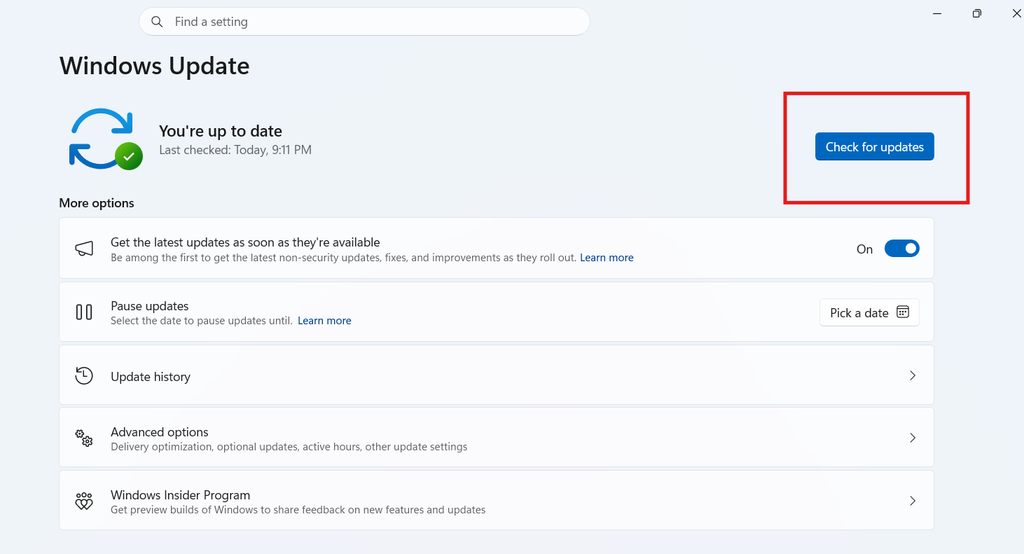
- Install every update and restart your system.
If the problem exists only with surround audio or multichannel, this method may fix your problem completely. Continue to the next method if you are facing plain Code 10 errors.
Method-2: Confirm the Code 10 error in Device Manager
Check whether your problem aligns with the known issue before applying any changes.
- Right-click the Start button and choose Device Manager.
- Expand Universal Serial Bus devices, Video and game controllers, and Sound.
- Find your speaker and headset with a yellow warning mark.
- Double-click it and check the status: “This device cannot start (Code 10).”
If you are seeing a different error, this article may not help you. If it aligns, continue to the next method.
Method-3: Reinstallation of the USB audio device
A fresh install of the device can sometimes solve a problem.
- Go to Device Manager
- Right-click on the affected device and choose Uninstall device.
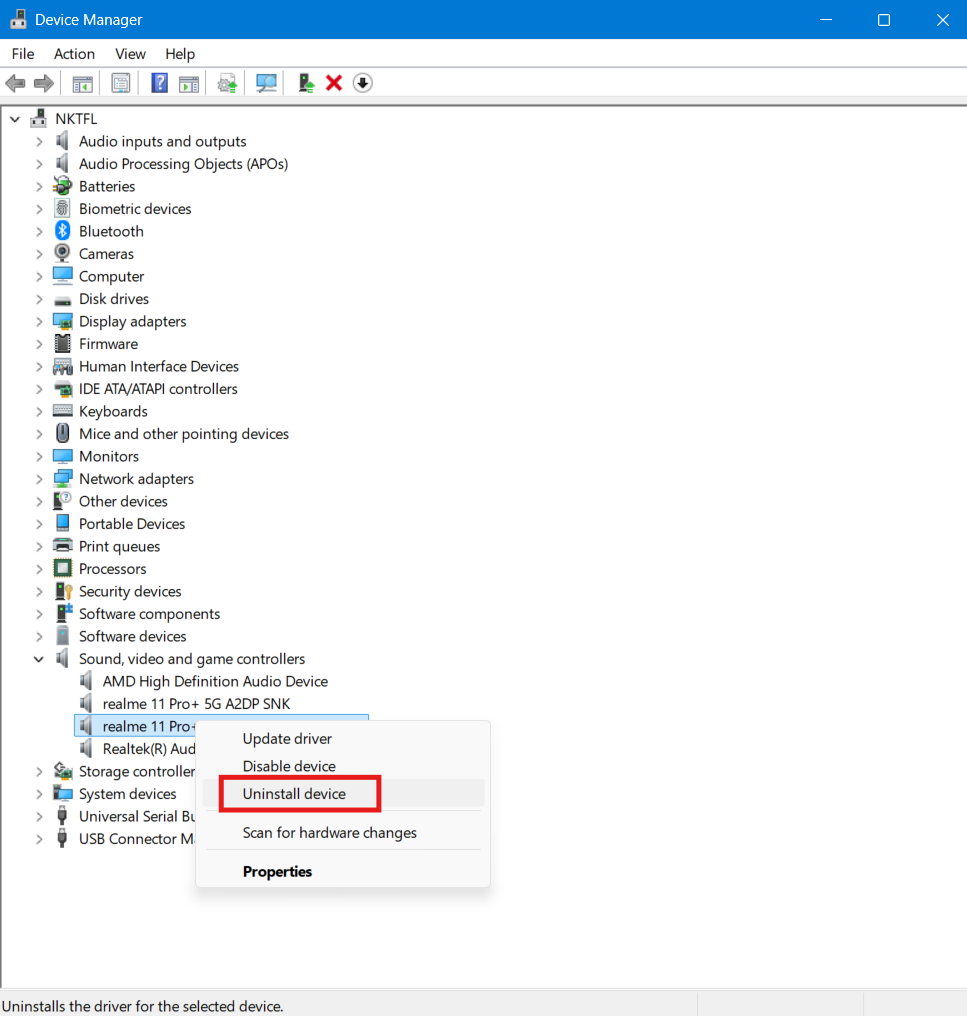
- Restart your system.
- Switch to a different USB port to plug in the device. Use one directly on pc instead of a hub.
- Wait until Windows detects it again.
Method-4: Changing the audio format to stereo
Multiple reports suggest that USB audio devices can still keep working in a standard stereo setup even when other channels fail. This is a try-and-see step, as it’s not Microsoft’s official fix.
- Go to Settings > System > Sound.
- Select your USB device under Output.
- Search for the Audio format drop-down menu.
- Disable any surround effect of spatial audio for the device.
Method-5: Rolling back the driver
You can go back to the previous driver if your device worked before the update.
- Go to Device Manager and double-click the affected device.
- Open the Driver tab.
- Select Roll Back Driver. If it is greyed out, ignore this method.
- Restart your system and check the sound.
Method-6: Use a different connection until an official fix arrives
- If your system has a 3.5 mm headphone jack, use it.
- Connect over Bluetooth instead.
- Use the latest USB Audio Class 2.0 device if it’s possible
- Keep checking Windows Update, as Microsoft mentioned a fix is coming.
IT administrator who requires an immediate fix for managed devices can contact Microsoft Support for Business. Deleting the September security update is possible, but it leaves your system without its security fixes. So we suggest this only as the final option.
By following the above instructions, you may now be able to make your USB audio work again on Windows 11 and resolve code 10 error. Go to the Windows 11 26H2 known issues page for Microsoft’s latest status.