
Microsoft rolled out the optional November 19, 2026, preview update KB5132057 for Windows 11 versions 26H2 and 25H2.
You can also read about the new features and fixes included in Windows 11 KB5132057 in our detailed update coverage.
Though, several users are complaining that the cumulative update fails to install, showing distinct error codes while the Windows Update process continues.
The documented errors include 0xC000012F, 0x800F0993 and 0x800F0989. The reports include different Windows 11 versions, advising that the installation issue is not limited to only one build.
Microsoft has not yet officially acknowledged these installation failures as a known issue in the KB5132057 release documentation report. Therefore, the errors should be considered user-reported issues despite a confirmed global Windows bug.
Here are the details about the failures and the approach you can try if KB5132057 fails to install on your system.
KB5132057 Installation Errors Reported by Users
The November preview update is out there for Windows 11 25H2 and 26H2. After installing the update, the operating system builds become 26200.10075 and 26300.10075.
Though, users on Microsoft support forums have mentioned the errors mentioned below:
| Error Code | Reported Windows Version |
|---|---|
| 0xC000012F | Windows 11 installation failure |
| 0x800F0993 | Windows 11 25H2 |
| 0x800F0989 | Windows 11 26H2, Build 26300.10075 |
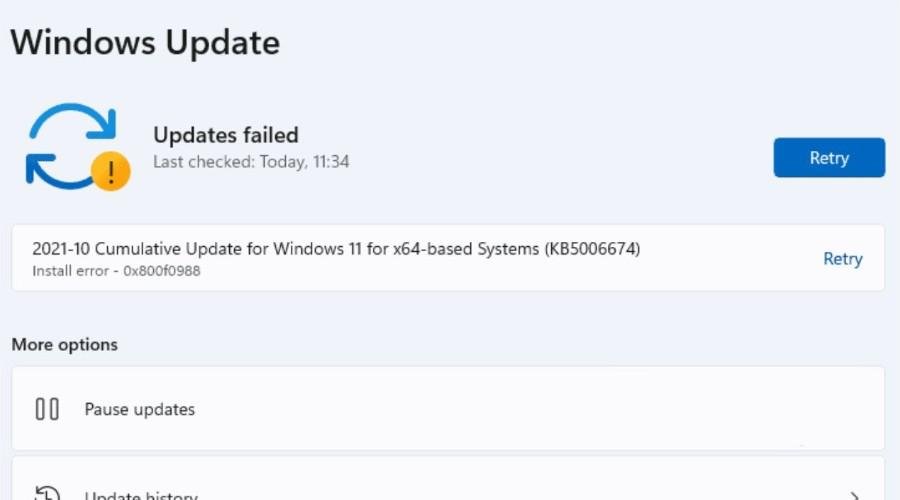
One user stated that Windows could not finish the update and showed error 0xC000012F. A different Windows 11 25H2 user faced 0x800F0993 while trying to install the preview package.
A particular report involving Windows 11 26H2 experienced error 0x800F0989. The user also said that the built-in Windows Update troubleshooter failed to launch.
Microsoft’s official KB5132057 release notes provide the update details, supported Windows versions, build numbers, and currently documented known issues.
These are different user reports, and there is currently no validated single cause connecting all three error codes.
1. Run the Windows Update Troubleshooter
Begin with the built-in troubleshooter if it launches correctly. It can recognise specific issues involving Windows Update services and its configuration.
1. Hold Windows + I to go to Settings.
2. Choose System.
3. Click on Troubleshoot.
4. Select Other troubleshooters.
5. Search for Windows Update.
6. Click Run and follow the on-screen instructions.
7. Restart your system and check Windows Update again.
If the troubleshooter itself doesn’t open, ignore this method and move to the next steps.
2. Restart Windows Update Services
A Windows Update installation can experience failure when its compatible services are not running properly.
1. Hold Windows + R.
2. Enter services.msc and hit Enter.
3. Look for Windows Update.
4. Right-click it and choose Restart, if available.
5. Repeat the process for Background Intelligent Transfer Service (BITS).
6. Close Services and restart the system.
After restarting, go to Settings > Windows Update and verify if the installation can proceed.
3. Repair Windows system files
Lost or corrupted system files can interrupt cumulative updates and Windows servicing installation.
Microsoft offers System File Checker and DISM to inspect and repair Windows components.
Open Terminal or Command Prompt as administrator and type:
DISM.exe /Online /Cleanup-Image /RestoreHealthAllow the operation to complete. Then type:
sfc /scannowWait until the scan finishes and restart your system.
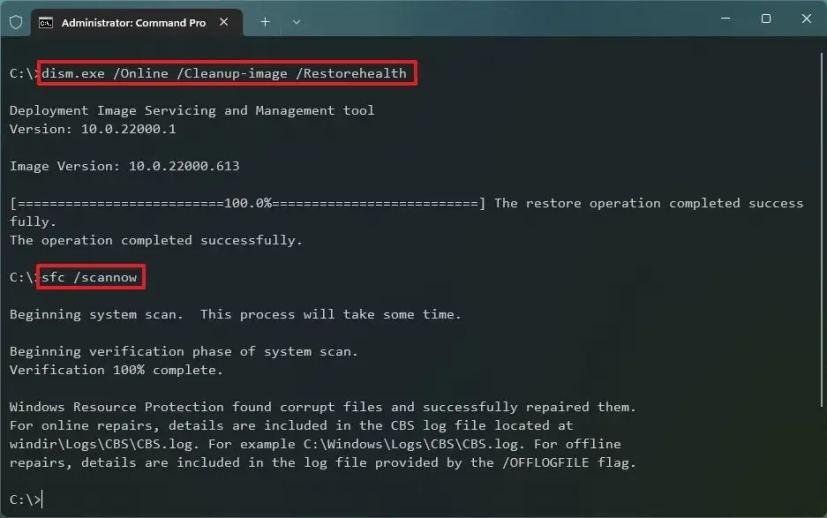
These commands can rectify specific Windows component-store and system-file issues. Though, they are common troubleshooting measures and are not verified resolutions for the particular KB5132057 errors.
4. Clear the Windows Update download cache
If your system repeatedly downloads the update but cannot finish the installation, an incomplete or corrupted download may be the primary cause.
If Windows Update continues to malfunction, see our guide on fixing common Windows Update problems.
You can reset the Windows Update download cache through an administrator Command Prompt.
Run these commands separately:
net stop wuauserv
net stop bits
Rename your SoftwareDistribution folder:
ren C:\Windows\SoftwareDistribution
SoftwareDistribution.old
Restart the services:
net start bits
net start wuauserv
Restart your computer and check for updates again.
Windows will recreate the SoftwareDistribution folder when it begins downloading updates. This can reset the local update download history, so use this approach only if general troubleshooting has failed to resolve your issue.
5. Should you install KB5132057 manually?
Microsoft offers standalone update packages through the official Microsoft Update Catalog.
If Windows Update is continuously failing, you can search for KB5132057 in the Catalog and download the package aligning with your system specifications and details.
Though, manual installation is not confirmed to resolve the reported errors. If the underlying servicing problem still remains, the standalone installer can fail too.
Also, KB5132057 is an optional preview update, not a cumulative security update. There is no requirement to force its installation just because it is available.
Should You Skip the November Preview Update?
For most Windows users, waiting is a convenient choice.
KB5132057 is a non-security preview update rolled out on November 19, 2026. Its improvements and fixes are likely to be incorporated into a later regular cumulative update, based on Microsoft’s servicing schedule.
In case your system is functioning properly, you can skip the optional preview and continue to receive regular security updates.
Microsoft has not yet reported a resolution for the three particular reported installation errors, and the available reports do not state the number of systems that are affected.
Conclusion
Windows 11 KB5132057 has obtained installation-failure reports involving errors 0xC000012F, 0x800F0993 and 0x800F0989. The reports involve both Windows 11 26H2 and 25H2, but Microsoft has not yet mentioned these failures as an officially documented known issue.
If the preview update fails on your system, try launching the Windows Update troubleshooter, restarting update services, repairing system files and resetting the download cache. Or else, consider skipping this optional preview and waiting until the next regular cumulative update releases.