
Searching for the finest PDF Reader free for Windows 11, you have made it to the correct place. The built-in Windows 11 PDF viewer is flawless, but some people still prefer to use third-party software. Using an alternate pdf by viewer provides them with features and benefits like reduced resource consumption, speed, annotation tools, and capabilities.
For this updated article, I have compared and tested user-targeted PDF readers that work seamlessly on the Windows 11 operating system.
Nowadays, you will find multiple options for both paid and free options across the tech sites mentioning their real-world advantages and disadvantages, clear-cut recommendations, and technical details. But I am here for the audience who needs a lightweight and hassle-free daily reader or a more effective tool for forms and annotation.
This Guide will provide information about the software. It will give you insights and help you choose the correct PDF reader.
1. Microsoft Edge – Built-in PDF Viewer for Windows 11
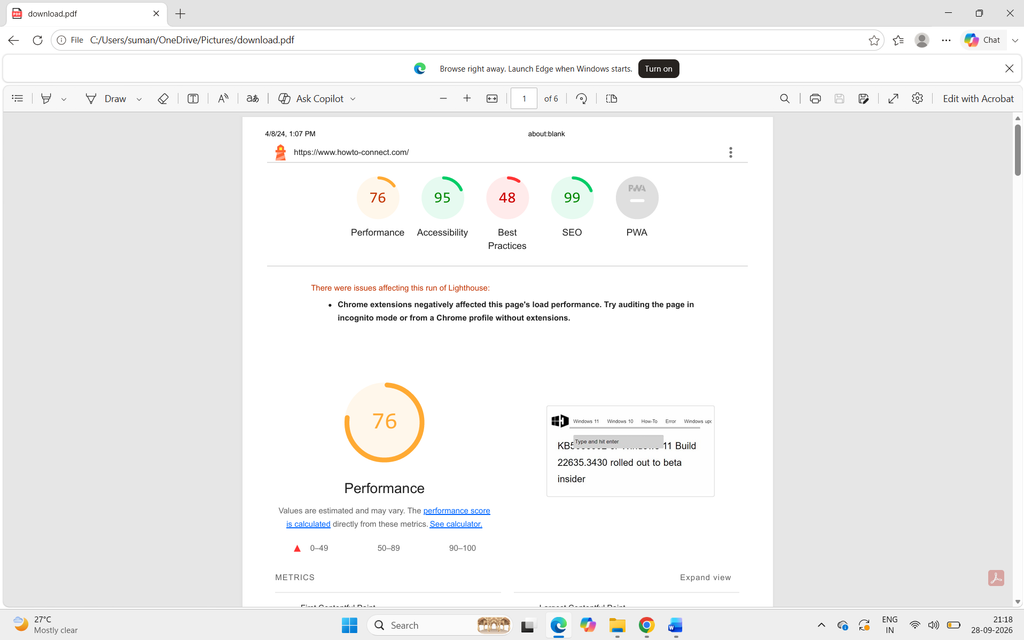
Microsoft Edge is one of the first built-in PDF readers introduced in Windows 11. Comes pre-installed in Windows 11 and consists of the Chromium-based PDFium engine.
If Edge is already installed on your device, then make it the default PDF Reader. You will be surprised to see the smoothness and speed when opening large files
Technical benchmarks:
Great management of standard AcroForms.
Sandboxed for enhanced security features.
Collaboration with Windows sharing and print capabilities.
Supports beginner-friendly annotations (signature, text, draw, highlight)
Benefits:
Smoother and seamless performance in daily usage and PDFs.
Pre-installed in Windows 11
Above-average form-filling capability.
Efficient use of additional resources
Constant security updates through integration with Windows
Drawbacks:
Annotation capabilities are restricted in comparison to any other dedicated software.
Lack of advanced page management features.
Built -in OCR is not available.
Advanced PDFs with JavaScript or large layers can cause issues sometimes.
Not completely ready for professional review workflows.
Best for: People who need a regular, no-hassle answer to light markup and basic reading.
2. Sumatra PDF – Best Compact PDF Viewer for Windows 11
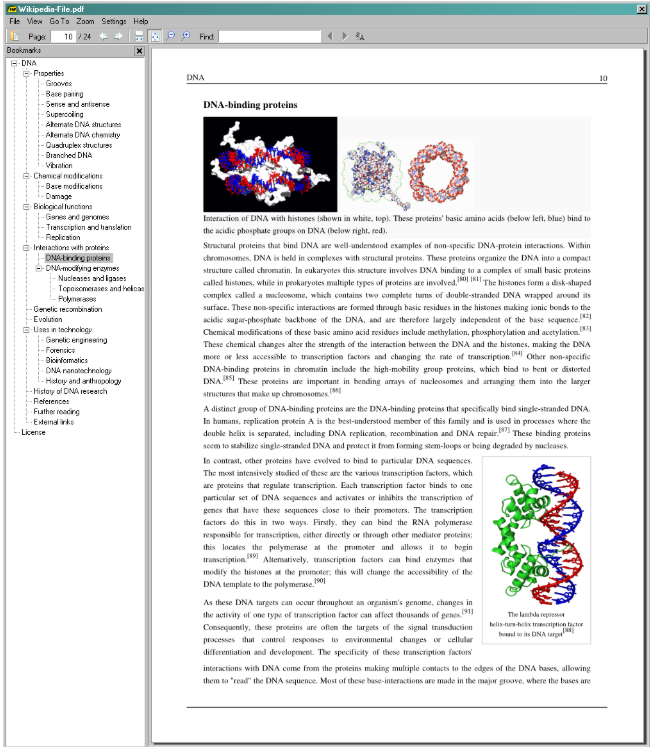
Sumatra PDF is an open-source and free pdf reader that is known for its extremely efficient system resource management and speed. It is written in C++/C, and it is streamlined for performance despite being feature-rich software.
Technical Benchmarks:
Minimal memory footprint
Rapid page loading and seamless navigation and scrolling.
An extra portable is available.
Multi-format compatibility including CBZ, DjVu, XPS, MOBI, EPUB, and PDF.
Very low background processes
Benefits:
One of the quickest PDF viewers available till now
Small size and lightweight.
User Interface is distraction-free and clean.
Performs better while reading technical manuals and long documents
No unnecessary service or bloatwares
Open source and completely free
Drawbacks:
Very few markup tools and annotation features.
Lacks OCR capacity
No advanced capabilities such as page organisation, splitting, or merging.
Not perfectly ready for team review, collaboration, and combined work.
Best for: Audiences who prefer low resource usage, simplicity, and speed.
3. Adobe Acrobat Reader – All-in-One Free PDF Reader
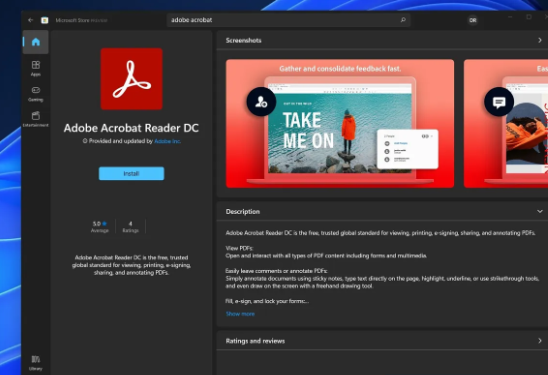
Adobe Acrobat Reader holds its position as one of the most globally used free PDF viewers. It’s a free pdf reader and editor that has its own rendering engine, which is still known as the standard of reference for PDF integration and compatibility. it’s features also include a web version of the Adobe Acrobat online pdf editor.
Technical Benchmarks:
Compatible with any digital signature, forms, and complex PDFs.
Cutting-edge annotation system with review and comment tracking features
Special security view for protection.
Effective Management of rich media, layers, and transparency.
Consistent security updates.
Benefits
Maximum integration and compatibility with official and difficult documents
Commenting and Annotation Rich tools.
Robust signature and form-filling support.
Steady rendering quality
Available across all the platforms.
Drawbacks:
Memory usage is slightly on the higher side compared to lightweight alternatives.
Cold start time is slow and needs improvement.
The user interface can feel bloated and complex.
Multiple useful features require a subscription (Paid)
Minimal upsell alerts.
Best for: Users who need extreme reliability for daily work with forms, contracts and complex PDFs.
4. PDF–XChange Editor – The Premium Feature-Rich Choice
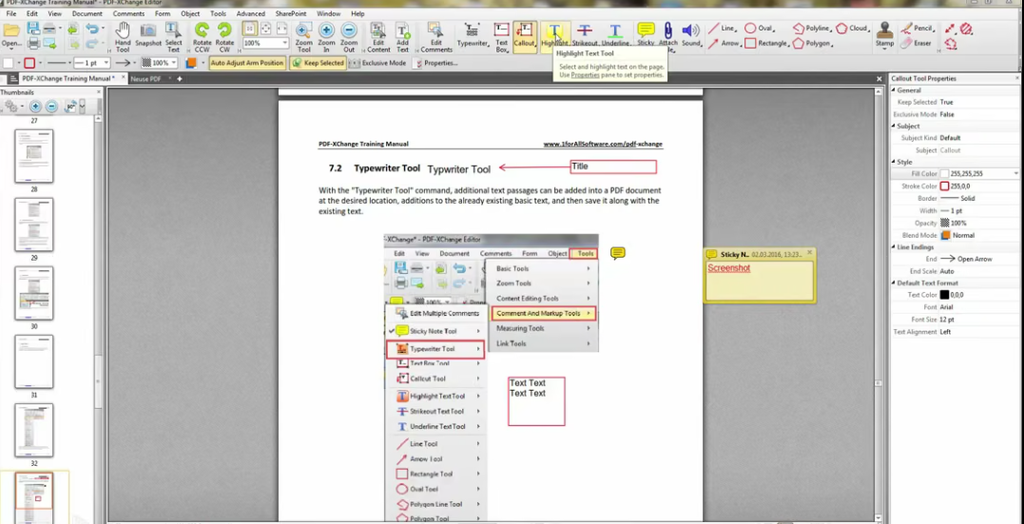
pdf xchange viewer gives one of the largest cost-free feature hubs among all the Windows PDF tools community. The free version of the software itself includes premium options, including Page management features, OCR, and strong annotation tools.
Technical Benchmarks:
Customized render engine specially streamlined for Windows.
OCR engine availability
Measurement tools and Advanced Markup.
Compatible with layered files and PDF portfolios
The paid version allows you to elect a one-time payment option.
Benefits:
Outstanding annotation features completely free.
Scanned Document feature’s OCR recognition.
Page Handling tools for stronger management.
Great performance with extra-large files.
Customizable user interface
No subscription needed. Lifetime license option is available.
Drawbacks:
Users get frustrated with watermarked outputs on some occasions.
Old and Rugged Interface.
Overloaded with multiple features. Allows users to simplify their learning journey.
Sometimes damaged or extra-large files cause stability issues.
Best For: People who need a PDF reader full of features without paying any fee.
5. Foxit PDF Reader – Best overall and balanced alternative
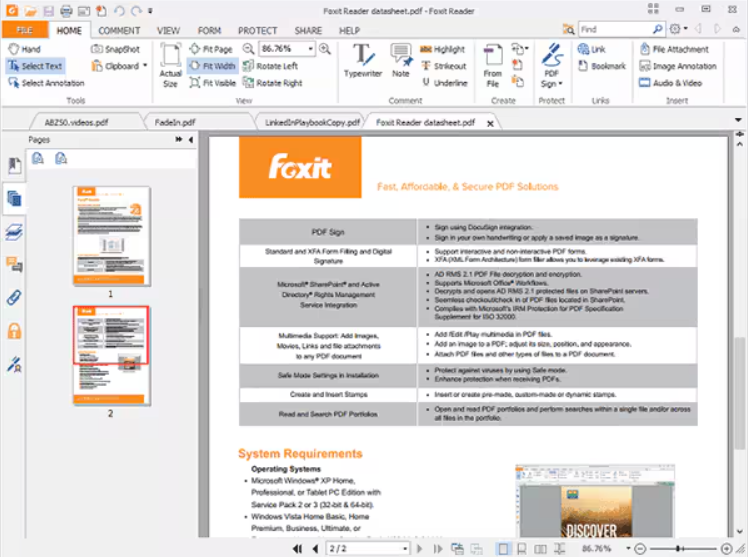
Foxit PDF Reader is an easier-to-use alternative to Adobe that also provides excellent general functionality. It provides a balance of support for forms, annotation tools, and speed.
Technical Benchmarks:
Enhanced speed due to the company’s own rendering engine.
Multiple-tab user interface.
Excellent support for regular forms.
Consistent security update
Efficient resource management.
Benefits:
Lighter and quicker than Adobe in the majority of the cases.
Great and completely free annotation capabilities.
User-friendly Interface
Excellent form-filling feature.
Perfect for regular and daily use.
Drawbacks:
Multiple advanced features are only available in the paid version of the Editor.
Occasional Upgrade alerts
The free version has limited OCR capacity.
Users need to create an account first to start using cloud features.
Suitable for: People who need something more than just a reader, but not a full professional software. So Foxit PDF Reader suits their balanced approach.
6. PDFgear – Specially focused on editing.
Pdfgear is known for its conversion and editing options at absolutely 0 cost. It’s the one-shot final application for basic editing, OCR, annotating, and viewing.
Technical Benchmarks:
User-friendly and clean interface
Inbuilt OCR feature.
Office file conversion extension
Features for batch processing.
Benefits:
Multiple free features and tools available.
Excellent conversion and text-editing tools.
Watermarks are restricted on regular outputs.
Modern Layout design.
Drawbacks:
Despite having a smart rendering engine, performance sometimes becomes unstable with image-heavy and large files.
It’s a newly released software in the pf reader community with small track record.
Some premium features are still in progress, evolving, and upcoming.
Perfect for: Audiences who want conversion capabilities along with free editing.
7. PDF24 – The only Offline toolkit in this list
PDF24 is a free PDF reader tool consisting of user-focused tools for converting, compressing, splitting, and merging files along with a PDF reader. It is suitable for people who either have no network access or are completely offline.
Benefits:
Entirely free of cost
All the operations work even if you are offline.
No additional sign up or account creation required.
Lightweight and smaller in size, tends to impact the system less.
Drawbacks:
Simple features for readers
Minimal annotation toolkit
Old interface, users find it difficult to use
Not perfect for daily readers.
Suitable for: Users wanting a lightweight and simple offline PDF software instead of an advanced PDF reader.
8. Okular – Open- source PDF Reader free.
Okular is an open-source and free PDF viewer primarily created by the KDE community. It’s free software from “ Free and Open-Source Software (FOSS). It has more features than a lot of free readers, and it is very compatible with Windows 11. Provide features like multiple file formats, form filling, highlighting, and annotation. Its famous in its own way among the people because of its free features and not recommending to paid upgrades for users.
Technical Benchmarks:
Free and open-source PDF rendering engine.
Additional extension for support during filling out forms and writing notes.
Compact and lightweight in comparison to currently trending PDF readers.
Officially Available on Linux, Windows, and more platforms.
Benefits:
Entirely free and open-source
Excellent annotation tools.
Clean layout
Compatible with many file formats.
No sign-up required.
Drawbacks:
User- interface and functionality work a bit differently from general Windows apps.
Doesn’t feel as premium and sophisticated as some of the other commercial apps.
Updates are limited to the open-source community on the platform.
Best for: a typical pdf reader with enough features available on open- source platform.
9. Sejda PDF Desktop – Desktop + Online Hybrid
Sejda provides both a desktop application and a web-based version. The cost free version allows users to convert, compress, split, merge, and edit PDF’s with everyday limits. It is easy to work with and use for quick tasks. Various users wanted it because they can begin working on it in a web browser and the later shift to the windows software if required. Its targeted at the users who avoid installing heavy software.
Technical Benchmarks:
Both desktop and web versions are available.
Compatible with compression, splitting , merging, and editing.
Daily usage restriction in the Free version
Simple and clean layout and design.
File processing is streamlined locally in the desktop edition.
Benefits:
Ease of use
Excellent free-of-cost editing features and tools.
Works on desktop and in browser
Simple and clean user interface
Great for Fast PDF tasks
Drawbacks:
Daily usage restriction for free users.
Premium tools require a paid subscription.
Issue with speed for very large files.
Suitable for: People who need regular cost free editing feature with both offline and online options.
10. Nitro Pdf Reader – Suitable for Occasional and Professional Use case
Nitro’s existence has been prominent in the PDF editor/reader community for over a decade. Its free version features include basic annotation tools and SOL viewing interface. However, the complete version is paid. Due to its excellent handling of business documents and familiar user interface, it’s used in most of the private spaces. Despite of being not the lightest choice available out in the market, it exists and reliable option for daily light markup and professional reading.
Technical Benchmarks
Attentive to office document workflows and business.
Provides support for form filling and annotations.
Frequent feature and security updates.
Bulkier resource usage compared to other readers/
Familiar layout, user interface, and design for professional readers.
Benefits
Dependable for business documents
Good enough annotation features
Regular security and feature updates.
Drawbacks:
Free version is restricted compared to the premium full version.
Heavier on the system due to its size.
Lures through ads and features to motivate users to buy a paid plan
Quick comparison table
| Use case | Software |
| Overall | Adobe AcrobaT |
| Compact | Sumatra PDF |
| Free advanced features | PDF-Xchange Editor |
| In-Built Choice | Microsoft Edge |
| Free editing options | PDFGear |
| Balanced and Stable | Foxit PDF Reader |
| Desktop tool+ Online | Sejda PDF |
| Open-Source Avaibility | Okular |
| Ocassional Use case | Nitro PDF Reader |