
While managing servers and windows workstation, you may potentially have faced a pop-up that a application error was encountered with BASuoSrvccnfg.exe. The mentioned file is a subpart of N-able’s Take Control remote support software (Previously collaborated with SolarWinds MSP and LOGICnow). It is a configuration-based method that allows technicians to contact with a machine for management and remote monitoring, it also manages the messaging functionality between end user and technicians.
Beside being a legitimate file, it shows an error.
Full error message is – BASupSrvcCnfg.exe – Application Error
The instruction at 0x00000000C0000005 referenced
memory at 0x00000000C0000005. The memory could
not be read.
Click on OK to terminate the program
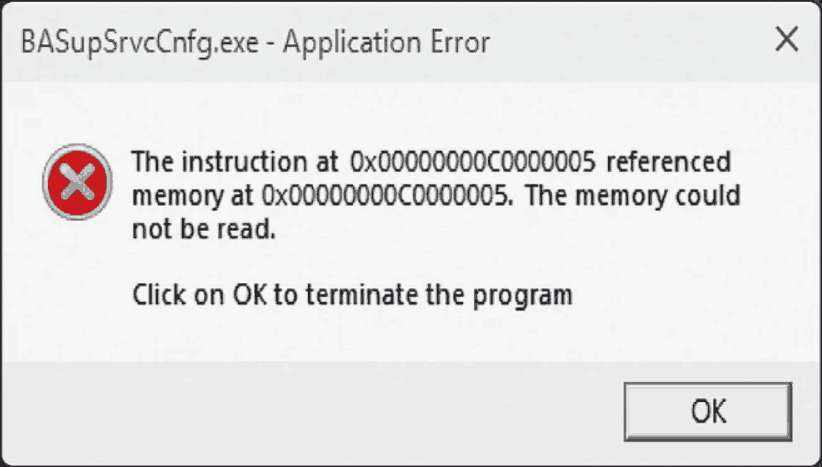
The reason is the current version of windows is not completely compatible with the installed version of the agent. This leads to a repeated error messages at startup or login, resulting in user frustration and support ticket generation.
Pre-solution Tasks
Consider these points before making any changes:
- Requirement of an agent : In case your managed service provider (MSP) or IT provide communicates with N-able to provide support to your machine. Turning it off may disrupt their capability to support you. Verify with them first.
- Update before Disabling: Disruptions cause by the version incompatibility will be solved by updating to a newer version. Reinstalling and updating the agent is the most optimal fix in case you still require remote support.
- Create a backup before modifying the registry: Changes in registry can lead to complications if done wrongly. The methods mentioned below includes the way to create a backup
If you chose to eliminate the process for a specific machine, you have two alternatives: Delete its registry entry or turn it off at startup.
Option-1: Turning the N-able Agent off at Startup
This is the easier and safer method (completely reversible)
- Click the “Search” icon present on the taskbar.
- Enter “MSCONFIG”
- Click on “System configuration” from the results appeared.
- Select the “Startup” tab.
- Tap “Open Task Manager”. On the latest versions of windows, startup apps are not managed in System Configuration. They are managed in Task manager.
- In Task Manager interface, hover to the startup tab.
- Locate “N-able Agent” in the listed options and right click it.
- Choose “Disable”
If the workstation or server restarted or started. Windows will deny to open the BASupSrvcCnfg.exe process.
Parallel Disadvantages: As the configurator process analyses the cheat feature, turning it off leads to losing the ability to use chats between the user and the technician. Try to update the agent instead of disabling it to continue using the chat feature.
Option-2: Block BASupSrvc via the Registry
If the process error keeps coming back despite of following above resolution, or you want a permanent solution for managing several machines. You can resist it from the initialisation point by deleting its registry entry.
The method is fully technical so proceed cautiously:
- Go to “Search” present on the windows taskbar and enter “Regedit”
- Open “Registary Editor”. Allow the “ Use as Administrator Pop” if it shows up.
- Locate this path:
Computer\HKEY_LOCAL_MACHINE\SOFTWARE\WOW6432Node\Microsoft\Windows\CurrentVersion\Run
- Search for entry named BASupSrvcCnfg_LOGICnow. LOGICnow element is the remaining part of the company that formerly had the ownership of the product.
- Now, Backup first: Right click the “RUN” key and select “Export”. Save the .reg file in some safe storage. The exported registry backup will reverse and restores the original default setting and entries
- Right-click “BASupSrvcCnfg_LOGICnow and select “Delete”, then confirm.
Now you have successfully removed the BASupSrvcCnfg.exe entry.
- Close Registry Editor and restart your computer.
The process should no longer begin at startup, and the error notification should be vanished.
Reason Behind the Registry Editor Solution:
When a user signs in, Registy entries in Run key communicates with windows system to ask which application to Boot automatically on its own. You deleted the instruction that pushes the configurator to start. The Program components stays on disk, but they are not automatically lauched, so the defective procedure never gets the likelihood to crash.
Addition Troubleshooting methods
Despite of disabling the agent if you want to keep it working , try these solutions.
- Installation of modern agent version: Try Installing latest agent version from the MSP or N-able Portal. Compatibility issue are mainly fixed in the updated and recent versions of agent.
- Windows Update: Out-of-date windows build can also cause conflict. So make sure your system has current windows and patches.
- Reinstall the agent: Uninstall it from Apps & Features, restart, and install the latest copy.
- Recheck Event Viewer: Go to Windows Logs> Applications, seek for entries including BASupSrvcCnfg. This can help you find exact module behind the failure.
- Contact your MSP or N-able support team: If the error is occurring across all the versions, They must know the fix.
Final Thoughts
The BASupSrvcCnfg.exe error is not a security threat. It has always been a compatibility and collaboration issue between the windows and N-able agent. In case you still don’t need the process. Turning it off at startup is the cleanest solution. However, delete the registry entry is a more persistent fix. Keep in mind, that either fix will cost you possibly remote management feature and chat function, make sure the machine don’t relies on both of them.
If you still got doubts, Backup the registry, try on a specific machine first, and keep the IT provider in a loop.
That’s all!!