
Microsoft has launched PC Assist, an optional application developed to support Windows users in keeping an eye on their PC and accessing common support tools from a single place. Despite of shifting between Settings, Task Manager, and other Windows utilities, users can display various aspects of their computer through a single user interface.
The application offers a whole package of storage analysis, performance monitoring, network activity, and officially guided troubleshooting. Though, PC Assist is not a replacement for every existing Windows utility. Some of its features simply redirect users to utilities that are already present in Windows or through Bing.
Here we are listing what the application is all about, how to install it, and what prior information you need to know before using it.
What Is Microsoft PC Assist?
PC Assist is an individual application offered to users through Microsoft’s official website. It is developed to offer guided assistance and support users in monitoring the condition of their Windows system.
The application arranges its features into five main segments: Assist, Performance Health, Storage Health, Network Health, and Utility Tools. Every section is designed for a different purpose, from reviewing internet activity to checking resource consumption.
Unlike Task Manager, which mainly focuses on system resources and running processes, PC Assist unifies multiple maintenance and monitoring options in a more user-friendly, accessible interface.
You can download it from the official Microsoft PC Assist page.
Main Features of PC Assist
1. Monitor CPU and Memory Usage
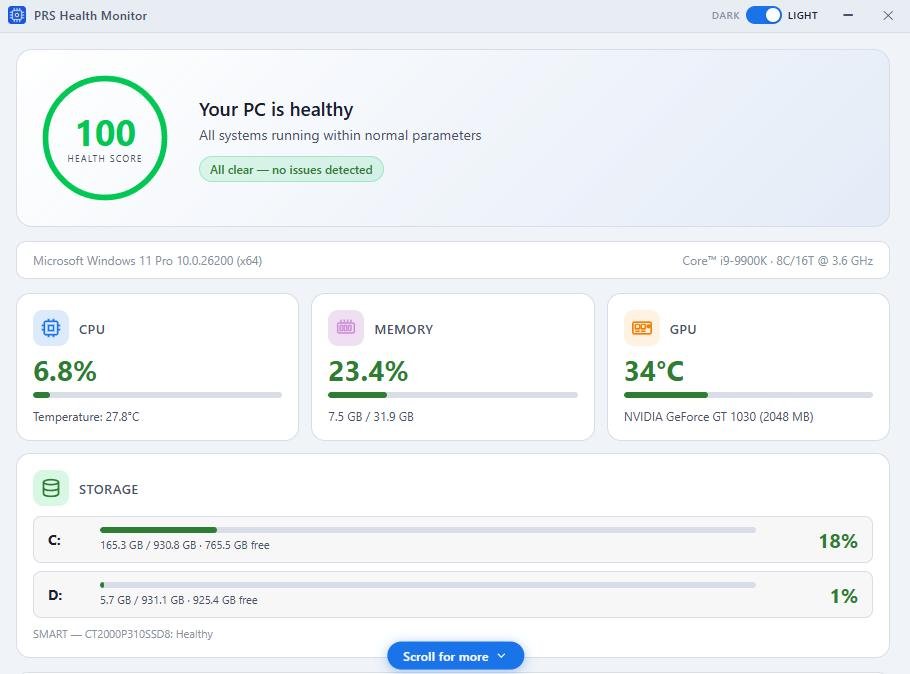
The Performance Health part offers a fast overview of the resources being used by your system. It includes specific memory and CPU views with live graphs showing the latest activity.
Users can check system uptime, running processes, clock speed and CPU utilisation. The memory interface shows data like cached, committed, available and used RAM.
Another useful option is the Top Resource Consumers list. It recognises applications using large amounts of memory or CPU, helping you identify applications that may be affecting the system’s performance and responsiveness.
The feature also offers shortcuts to Sleep settings, Display and Startup Apps, and the full process list in Task Manager. This makes it more convenient to shift from managing applications to monitoring.
Related: Windows 11 Speed Test in Build 26340.9767: How to Use It
2. Check Storage Health and Find Unnecessary Files
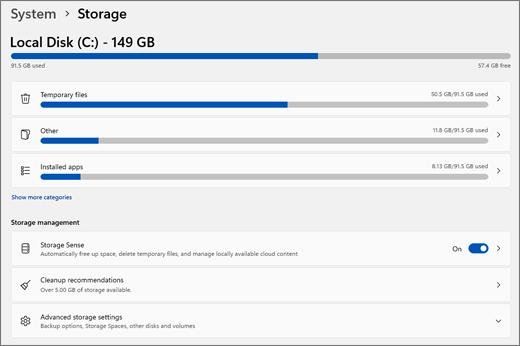
Are you running low on disk space? It can affect daily system usage. PC Assist features a Storage Health interface that shows drive information and the way storage is distributed across separate categories.
You can monitor space taken by system data, pictures, temporary files and installed applications. The interface also offers shortcuts for recognising duplicate files, large files, and applications that are not often used.
Additional features include accessing Storage Sense, reviewing old downloads, emptying the Recycle Bin and clearing temporary cache and files.
These options can help Windows users identify what is consuming disk space before choosing what to remove. Always check applications and files before removing them, specifically when you are not sure whether they are required by your system.
3. Review Network Activity
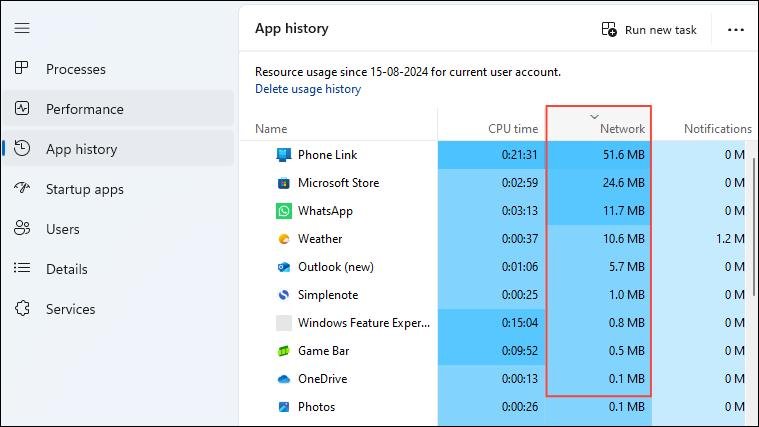
The Network Health option is convenient when you want to know how applications are using your internet connectivity.
It shows network activity through a live graph and provides data about adapters, connection details and network usage. Users can also monitor application-level usage over a longer period of time and see which applications are currently consuming more bandwidth.
This can support in identifying programs that are using more data than you think, specifically on network connections with limited data allowances.
Several network actions may redirect you to an external browser page despite performing the operation inside the PC Assist utility itself.
Related: Wi-Fi Connected but No Internet in Windows 11: Fix
4. Access Troubleshooting Options
PC Assist displays shortcuts for general issues involving Bluetooth devices, printers, network connections, and audio.
However, these options do not necessarily execute repairs independently. In testing, selecting multiple troubleshooters redirected to the built-in Get Help application, which then managed the troubleshooting process.
Therefore, PC Assist should be regarded as a useful beginning point rather than a full new troubleshooting engine.
5. Use Additional Utility Tools
The Utility Tools section offers access to daily services such as video creation, image creation, weather information, currency conversion and translation.
There is an essential distinction here: these options can send users to related Bing services in their web browser. They do not all function as integrated desktop utilities inside the PC Assist dashboard.
Related: Windows 11 App Permissions: Manage Camera, Microphone, and Location Access
How to Download and Install Microsoft PC Assist
Follow the steps below to install the application:
- Go to the official PC Assist download page.
- Choose the download option to get the installer.
- Open your Downloads folder and find the PC Assist installer.
- Double-click the downloaded file to start the installation.
- Follow the commands shown by the installer.
- Once setup completes, launch PC Assist and explore its available features.
Note: During installation, Microsoft may provide an option to make Bing your default search engine and homepage in your browser. Check this option carefully and disable it if you do not want to shift your existing browser preferences.
Microsoft also mentions that installing the program includes getting in-app notifications with promotional offers.
Some installations may need the .NET 10 Desktop Runtime. If Windows shows a message prompting you to install or update .NET before launching PC Assist, download the required runtime from Microsoft’s .NET download page.
Is PC Assist Worth Installing?
PC Assist brings various convenient monitoring features together, specifically network, storage, memory and CPU dashboards. Users who often review system performance may prefer having this information accessible from one dashboard.
Nevertheless, the application has restrictions. Its troubleshooting shortcuts can depend on Get Help, while some utility options redirect to Bing in a browser. Windows already offer Storage settings, Task Manager and several other maintenance tools that can execute many similar tasks.
PC Assist is therefore an optional convenience despite being an important Windows component. If you want an aggregate view of your computer’s storage condition and resource usage, it is worth installing. If your existing Windows tools already meet your requirements, there is no need to install another program.